Contents
Project Planner Overview
 Updated
by Mike Nolan
Updated
by Mike Nolan
Purpose
This article provides you with a background to what Project Planner is, what it can do for you, how it is deployed and the terminology used within. This article assumes that you will have experience in using DRS and already understand the key concepts behind it.
If you need to refresh you understanding of DRS, head over to these articles before continuing: Getting to know DRS
Summary
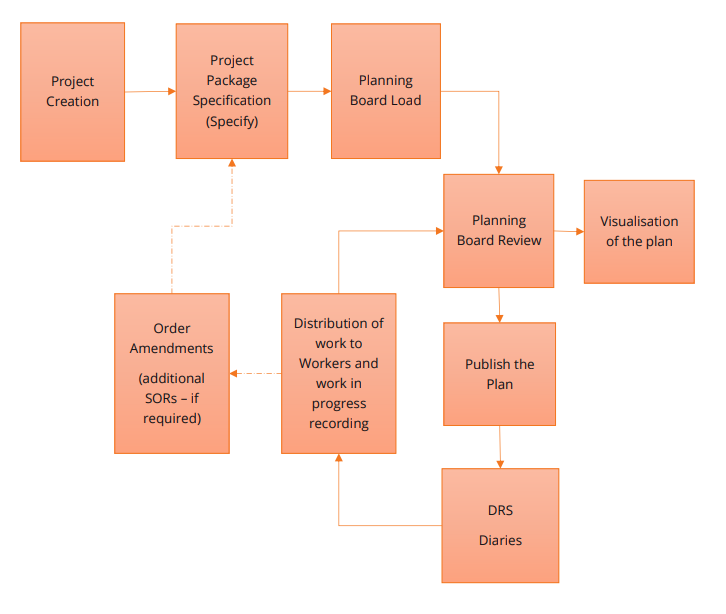
Project Planner allows organisations to plan medium and large scale projects efficiently using DRS.
Each separate element of the Project (e.g., refit a kitchen) or each individual location can be treated as a separate “Project” depending on the types of projects i.e. Voids, Home Improvements, Planned works etc. The details of all work to be undertaken as part of the Project are sent through as SORs of which are then grouped together into several “Project Packages”.
All Project Packages in a Project are scheduled onto a Planning Board, with each package being assigned to a worker which will carry out the task. The schedule for a Project is then published to DRS, from where the Project Packages are able to be picked up by a mobile device. Any published Project Package which spans more than 1 day on the Planning Board is split into separate appointments in DRS spanning the required number of days
Project work will be sent to the handheld device the same as a responsive repair. The only difference will be that when an update occurs in real time it will update the DRS diary as well as the planning board. When the worker has completed a Project Package, they can request their next job using their mobile device. Where a Project Package is represented as several appointments in DRS because it spans more than 1 day, each appointment is normally updated as work in progress.
Deployment
Project Planner is now embedded within DRS. There is no need to deploy additional software, applications or network configurations.
Terminology
DRS’s objects (e.g. orders, jobs, workers, and customers) can be re-labelled by your system administrator to suit your business’s terminology. However, for simplicity and to avoid any confusion, this guide uses the standard system-shipped vocabulary.
Project Types
Project types define which order priorities are routed to PP. e.g., typically, a project type of “Void” will be configured, containing the void order priorities, e.g., V1 and V2, then when an order arrives in DRS with a priority of V1 it will be routed to PP and a Void project will be created. When manually creating a project using the UI, a project type must be selected.
Projects
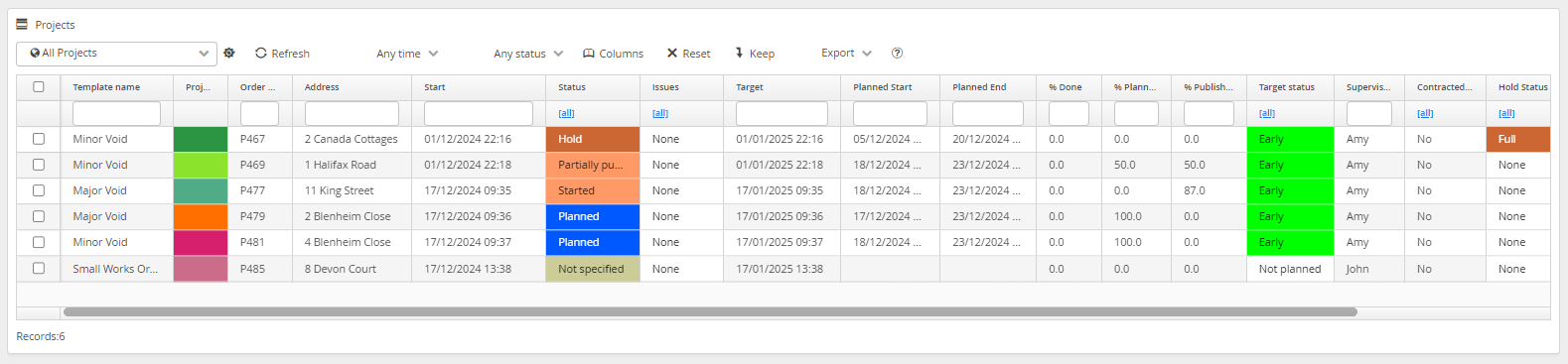
Projects are the top-level object in PP. Generally, each project will be linked to a single customer, however it is possible to combine projects, e.g., where several kitchens in a particular estate are being replaced and it therefore makes more sense to manage this as a single project.
The initial definition of the Project and the ongoing manipulation of the Project as requirements change is done by organising the Project into Project Packages. The initial data could be from a handheld survey, job management system or be manually entered. Project Planner will analyse these and organise them into Project Packages, based on your unique configuration and requirements
Project Packages (aka Packages)
Project packages (referred to simply as packages) are one level down from projects. When a project is specified, its SORs are grouped into sequenced packages depending on the system configuration as illustrated below. The Project is defined in terms of several interdependent Project Packages and the sequence in which they must be done. Each Project Package has a Project Package Template which determines what worker can carry out this work.

Diary Items
When packages are published, they are assigned to workers as individual diary items. These are essentially the individual visits (if necessary multiple diary items for multiple days) that the worker or sub-contractor must complete, to complete the package.
Planning Board
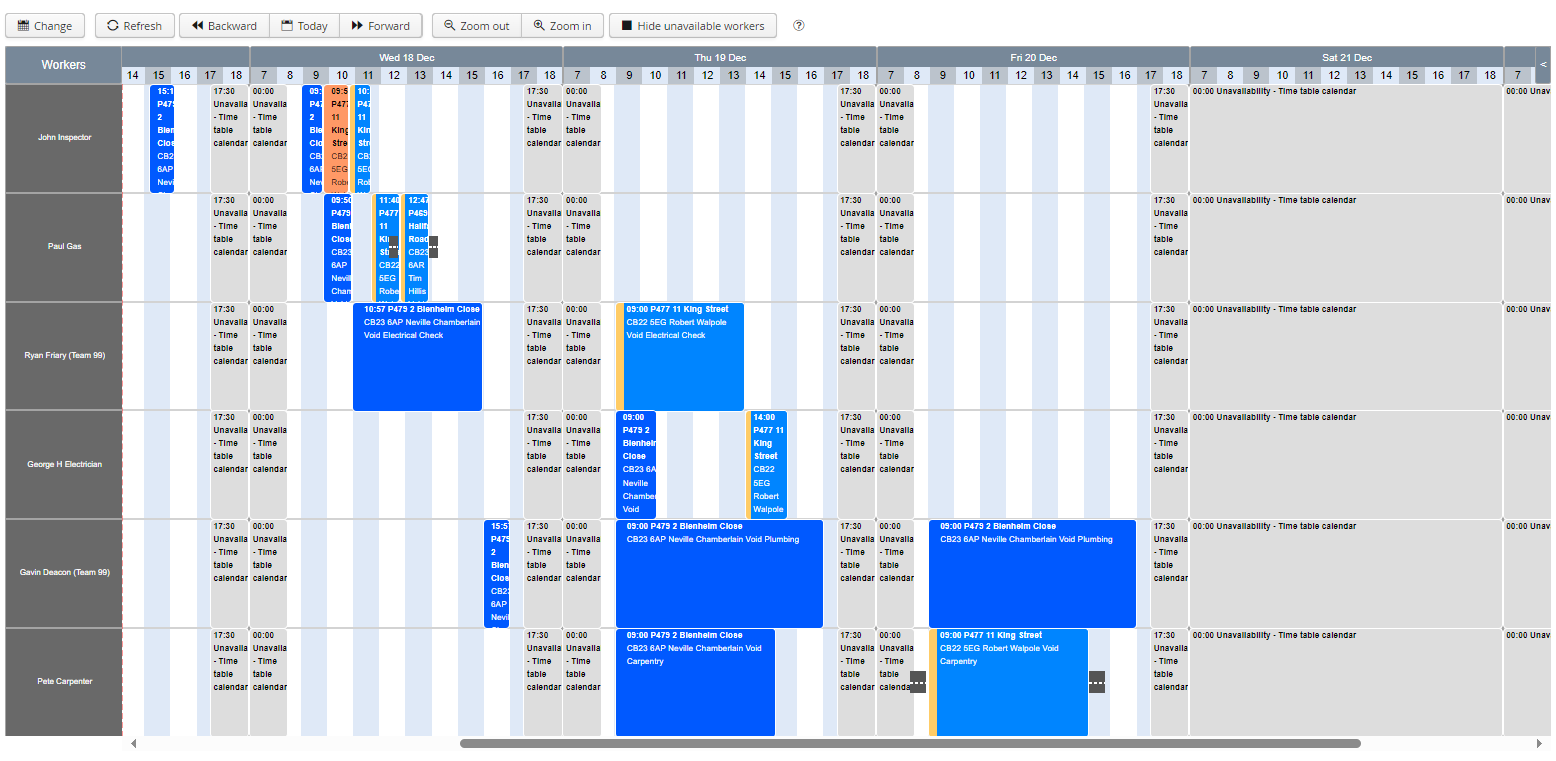
The planning board is a visual representation of the work required for a Project. It is possible to show all Projects, all workers or a subset of this information.
The planning board can be accessed via the Planning Board button after selecting your Projects, Project Packages or Workers from the appropriate lists. It is presented in a Gantt chart using time and date blocks. This view is fully customisable to show the right detail in the right way for your needs. Customised colour schemes can be used to let you know if Projects are running late and which activities have been started or completed.
If loading multiple Projects at a time, Projects are loaded onto the planning board in priority / target date sequence and then according to a predetermined set of rules about how workers should be used. It is possible to re-sequence loaded packages however this will not be reflected on the planning board until the packages have been unloaded and reloaded.
Teams
Teams are groups/crews of workers that work together. Teams are not large pools of workers such as Voids workers.
You can specify multiple teams per project. When you load the packages, it will look for workers in the specified teams and automatically split individual packages between the members of the appropriate team. If no workers in the teams have the required abilities, it looks outside the team.
Contracts
These can be used to automatically prefix SORs coming in from the housing system, depending on the contract. It allows for different types of work, e.g. Voids, Capital etc to be routed to different package templates and therefore different workers.
