Contents
Web Booking Manager (5.7)

Overview
This document describes the DRS Web Booking Manager. This is a component that enables a user to carry out the appointment booking process for a range of services. Typically the DRS Web Booking Manager is deployed in conjunction with a partner system such as a CRM system or Housing Management System. The partner system calls the DRS Web Services Gateway to create the Booking details. This call provides the Order or Case Reference, the UPRN, Comments and the booking codes (or SOR codes) plus some other important data. Each time an order is created the location details are re-supplied so any customer related information is kept up to date.
From the booking codes DRS determines the Template which in turn determines the rules for scheduling the booking and the booking type and sub type which determines the booking dialogue required.
A jump URL then allows the user to book the service.
The diagram below illustrates the process and the key DRS components.

The DRS Background service updates the partner system with details of the appointment, changes to appointments or cancellation of appointments. This component calls the partner web services directly so the exact data held in the partner system varies between each partner.
The DRS Web Booking Manager is an Adobe Flex application which calls the DRS API directly. The DRS Web Booking Manager runs under Apache and uses an intermediate HiediSQL database called the Connector database.
Terminology
The following list describes the main terminology used:
ORDER | The order represents the customer’s requirement for a booking or series of bookings. An order will often be referred to by other names such as Case Reference or CRM ticket number. Examples would be: · Responsive repairs housing order to fix a problem · Request to pick up a bulky waste item · Request to booking a facility or service |
BOOKING | A booking represents the fulfilment of a customer’s requirement for a particular period of time. A booking could be an appointment for a job or service to be carried out, or a booking of facility or service for a specified period of time. Examples would be: · Appointment for a plumber to fix a problem on Thursday morning June 11th · Appointment for a fridge to be picked by during the day on Friday June 12th · Booking of a meeting with a housing officer at the Housing Department on Monday June 15th at 10:00 |
BOOKING CODE | The codes that are used to describe the booking requirements. In housing these are usually fault codes or SOR codes |
TEMPLATE | The rule set that is used to determine how this booking is to be scheduled. This rule set is defined in DRS |
BOOKING TYPE / SUB TYPE | The Booking Type and Sub Type determine the work flow and characteristics required for the booking process itself. |
LOCATION | The location refers to the geographical location of the citizen who has requested the order. The location could also refer to a location where work is required to be carried out such as a communal area, street, lift or any other facility. The geocoding of a location is used for all booking types which are geographical. |
DRS Web Booking Manager - Basic Bookings Screen
Scope
The Basic Bookings Screen enables a user to schedule and re-schedule appointments. In an integrated environment you would normally access the Booking screen via a jump url i.e. you enter the order in the CRM or Housing system and then jump straight into this page.
You can also access this screen in standalone mode from the Web Booking Manager application.
Jump URL
Jump users “jump” to the web bookings manager by calling a url from another application. This URL contains a token as a parameter that identifies important information about the booking to be scheduled. The external application will already have called the DRS Web Services Gateway to create the required data prior to the jump URL being invoked.
If all checks are valid the booking page is displayed with the appointed booking tab displayed.
Transaction Logic
The booking type and sub-type are displayed for information. The re-schedule reason is disabled when a booking is being scheduled for the first time. When a booking is being re-scheduled, the component will be disabled until the re-scheduled reason is supplied. The Re-assign details allow the booking to be re-assigned to a more experienced user.
The next button closes the page.
Tabs for Sub Pages
The Basic Booking screen has tabs for the following sub-pages;
· Appointed booking
· Direct booking
· Booking Details
· Address Details
· Resource Details
· Booking Codes
Screen Layouts
Appointed Bookings
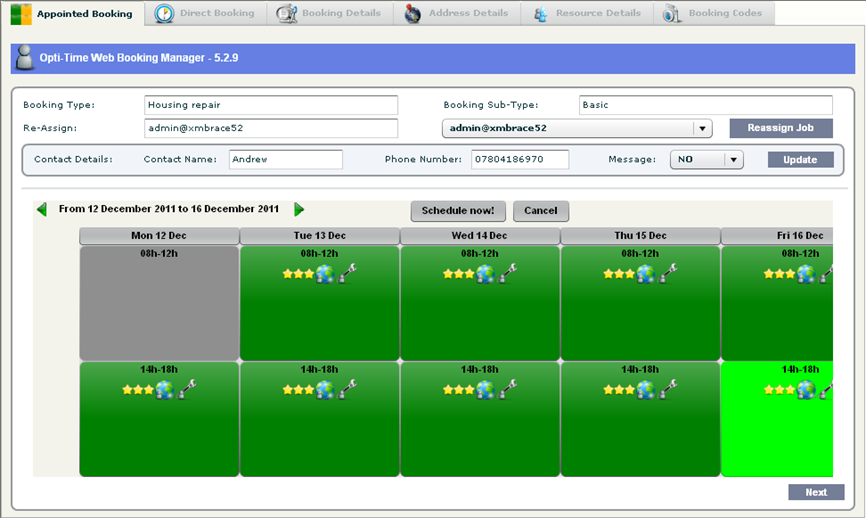
The screen below illustrates what the Appointed Booking Screen looks like. Each button represents a booking’s planning window. The planning window is an agreement between the organisation the customer for when the appointment will take place.
The appointment slots displayed are determined by the Template for the Booking and are configured in the standard DRS application.
Direct Booking
This screen enables users to make a booking for any period. It allows users to select any planning window start and end date/time. The priority of the booking can be used to determine whether the appointed booking screen or the direct booking screen is displayed.
This screen can be used for example for emergency bookings that must be done in the next few hours e.g. emergency plumbing repair or for bookings that can be done over a longer period of time but don’t require appointments e.g. carry out a graffiti clean between now and the end of the month

Booking Details
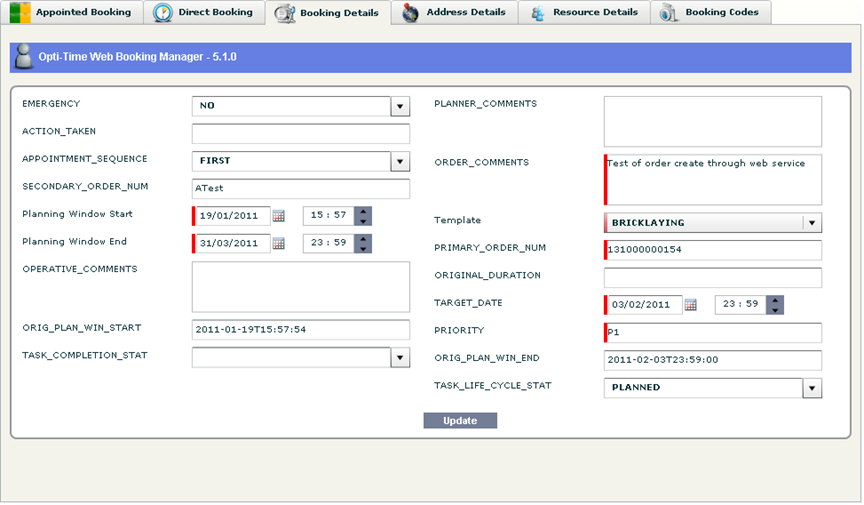
This screen displays the details of the booking. If authorised, the user can also update the booking’s details from this screen.
Address Details
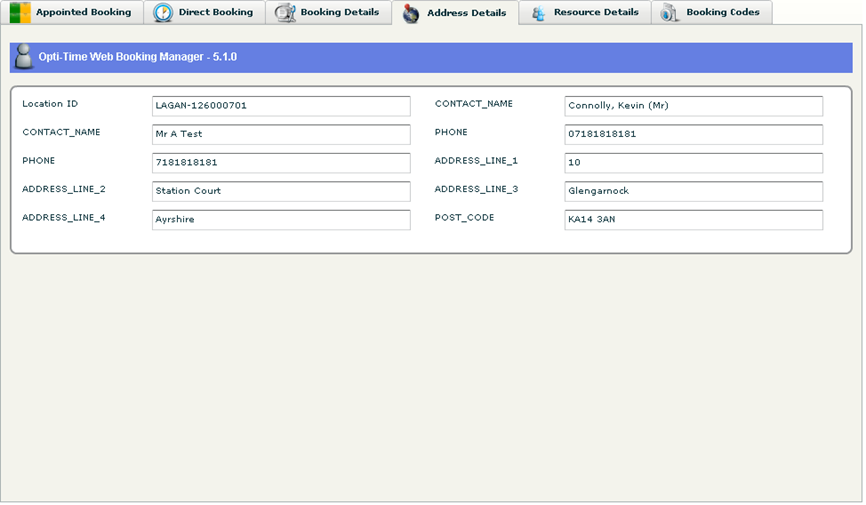
This screen displays the address details that are associated with the booking. If authorised, the user can also update the address details from this screen.
Resource Details
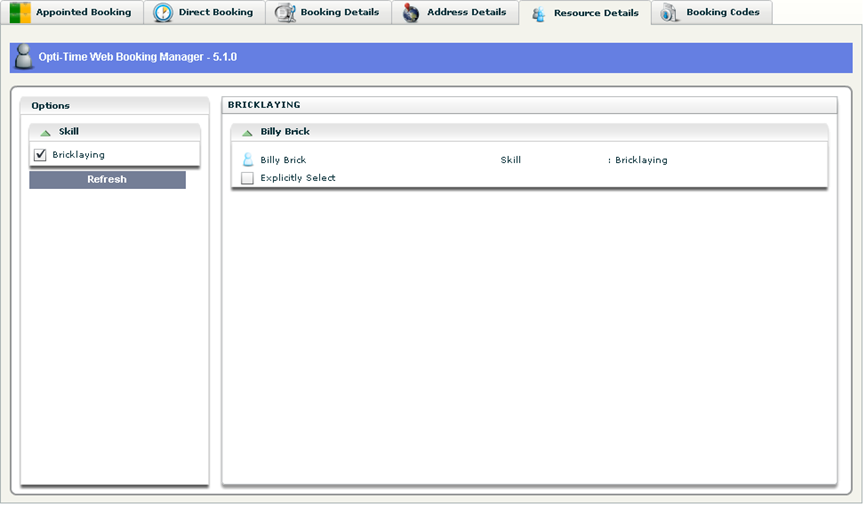
This screen displays the resources that could potentially attend to the booking. Each booking has a template and each template may require one or more resources to attend the booking. This screen displays a number of drop-down resource lists that allows the user to specifically select a resource for every resource that is required to attend the booking.
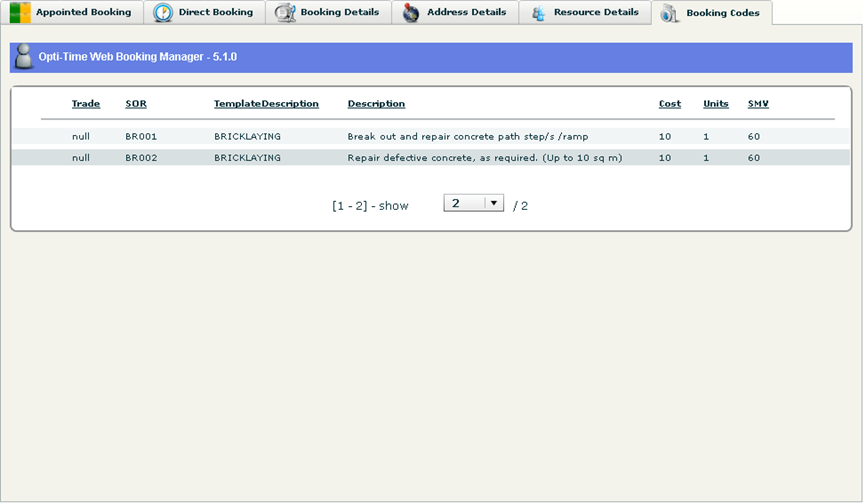
Booking Codes
This screen displays the booking codes. Booking codes are also known as SOR codes or fault codes.
DRS Web Booking Manager - Other Functionality
Booking Enquiry
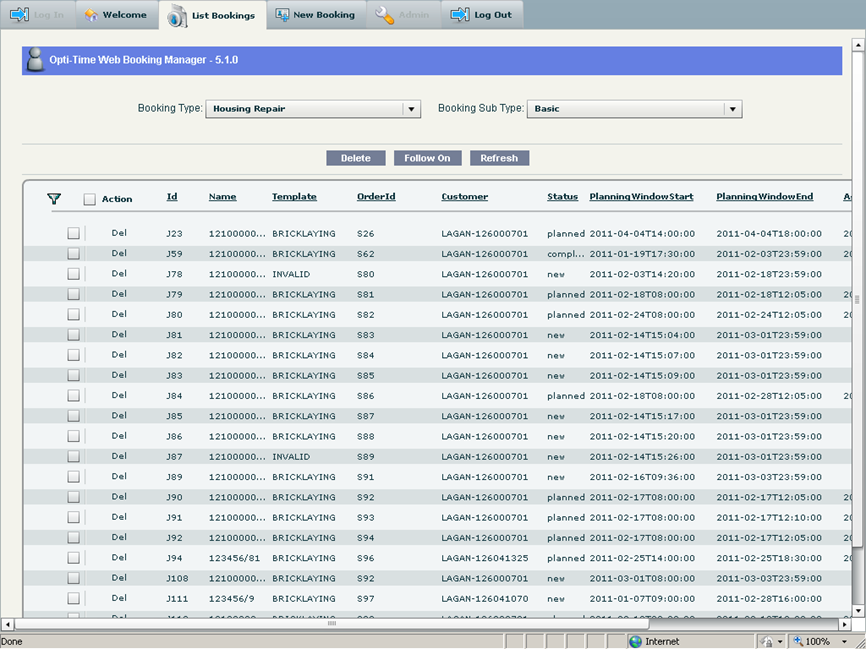
This functionality is provided from the list bookings tab of the home page, described below. The process is to list the bookings and then double-click a booking. The user is taken to the appointed booking screen and can then choose the booking details tab to enquire on the booking.
Amend Booking Details
This functionality is provided by the basic bookings screen – see above.
Booking Cancellations
This functionality is provided from the list bookings tab of the home page, described below. The process is to list the bookings, tick a booking and click the Delete button.
Follow On Bookings
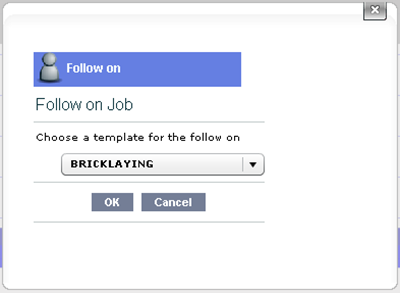
This functionality is provided from the list bookings tab of the home page, described below. The process is similar to list the bookings, tick a booking and click the “Create Follow On” button. A screen similar to the one shown below will be displayed and then the user will be taken to the appointed booking screen to schedule the follow on. The user will have the ability to choose resources from the appointed booking screen in the same way as described earlier.
New Booking
The new booking tab is provided so that it is possible to create a booking without using any external integration to any partner system. It can also be used to quickly implement new types of business. It will only work in a single agency scenario.
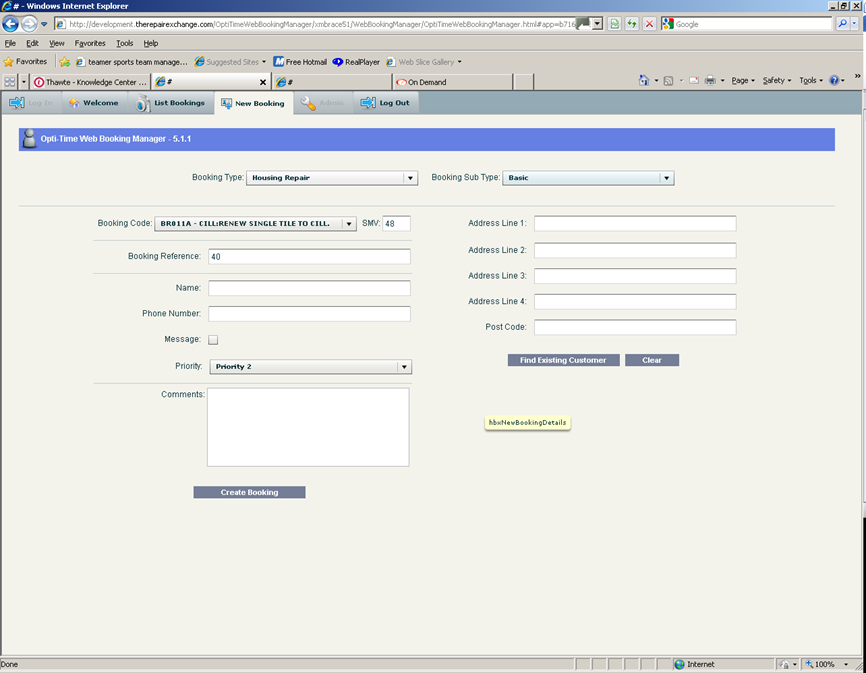
This screen defaults many properties of the booking to make booking entry as quick and simple as possible. Each user has a user profile. Each user profile has a list of booking types and booking sub-types. Only the user’s available booking types/booking sub-types are available for selection when the new booking tab is displayed. Each booking code belongs to a booking type so only the booking codes that match the selected booking type will appear in the booking code field.
The DRS Web Booking Manager can be configured to allow the user to enter the booking reference in two ways. Either the user can just type in a value or the booking reference can be automatically generated and the user can then edit it depending on the user’s profile security settings. The two ways of entering a booking reference are implemented so that customers who know they will integrate with partner systems and also customers who have no plans to integrate with partner systems can enter booking references that will be useful in the future.
The DRS Web Booking Manager can also be configured to either generate all booking references from a single number range or generate booking references using different number ranges for different booking types. This is managed by the table tblWorkflow which has a Next Booking Reference column.
Booking references may have a prefix which is derived from the priority entered by the user. Each priority has a default contract associated with it which will determine the prefix.
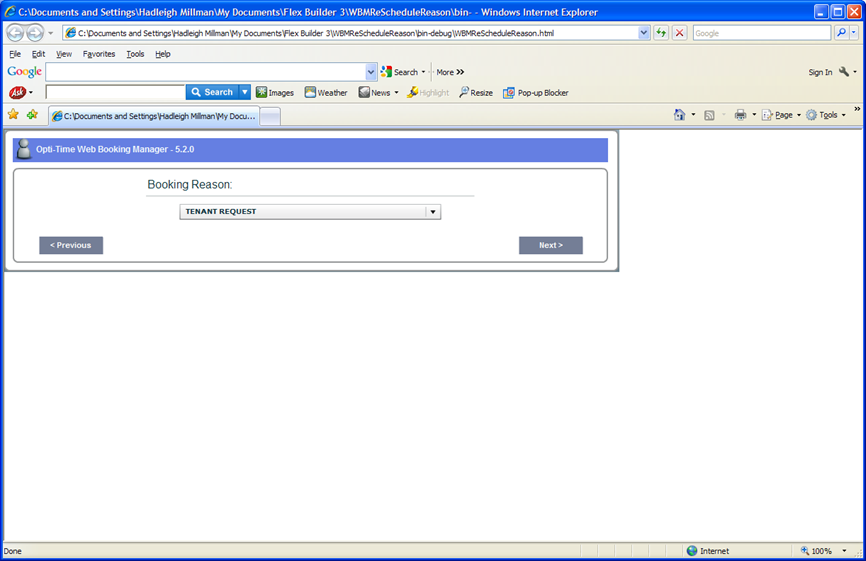
Reschedule Reason
The re-schedule reason page appears after the basic booking page if the booking is being re-scheduled and its planning window has changed. In these circumstances a reason for the change of planning window is required and this page allows that.
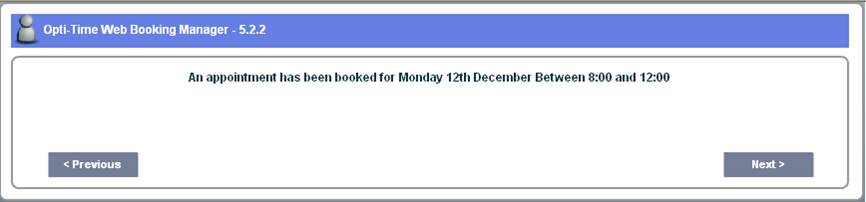
Message
The message page displays a message describing the action that the user has taken in the basic booking page. It may warn users that they have taken no action, it may inform the user that the booking has been re-assigned to a specified user or it may confirm the booking’s planning window to the user.
Multiple Server Scenario
Overview
The web bookings manager can be deployed in a multi-server scenario. There are a number of scenarios where a multi server environment is important:
- A large client has multiple contractors all of whom have their own DRS systems
- Different services are on different DRS systems (e.g. housing, room bookings)
- A very large system is split across multiple DRS systems
In this scenario the web bookings manager uses a master Connector database, which holds configuration tables that are either common to all booking types or are needed because they are used in the process before the specific server can be determined. The DRS Web Booking Manager is configured to maintain two connection strings at all times, one to the master Connector database and the other to the specific Connector database relevant for the job.
The DRS Web Booking Manager will be supplied with a token. The token refers to a specific job which will have a contract. The DRS Web Booking Manager will look up a table called tblWebContracts in the master Connector database which contains an instance field. Once it knows the instance the DRS Web Bookings manager can look up its configuration table which is also in the Connector Master database and using the instance, retrieve the parameters concerned with a particular configuration of Web Service Gateway. From then on the booking manager acts as if it is working in a single instance environment until it completes the processing of the job in question.
Each specific server has a specific Connector database that holds tables specific to that booking type to improve performance.
Managing User Authentication and Workflow
Types of User
There are three types of user that use the web bookings manager.
- Jump User
- Standalone User
- Citizen
Users for the DRS Web Booking Manager are managed in the core DRS product.
Home Screen
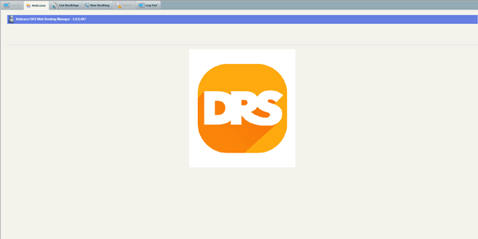
The home page is a tabbed page allowing users to navigate around the high level structure of the web bookings manager.
- The welcome tab can display the customer’s logo.
- The list bookings tab lists all bookings that match the user’s current filter.
- The new booking tab allows customers to create a new booking when there is no other application interfacing with the web bookings manager.
- The admin tab allows the web bookings manager to be administered from the application.
- The log out tab allows the user to log out.
Jump User
A jump user connects from a third party application. The third party application calls a url, for example,
This url bypasses the log on page, so the jump user does not log in. The url is the same irrespective of whether this is a multi server environment. The session Id is used to verify that the user has logged in by providing a valid username and password. The token Id is used to look up a new table, tblToken that returns a collection of objects including the BookingId and sessionId.
Validate the User
It is assumed that the user that created the order by using the DRS Web Services Gateway is the same user that is jumping to the Web Booking Manager. When calling the DRS Web Service Gateway it is necessary to open a session, if successful a session Id is returned and should be supplied when the user jumps to the Web Booking Manager. If, for any reason, the session has been closed, the jump user is re-directed to the log on tab of the home page. It is possible to close the log on page and return to the CRM application at this point. This is expected to happen infrequently.
The user Id is used to look up the user in the DRS back end system. If the user doesn’t exist in the back end system the Web Booking Manager re-directs him to the log on tab of the home page.
Each user in the DRS back end system has a profile, which in this example would have the value “jump”.
Check the user Profile
It is assumed that most users will perform a variety of actions, sometimes they will want to just make a booking, sometimes they will want to list existing bookings and perhaps create a follow on. Two levels of security are offered by the web booking manager, either a token is required or not.
If a user is attached to a profile where a token is required, they must supply the token, in which case, they will be re-directed to the basic booking page. If they don’t supply a token a message will be displayed and they will be re-directed to the log on tab of the home page.
If a user is attached to a profile where a token is not required, they may supply a token, in which case, they will be re-directed to the basic booking page. If they don’t supply a token they will be re-directed to the home page where they can list existing bookings, etc.
Complex Scenarios where DRS Web Booking Manager is Deployed
Large Client Centric View
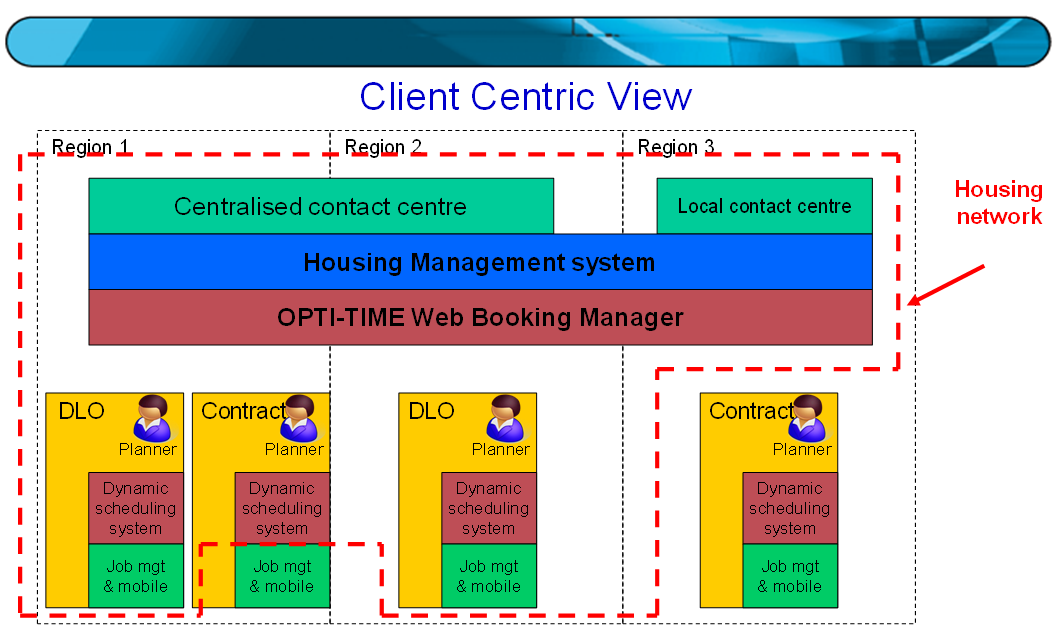
The scenario envisaged here is a large client with a few large contractors. The contractors may be external or internal. Each contractor may have their own job and cost management system and their own mobile solution. Each contractor will have their own DRS server in order to ensure integrity of data and to enable a close integration with the contractor’s own systems.
The diagram below illustrates the scenario envisaged.
- There is a single housing management system using the DRS Web Booking Manager application.
- The call centre has a unified process for all appointments regardless of the contractor
- Appointments are booked in a specific contractor’s DRS system based on the contract of the order (this happens without the call centre being aware)
- Each contractor controls the resource management elements of DRS
- The contractor is responsible for ensuring that the status of all appointments is updated in real time.
Large Contractor Centric View
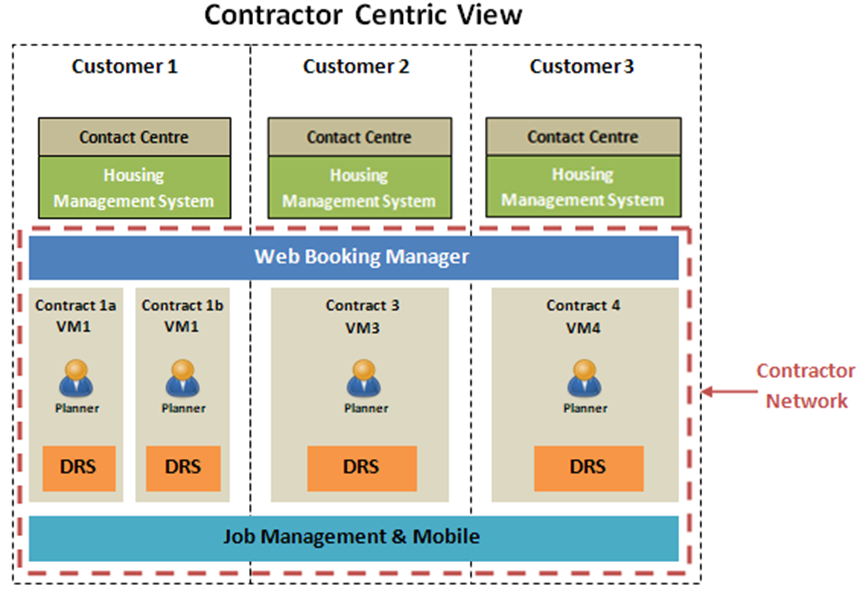
The scenario envisaged here is a large contractor who wishes to enable all their clients to access and book appointments on their DRS system. The diagram below illustrates the scenario envisaged.
- Each client has their own housing management system
- As many clients as possible are encouraged to use the DRS Web Booking Client application.
- Appointments are booked in the contractor’s DRS system based on how the contractor has organised their internal work force i.e. could have one large DRS system or as illustrated several smaller ones
- The contractor is responsible for ensuring that the status of all appointments is updated in real time.
Testing and Trouble Shooting
Testing
The following actions should be performed to test that it performs as expected;
- Log in
- Select New Booking tab
- Create a booking
- Schedule the booking
- Make sure the message page displays ok
- Make sure the workflow takes the user back to the New Booking tab
- Select the list bookings tab
- Click on the booking just created
- Re-schedule the booking
- Make sure the message page displays ok
- Make sure the workflow takes the user back to the List Bookings tab
Jumping to the web booking manager
An example url to jump to the Web Booking Manager is shown below. The exact url will depend on the installation folders that exist at the customer’s site.
The jump url will take you to the basic booking page where a booking can be scheduled;
- Schedule the booking
- Make sure the message page displays ok
- Make sure the message page redirects back to the CRM system or closes depending on the configuration required.
Troubleshooting
Press next on Message Page - get Page Not Found or other error
This is a configuration error. The url in tblworkflowsteps doesn’t match the url of the web booking manager. To see the difference start the WBM and copy the url from the address bar and save it in a text file. Then go to tblworkflowsteps and copy the url from a “home page” row and also save that in a later row in the text file. To fix it, take the row from the address bar and remove the # at the end and replace all the “home page” rows in the table.
CreateOrder request error. Unable to return any rows from tblContractRename
This is a configuration error. The new booking page uses the contract from the table tblWebPriorities. It reads the priority from the page and looks up the corresponding row in the table, it then reads the contract from the row and uses it to look up a row in tblContractRename. If it can’t find a row it displays this error. To fix it look up the table tblContractRename to get a valid contract and replace the contract value in tblWebPriorities with the valid value.
