Dynamic Resource Scheduler
Whats New!
User Experience Changes
Security and Authentication
Modules and Utilities
Cyclical Scheduling - Configuration Interface
Cyclical Scheduling - Now Bulk Scheduling
Resource Quotas Improvements - Percentages
Architecture and Scheduling
Configuration
User Guides and Help
Get to Know Dynamic Resource Scheduler
How Does Dynamic Resource Scheduling Work
Speaking the Language of Scheduling
Navigating Dynamic Resource Scheduler
How your Data Links Together
Managing your Organisation
Viewing your Data
Your Customer Data
Your Service Orders
Your Jobs
Your Workers and Resources
Manage Your Tasks
Actioning your Jobs and Tasks
Job Templates
Find A Jobs Possible Workers
Locking Your Jobs
Create a Follow On Task
User Queues and Organising Your Tasks
Schedule and Organise
How to Optimise Your Scheduling
How to Schedule Manually
Scheduling Mutliple Jobs at Once
Reassign and Reschedule your Tasks
Managing Your Time and Durations
Managing your Comments and Contacts
Using Bookmarks to Drive Efficiency
Managing Your Job Status
Visualising Your Planning
Workers and Resources
Advanced Data Management
Creating Unavailability in your Workforce
Adding an Unavailability to an Individual Worker
Creating Unavailabilities for Multiple Days or Workers
Maps And Journey
Using Maps to Visualise Your Data
Using Maps With Your Data
Learn about our Closest Function
Your Journeys
Meetings and Non-Productive Planning
Administer Your Scheduler
Managing Your Organisations and Agencies
Managing Your Custom Data
Managing your Contracts
Customising Your Experience
Managing Depots and Starting Locations
Managing Diary Bookmarks
Managing your External Chart Views
KPI Settings
Managing Your Priorities
Learn about Sectors
Managing Your Follow On Templates
Get To Know Your Working Time Calendar
Managing your SOR Templates
Managing your Job Templates
Managing Your Vocabulary
Managing Your Bookmarks
Manage Your Customer Templates
Get to Know Import and Export
Managing Your Tenant Code Rules
Managing your Order Templates
Managing Your Unavailability Reasons
Get To Know Your Working Time Calendars
Managing your Worker Templates
Releases and Readiness
DRS 6, DRS 5.7 and Job Manager
User Guides and Help
Get to Know DRS
Dynamic Scheduling - How does it work
Navigating DRS
Vocabulary and Concepts
Customers
Orders
Jobs
Scheduling Jobs
Job Functions
Workers
Views
Object Inheritance
Agencies
DRS Modules
Scenario Based Planning
Managing your SMS Service
5.7 Documentation
Technical Documentation
Release Notes
DRS 6.1 Release Notes
DRS 6.1.22 - February 20, 2026
DRS 6.1.21 - September 10, 2025
DRS 6.1.20 - April 20th, 2025
DRS 6.1.19 - 11th April, 2025
DRS 6.1.18 - 13 February 2025
DRS 6.1.17 - 20th December 2024
DRS 6.1.16 - November 8th, 2024
DRS 6.1.15 - October 10th, 2024
DRS 6.1.14 - 6th September 2024
DRS 6.1.13 - 9th August 2024
DRS 6.1.12 Release Notes
DRS 6.1.11 Release Notes
DRS 6.1.10 Release Notes
DRS 6.1.9 Release Notes
DRS 6.1.8 Release Notes
DRS 6.1.7 Release Notes
DRS 6.1.6 Release Notes
DRS 6.1.5 Release Notes
DRS 6.1.4 Release Notes
DRS 6.1.3 Release Notes
DRS 6.1.2 Release Notes
DRS 6.1.1 Release Notes
DRS 6.1.0 Release Notes
DRS 6.0 Release Notes
DRS 6.0.0.0 Release Notes
DRS 6.0.0.1 Release Notes
DRS 6.0.0.2 Release Notes
DRS 6.0.0.3 Release Notes
DRS 6.0.0.4 Release Notes
DRS 6.0.0.6 Release Notes
DRS 6.0.1.0 Release Notes
DRS 6.0.1.1 Release Notes
DRS 6.0.1.2 Release Notes
DRS 6.0.1.3 Release Notes
DRS 6.0.1.4 Release Notes
DRS 6.0.1.5 Release Notes
Kirona Housing
Job Manager 9
Job Manager 9.3.0 - October 2024
Job Manager 9.1.0 - December 2022
Job Manager 9.2.0 - November 2023
Release Notes Disclaimer
Administering your Field Service Products
Supported Versions Policies
- All categories
- DRS 6, DRS 5.7 and Job Manager
- User Guides and Help
- Scenario Based Planning
- Configuring the KPI Extract
Configuring the KPI Extract

Purpose
This article will help you understand what's required to configure your KPI extract, the options you can use and the decisions you can make which will ultimately effect the outcome of your reporting.
Configuring the KPI Extract
The configuration of the KPI Extract allows you, as a customer, to define the specific KPI measures that are important to your business. Each section provides an opportunity to specificly tailor the extract calculations to present the reporting data in a way which supports your outcome.
Each section below will discuss the available configurations.
Appointment Reason
The Appointment Reason KPI Settings provide the opportunity to identify tasks which at the point of schedule identify whether the task itself has the potential for the appointment to be "Met".
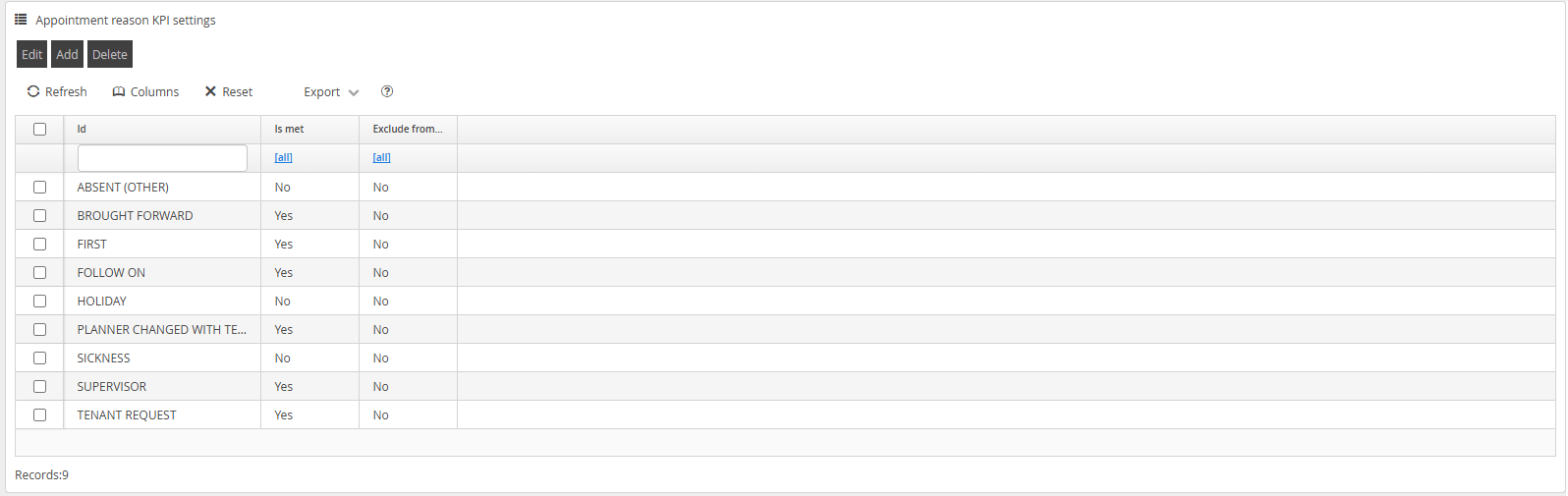
By default, a number of Appointment Reasons will be configured as an example, however, these entries must be replaced with your configured Appointment Reasons from within your Business Data configuration.
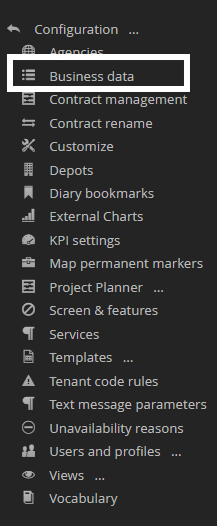
To determine your configuration values, navigate to the Business Data section within the Configuration Menu.
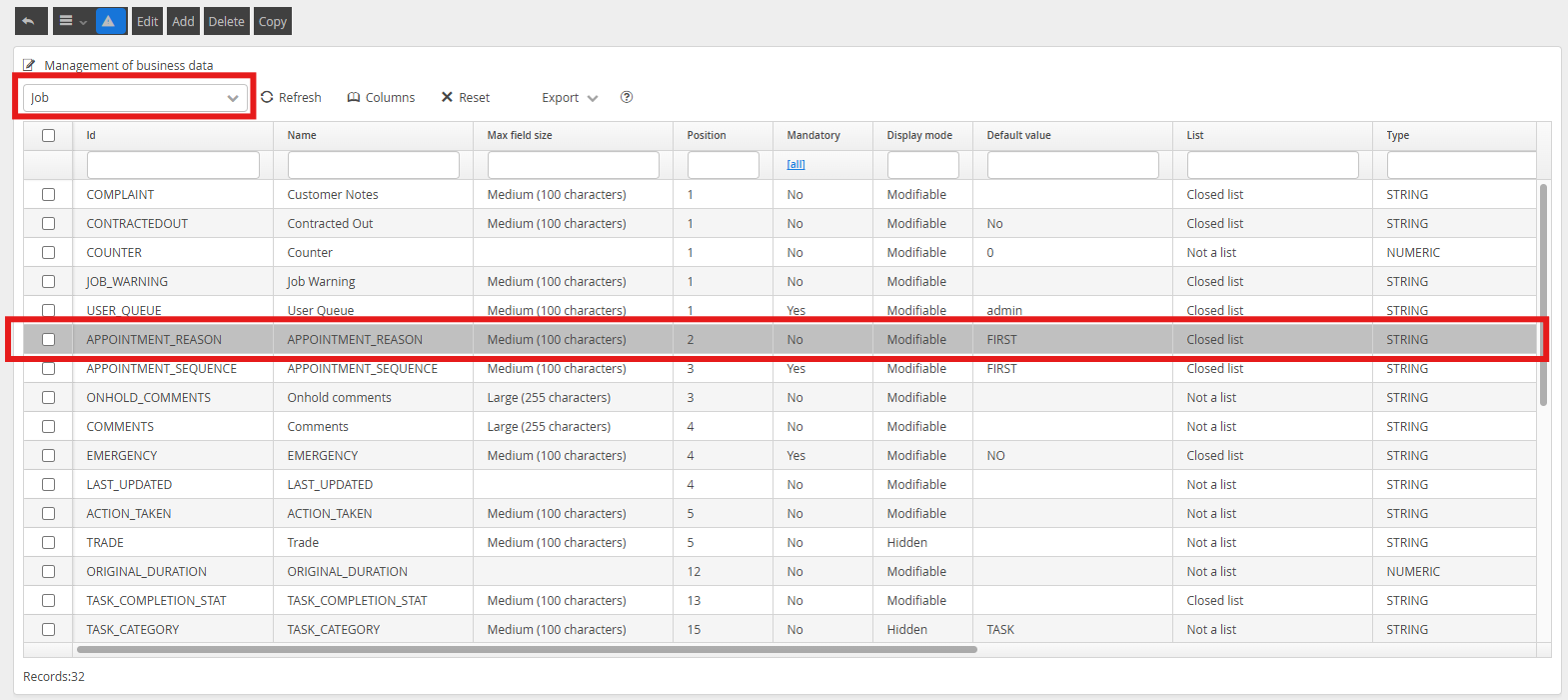
Navigate to the Job list of Business Data, and select the APPOINTMENT_REASON data item.
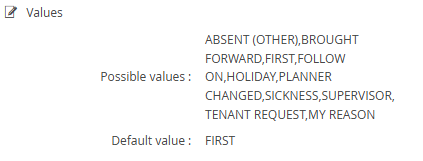
The possible values within this list should match your Appointment Reason KPI Settings list.
Adding, or Editing any specific value within the configured list will display a screen similar to this
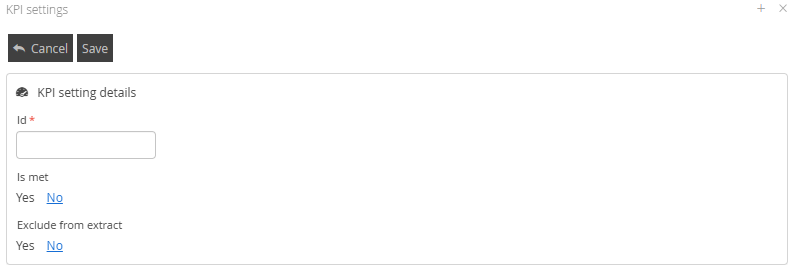
The ID Field should be completed with one of the values from your Appointment Reason Possible Values List.
The 'Is Met' flag should be set as 'Yes' if a successful scheduled appointment could result in it being considered as Met, and 'No' if not.
The 'Exclude from extract' Flag should be set if appointments marked with a given Appointment Reason can be ignored from any KPI reporting
Completion Status
The Completion Status KPI Settings allow you to define specific measurements for your KPI Outcomes based on your configuration within the TASK_COMPLETION_STATUS Business Data item. This measure will look at the varying states a Task can potentially be left in when Complete, coupled with your Appointment Reason configuration, will determine the overall calculated outcome of the Job or Order.
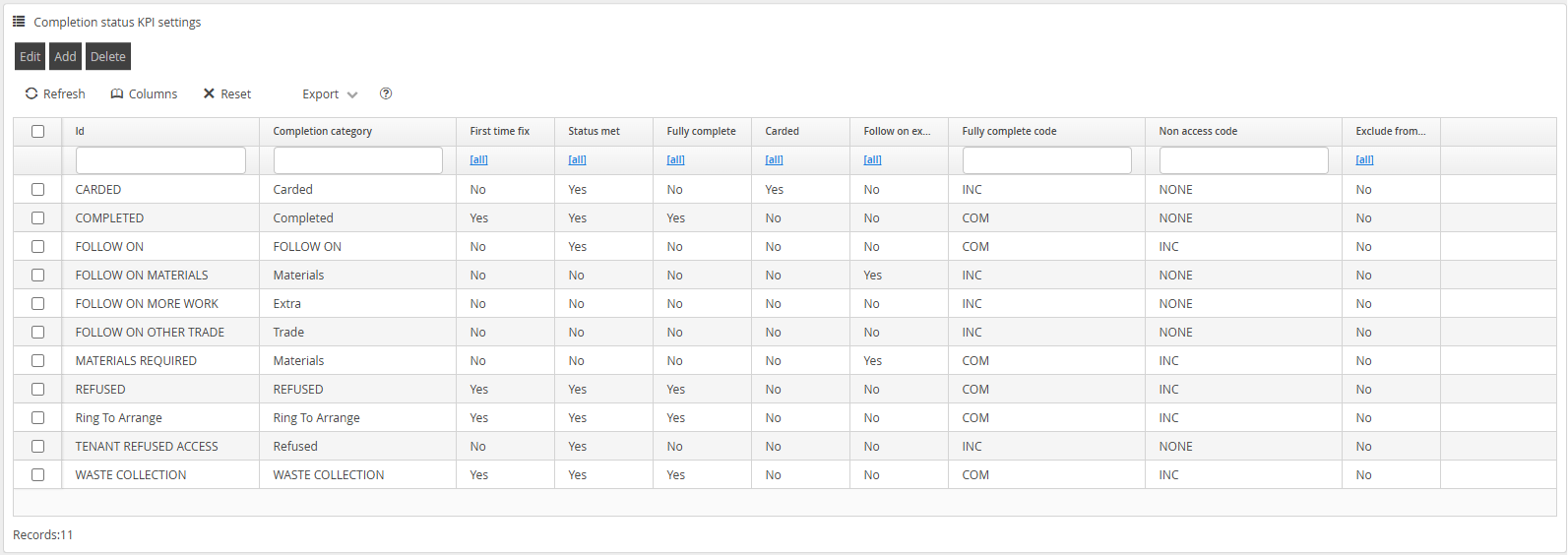
By default, a number of Completion Status KPI Settings will be configured as an example, however, these entries must be replaced with your configured TASK_COMPLETION_STAT values from within your Business Data configuration.
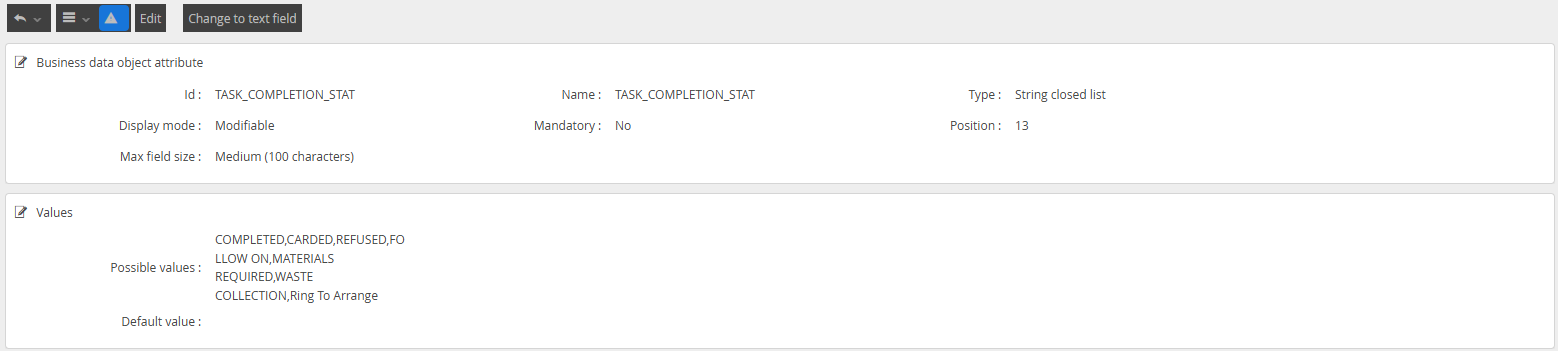
To determine your configuration values, navigate to the Business Data section within the Configuration Menu.

Navigate to the Job list of Business Data, and select the TASK_COMPLETION_STAT data item.

Your configured options should match your Possible Values configured against this Business Data item.
Adding or Editing an option within the Completion Reason KPI Settings will display similar options.
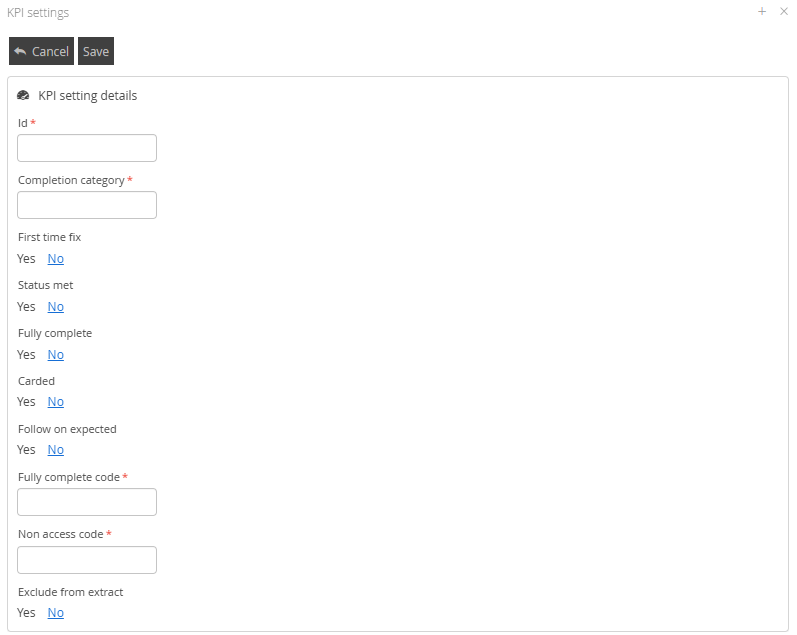
The following fields allow you to configure KPI variabilities to support your reporting outcomes.
Field Name | Description | Possible Values | Example |
ID | This value should match an available value within your Business Data definition This value is Case Sensitive and must much the configured case in the Business Data definition | Free Text | |
Completion Category | This is a mandatory field that you can use to organise different types of Completion Reasons together for reporting aggregation. This is a free text field. | Free Text | COM, FULLY COMPLETE, INCOM.. etc |
First Time Fix | This field will identify any task which if completed with this Completion Code, will be considered Fixed at the First Appointment. This is regardless of any future appointments being created. | Yes/No | If a Mobile Operative completes his appointment with a reason marked with this setting, the task will be marked as First Time Fix |
Status Met | This field, working with Appointment Reason, will provide an opportunity to override an Appointment Met flag set within the Appointment Reason configuration. | Yes/No | If a Mobile Operative completes his appointment with a reason 'Van Breakdown' |
Fully Complete | This field will set a task as Fully Complete in regards to KPI calculations. If no outstanding tasks are currently scheduled for the Works Order, the appointment will be considered Fully Complete. | Yes/No | If a Mobile Operative completes a task on a subsequent visit and no additional visits are expected. |
Carded | This field will set a flag to indicate the Mobile Operative failed to gain access to the location to complete the appointment. | Yes/No | If a Mobile Operative failed to gain access, or is actively denied access from a location to perform a task. |
Follow On Expected | This field will allow you to track appointments which have been completed by your Mobile Operatives which will result in additional work or visits. | Yes/No | If a Mobile Operative begins a task, but completes an appointment potentially requiring additional materials or time. |
Fully Complete Code | This is a mandatory field that you can use to organise different types of Completion Reasons together for reporting aggregation. This is a free text field. | Free Text | COM, FCOM |
No Access Code | This is a mandatory field that you can use to organise different types of Completion Reasons together for reporting aggregation. This is a free text field. | Free Text | NOAC, TENANTREFUSE |
Exclude From Extract | The 'Exclude from extract' Flag should be set if appointments marked with a given Completion Reason can be ignored from any KPI reporting | Yes/No | A task which has been completed in such a way which falls outside of your KPI reporting requirements. |
Priority Group KPI Settings
Priority Group KPI settings allow you to group your Priorities together into reportable groups. This is especially useful if you have many priorities that define your SLA's which broadly cover the same use case.

The Priorities you configure should exist within your Business Data configuration for the Priority Attribute. To determine your configuration values, navigate to the Business Data section within the Configuration Menu.
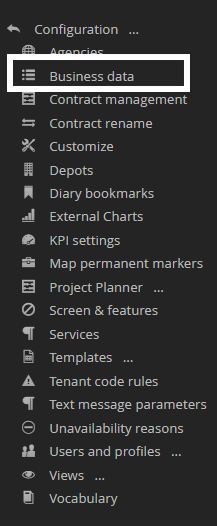
Once there, navigate to the Order Object Data items and select the PRIORITY option.

Adding or Editing a value within this menu will provide you with similar options.

The ID value identifies the group you are allocating the Priority to. Multiple Priorities can be within a single Group.
The Priority value should match the available values within the Possible Values of the PRIORITY Business Data Object.
The Is Emergency flag will identify this Priority as an Emergency.
Resource Group KPI Settings
Resource Group KPI Settings allow you to create reporting groups for your resources.

Selecting Edit or Add will display similar options.
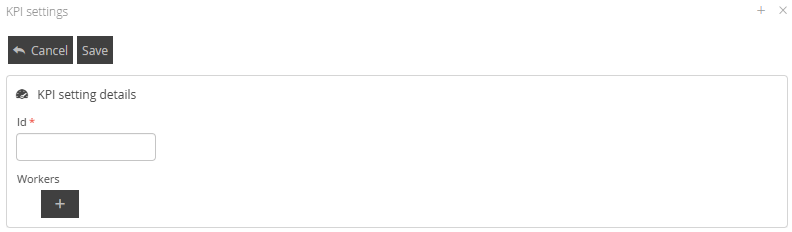
The ID field allows you to set an appropriate Group Label for your resources.
Clicking the + button will allow you to select your workers.
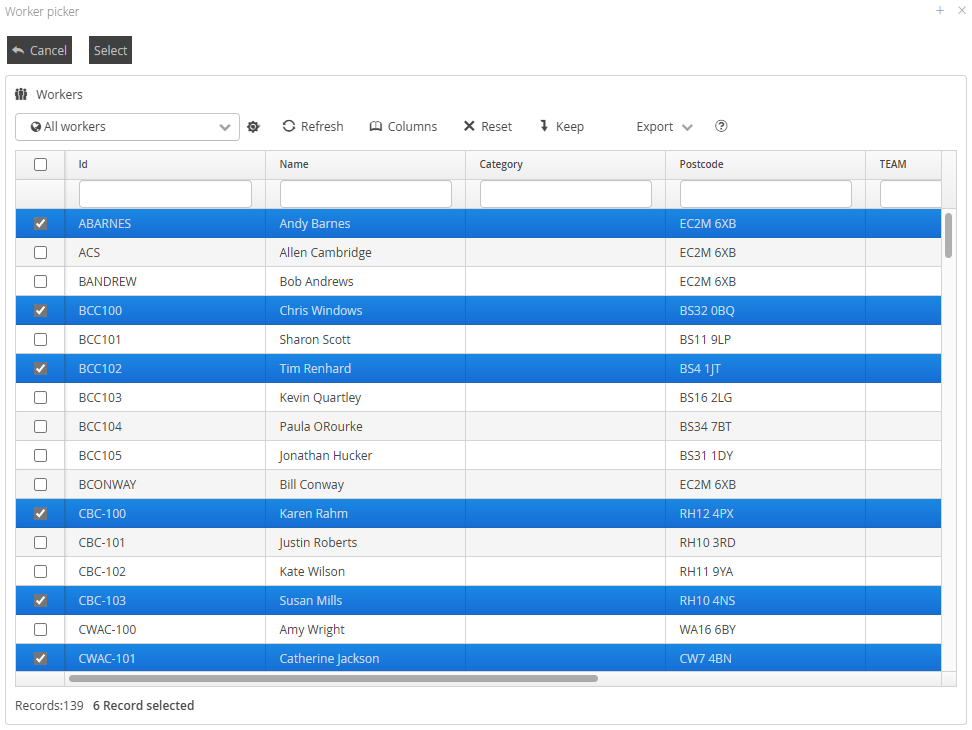
Once chosen, click Select.
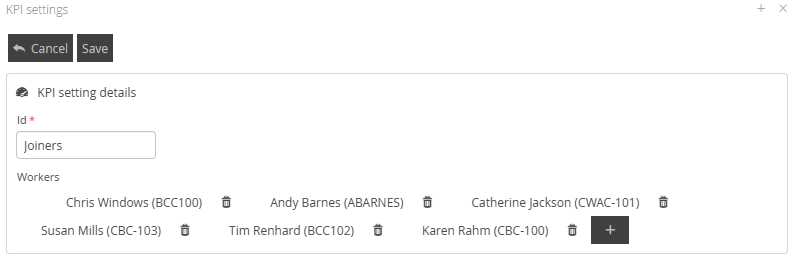
and Save.

This group will now be available for categorisation and use within your KPI Reporting Dashboard in Infosuite.
