Dynamic Resource Scheduler
Whats New!
User Experience Changes
Security and Authentication
Modules and Utilities
Cyclical Scheduling - Configuration Interface
Cyclical Scheduling - Now Bulk Scheduling
Resource Quotas Improvements - Percentages
Architecture and Scheduling
Configuration
User Guides and Help
Get to Know Dynamic Resource Scheduler
How Does Dynamic Resource Scheduling Work
Speaking the Language of Scheduling
Navigating Dynamic Resource Scheduler
How your Data Links Together
Managing your Organisation
Viewing your Data
Your Customer Data
Your Service Orders
Your Jobs
Your Workers and Resources
Manage Your Tasks
Actioning your Jobs and Tasks
Job Templates
Find A Jobs Possible Workers
Locking Your Jobs
Create a Follow On Task
User Queues and Organising Your Tasks
Schedule and Organise
How to Optimise Your Scheduling
How to Schedule Manually
Scheduling Mutliple Jobs at Once
Reassign and Reschedule your Tasks
Managing Your Time and Durations
Managing your Comments and Contacts
Using Bookmarks to Drive Efficiency
Managing Your Job Status
Visualising Your Planning
Workers and Resources
Advanced Data Management
Creating Unavailability in your Workforce
Adding an Unavailability to an Individual Worker
Creating Unavailabilities for Multiple Days or Workers
Maps And Journey
Using Maps to Visualise Your Data
Using Maps With Your Data
Learn about our Closest Function
Your Journeys
Meetings and Non-Productive Planning
Administer Your Scheduler
Managing Your Organisations and Agencies
Managing Your Custom Data
Managing your Contracts
Customising Your Experience
Managing Depots and Starting Locations
Managing Diary Bookmarks
Managing your External Chart Views
KPI Settings
Managing Your Priorities
Learn about Sectors
Managing Your Follow On Templates
Get To Know Your Working Time Calendar
Managing your SOR Templates
Managing your Job Templates
Managing Your Vocabulary
Managing Your Bookmarks
Manage Your Customer Templates
Get to Know Import and Export
Managing Your Tenant Code Rules
Managing your Order Templates
Managing Your Unavailability Reasons
Get To Know Your Working Time Calendars
Managing your Worker Templates
Releases and Readiness
DRS 6, DRS 5.7 and Job Manager
User Guides and Help
Get to Know DRS
Dynamic Scheduling - How does it work
Navigating DRS
Vocabulary and Concepts
Customers
Orders
Jobs
Scheduling Jobs
Job Functions
Workers
Views
Object Inheritance
Agencies
DRS Modules
Scenario Based Planning
Managing your SMS Service
5.7 Documentation
Technical Documentation
Release Notes
DRS 6.1 Release Notes
DRS 6.1.22 - February 20, 2026
DRS 6.1.21 - September 10, 2025
DRS 6.1.20 - April 20th, 2025
DRS 6.1.19 - 11th April, 2025
DRS 6.1.18 - 13 February 2025
DRS 6.1.17 - 20th December 2024
DRS 6.1.16 - November 8th, 2024
DRS 6.1.15 - October 10th, 2024
DRS 6.1.14 - 6th September 2024
DRS 6.1.13 - 9th August 2024
DRS 6.1.12 Release Notes
DRS 6.1.11 Release Notes
DRS 6.1.10 Release Notes
DRS 6.1.9 Release Notes
DRS 6.1.8 Release Notes
DRS 6.1.7 Release Notes
DRS 6.1.6 Release Notes
DRS 6.1.5 Release Notes
DRS 6.1.4 Release Notes
DRS 6.1.3 Release Notes
DRS 6.1.2 Release Notes
DRS 6.1.1 Release Notes
DRS 6.1.0 Release Notes
DRS 6.0 Release Notes
DRS 6.0.0.0 Release Notes
DRS 6.0.0.1 Release Notes
DRS 6.0.0.2 Release Notes
DRS 6.0.0.3 Release Notes
DRS 6.0.0.4 Release Notes
DRS 6.0.0.6 Release Notes
DRS 6.0.1.0 Release Notes
DRS 6.0.1.1 Release Notes
DRS 6.0.1.2 Release Notes
DRS 6.0.1.3 Release Notes
DRS 6.0.1.4 Release Notes
DRS 6.0.1.5 Release Notes
Kirona Housing
Job Manager 9
Job Manager 9.3.0 - October 2024
Job Manager 9.1.0 - December 2022
Job Manager 9.2.0 - November 2023
Release Notes Disclaimer
Administering your Field Service Products
Supported Versions Policies
Contents
- All categories
- DRS 6, DRS 5.7 and Job Manager
- User Guides and Help
- DRS Modules
- Cyclical Servicing
- Configuration Parameters
Configuration Parameters
Purpose
This article will help explain some of the configuration options that are available when setting up the Cyclical Servicing Module.
Cyclical Scheduling Windows
Cyclical Servicing can be configured with many different combinations of scheduling options. Understanding these options is important to get the most out of your Cyclical Scheduling routines.
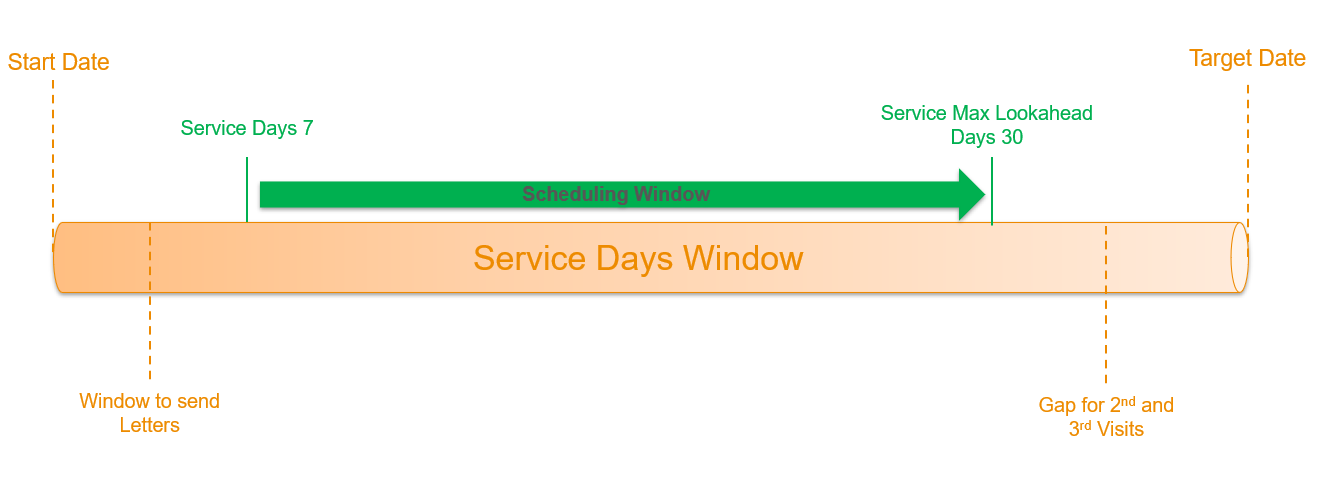
Service Days Load Option 1 – From Today
This is showing as being configured with serviceDays set to 7, giving you a minimum of 7 days to send out any communication to your customers to advise them when the appointment has been scheduled for. The servicing module will attempt to batch schedule the jobs from day 7 for the next 30 days after that. This is then potentially allowing time for 2nd and 3rd visits before the target date is reached.
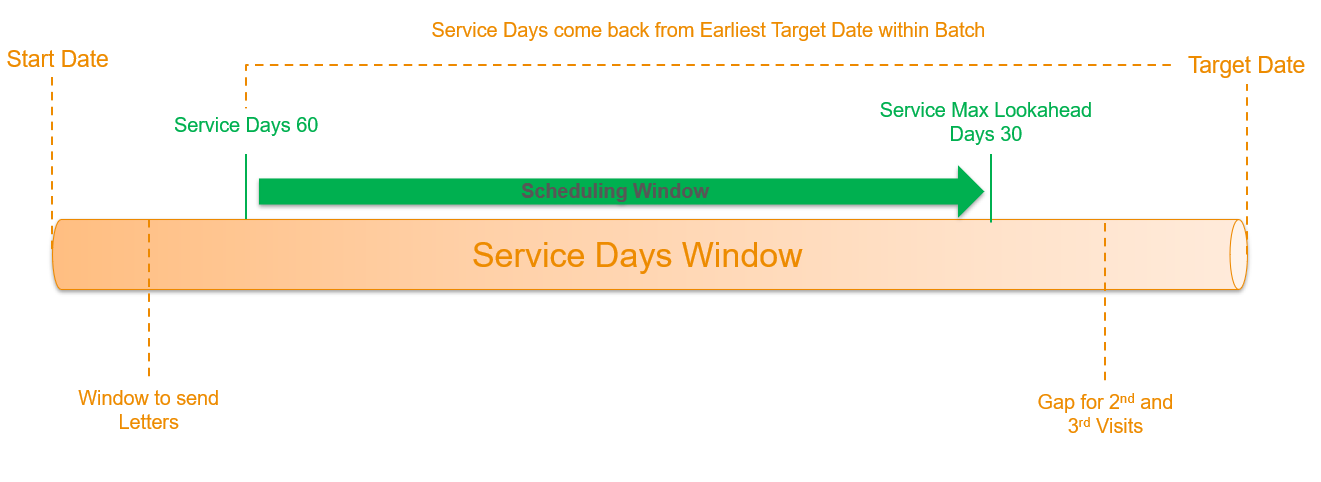
Service Days Load Option 2 – From Target Date
This option will review the Target Date at the first point and will choose the earliest Target Date that is available in the batch of jobs that has been sent through to DRS. It will then in this instance, count back 60 days as its starting point to start scheduling. It will then schedule up to 30 days after that. This is then potentially allowing time for 2nd and 3rd visits before the target date is reached.
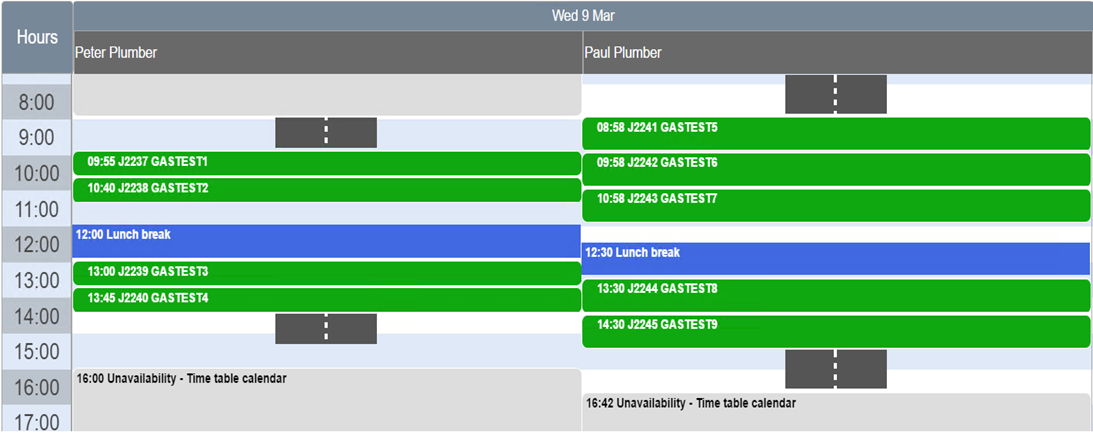
Service Window and Percentage Fill - Option 1
Service Window: The service window is set to start at 8am and end at 16:30 to represent the full day
Percentage Diary Fill: The Diary has been filled 100% with servicing jobs. This doesn’t leave any capacity for 2nd or 3rd visits or any other appointments the operative may be required to do
Allocated slots: These can be set to AMPM or All Day and will be assigned to the visits.
Please Note: Don’t overlap the AMPM appointment slots e.g. 08:00 to 13:00 and 13:00 to 16:30
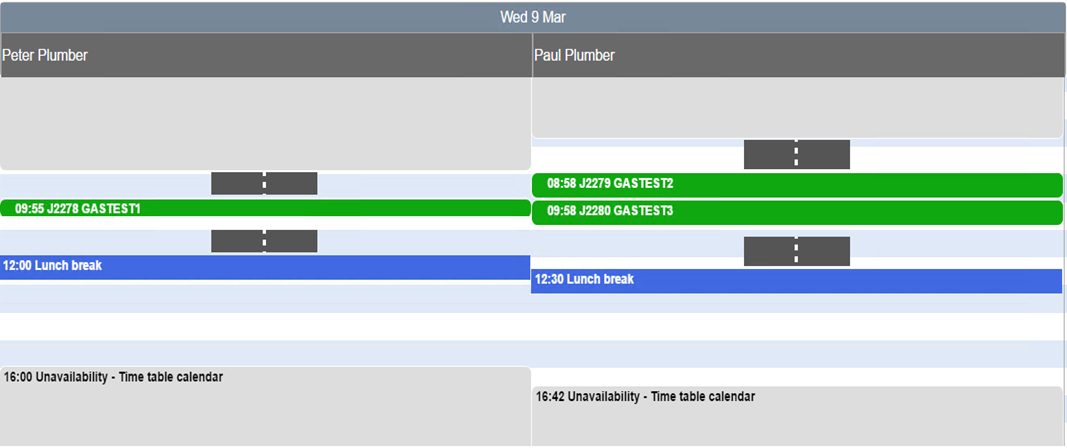
Service Window and Percentage Fill - Option 2
Service Window: The service window is set to start at 8am and end at 16:30 to represent the full day
Percentage Diary Fill: The Diary has been filled 50% with servicing jobs. This will leave capacity for 2nd or 3rd visits or any other appointments the operative may be required to do
Allocated slots: These can be set to AMPM or All Day and will be assigned to the visits.
Please Note: Don’t overlap the AMPM appointment slots e.g. 08:00 to 13:00 and 13:00 to 16:30
Service Window and Percentage Fill - Option 3
Service Window: The service window is set to start at 10am and end at 15:00 to represent the full day and will leave capacity around these times for 2nd and 3rd visit and any other appointments
Percentage Diary Fill: The Diary has been filled 100% with servicing jobs. This will fill the specified servicing window with servicing jobs only
Allocated slots: These can be set to AMPM or All Day and will be assigned to the visits.
Please Note: Don’t overlap the AMPM appointment slots e.g. 08:00 to 13:00 and 13:00 to 16:30

Service Window Operative Load - Option 1
Load Service Window: If set to TRUE will load one operative at a time with servicing jobs.
Operative 1 will be populated first for example with servicing jobs up to the end of the agreed window. The module will then populate the 2nd operative and then the 3rd until the point there are no jobs left to schedule.
This may result in some operatives not having servicing jobs on particular days
This can work in conjunction with percentage fill
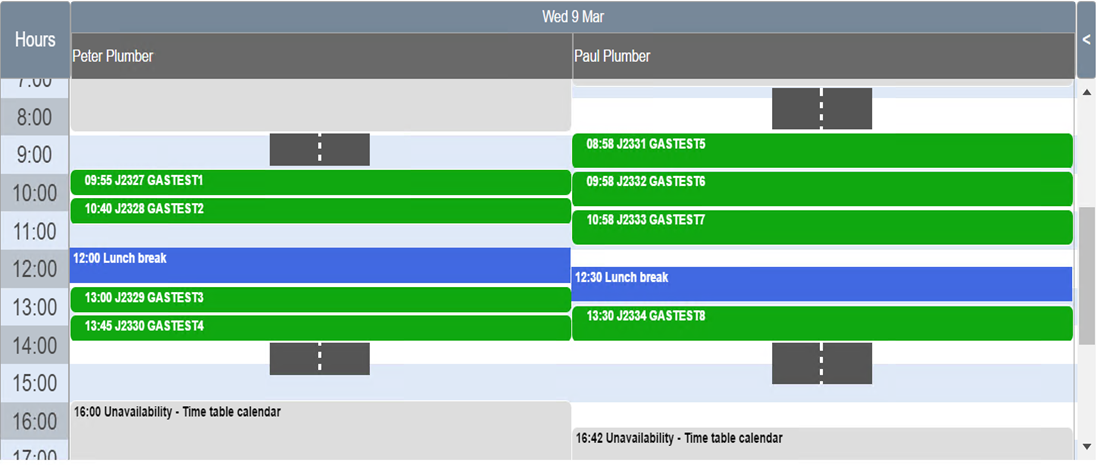
Service Window Operative Load - Option 2
Load Service Window: If set to FALSE will load one operative at a time with servicing jobs each day
Operative 1 will be populated first for the day with servicing jobs. The module will then fill the 2nd operative and then the 3rd operative across the same day
This may result in some operatives appearing in the same area/street depending on volume
This can work in conjunction with percentage fill and window start and end times
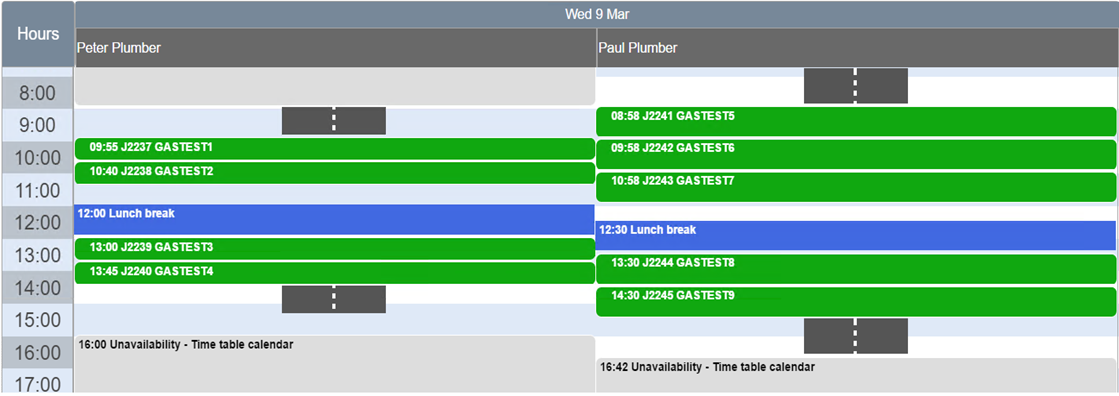
Parameters
Cyclical Servicing is chiefly configured within your Customer Connector Database. For support to make these changes, please consult OneAdvanced Support, or your OneAdvanced Product Consultant.
Understanding the impact of the changes you can make by selecting given parameters is important; Please review below for more detail.
Parameter | Description |
RunServiceRequirements | True or False value, Set to True to enable the servicing module and the utility service will schedule new servicing jobs in bulk into DRS |
AdjustforPWStart | True or False value, if true then it will ignore the planning window start and scheduling can run from say tomorrow as opposed to the planning window start which could be predefined in 5 days time. |
ServiceStartMethod | When shall it look to schedule the jobs from, fromToday will look forwards from today and fromTargetDate will come backwards from the Target Date. The values specified in service days will determine how far forward/back. Please note, When using fromTargetDate it will schedule back from the minimum target date in the batch. |
ServiceDays | The number of days to look ahead from today or back from target date to commence scheduling, this allows a window for letters to be sent out. For example use fromtoday and look ahead 7 days before scheduling and then use max look ahead days to determine how far ahead to schedule from day 7 onwards. |
ServiceMaxLookAheadDays | The maximum number of days to look ahead from the service days, this enables jobs to be scheduled in the window from the ServiceDays value to the ServiceMaxLookAheadDays value |
ScheduleTimeServiceRequirements | The time the servicing module will run, by default this is set to 2am to allow for effective scheduling whilst the system is quiet. |
ScheduleonWeekends | Values can be True or False, this will indicate whether servicing jobs can be scheduled over the weekend |
ServiceWindowStart | The time to start scheduling servicing jobs into the diary from e.g 08:00 or 10:00am |
ServiceWindowEnd | The time the servicing window will end and servicing jobs can no longer be planned in e.g 15:00pm or 16:30pm |
ServiceResourceSkill | The skill associated to the Workers for servicing, this must match the Job Template name |
ServiceScheduleAfterTargetDate | True or False Value, if True will allow servicing Jobs to be scheduled past the target date |
LockServiceToAppointmentSlot | Options are AMPM, ALLDAY or None. This will lock the job into the relevant time slot once scheduled, if None this will not lock to a slot. |
OptServiceStartofAM | If LockServiceToAppointmentSlot is set to AMPM then this will be the start time of the AM Time Slot. |
OptServiceEndofAM | If LockServiceToAppointmentSlot is set to AMPM then this will be the end time of the AM Time Slot. |
OptServiceStartofPM | If LockServiceToAppointmentSlot is set to AMPM then this will be the start time of the PM Time Slot. |
OptServiceEndofPM | If LockServiceToAppointmentSlot is set to AMPM then this will be the end time of the PM Time Slot. |
OptUserEfficiency | True or False Value, if True will use the efficiency set against the Worker and works in the same way as DRS |
ServiceAM_PMBoundary | The midday point at which morning becomes afternoon |
ApplyTravelTimeSorting | If true it will sort the list of servicing jobs by latitude/longitude instead of postcode order. |
AuditServiceRequirements | True or False Value, if true will turn on auditing for the servicing module |
ForcePMService | True or False Value, if true will set Jobs to start on the boundary time if a job overlaps the AM_PM boundary |
KeepResourceLock | True or False Value, if false will remove the Worker lock on the Jobs once the scheduling has completed |
CreateAppointmentConfirmationforServicing | True or False Value, if True this will produce an appointment confirmation to the back office/contractor system if required |
