Dynamic Resource Scheduler
Whats New!
User Experience Changes
Security and Authentication
Modules and Utilities
Cyclical Scheduling - Configuration Interface
Cyclical Scheduling - Now Bulk Scheduling
Resource Quotas Improvements - Percentages
Architecture and Scheduling
Configuration
User Guides and Help
Get to Know Dynamic Resource Scheduler
How Does Dynamic Resource Scheduling Work
Speaking the Language of Scheduling
Navigating Dynamic Resource Scheduler
How your Data Links Together
Managing your Organisation
Viewing your Data
Your Customer Data
Your Service Orders
Your Jobs
Your Workers and Resources
Manage Your Tasks
Actioning your Jobs and Tasks
Job Templates
Find A Jobs Possible Workers
Locking Your Jobs
Create a Follow On Task
User Queues and Organising Your Tasks
Schedule and Organise
How to Optimise Your Scheduling
How to Schedule Manually
Scheduling Mutliple Jobs at Once
Reassign and Reschedule your Tasks
Managing Your Time and Durations
Managing your Comments and Contacts
Using Bookmarks to Drive Efficiency
Managing Your Job Status
Visualising Your Planning
Workers and Resources
Advanced Data Management
Creating Unavailability in your Workforce
Adding an Unavailability to an Individual Worker
Creating Unavailabilities for Multiple Days or Workers
Maps And Journey
Using Maps to Visualise Your Data
Using Maps With Your Data
Learn about our Closest Function
Your Journeys
Meetings and Non-Productive Planning
Administer Your Scheduler
Managing Your Organisations and Agencies
Managing Your Custom Data
Managing your Contracts
Customising Your Experience
Managing Depots and Starting Locations
Managing Diary Bookmarks
Managing your External Chart Views
KPI Settings
Managing Your Priorities
Learn about Sectors
Managing Your Follow On Templates
Get To Know Your Working Time Calendar
Managing your SOR Templates
Managing your Job Templates
Managing Your Vocabulary
Managing Your Bookmarks
Manage Your Customer Templates
Get to Know Import and Export
Managing Your Tenant Code Rules
Managing your Order Templates
Managing Your Unavailability Reasons
Get To Know Your Working Time Calendars
Managing your Worker Templates
Releases and Readiness
DRS 6, DRS 5.7 and Job Manager
User Guides and Help
Get to Know DRS
Dynamic Scheduling - How does it work
Navigating DRS
Vocabulary and Concepts
Customers
Orders
Jobs
Scheduling Jobs
Job Functions
Workers
Views
Object Inheritance
Agencies
DRS Modules
Scenario Based Planning
Managing your SMS Service
5.7 Documentation
Technical Documentation
Release Notes
DRS 6.1 Release Notes
DRS 6.1.22 - February 20, 2026
DRS 6.1.21 - September 10, 2025
DRS 6.1.20 - April 20th, 2025
DRS 6.1.19 - 11th April, 2025
DRS 6.1.18 - 13 February 2025
DRS 6.1.17 - 20th December 2024
DRS 6.1.16 - November 8th, 2024
DRS 6.1.15 - October 10th, 2024
DRS 6.1.14 - 6th September 2024
DRS 6.1.13 - 9th August 2024
DRS 6.1.12 Release Notes
DRS 6.1.11 Release Notes
DRS 6.1.10 Release Notes
DRS 6.1.9 Release Notes
DRS 6.1.8 Release Notes
DRS 6.1.7 Release Notes
DRS 6.1.6 Release Notes
DRS 6.1.5 Release Notes
DRS 6.1.4 Release Notes
DRS 6.1.3 Release Notes
DRS 6.1.2 Release Notes
DRS 6.1.1 Release Notes
DRS 6.1.0 Release Notes
DRS 6.0 Release Notes
DRS 6.0.0.0 Release Notes
DRS 6.0.0.1 Release Notes
DRS 6.0.0.2 Release Notes
DRS 6.0.0.3 Release Notes
DRS 6.0.0.4 Release Notes
DRS 6.0.0.6 Release Notes
DRS 6.0.1.0 Release Notes
DRS 6.0.1.1 Release Notes
DRS 6.0.1.2 Release Notes
DRS 6.0.1.3 Release Notes
DRS 6.0.1.4 Release Notes
DRS 6.0.1.5 Release Notes
Kirona Housing
Job Manager 9
Job Manager 9.3.0 - October 2024
Job Manager 9.1.0 - December 2022
Job Manager 9.2.0 - November 2023
Release Notes Disclaimer
Administering your Field Service Products
Supported Versions Policies
Contents
Customers
Purpose
This article is written to help you understand the concepts of Customers within DRS.
What are Customers?
Customers are your locations which require the Jobs or Works Orders to be attended to. The Customer requires some key data points to ensure they are Unique and DRS is able to schedule appointments to them. The Customer must have a Unique ID and a validatable postcode. The postcode of this location is validated and used to calculate the travel time between jobs within DRS. These postcodes are also added against your sectors to determine which sectors that your workers can work in.
Customers can be any item which you need to record a location against, such as, Assets, Properties, Schemes, Land or offices for example.
Aside from just having the address, each of these customer records can be configured with Business Data such as Tenant Codes (warning flags), Contact Name / Telephone Number / Email address, Contract, Mandatory / Preferred or Forbidden Workers, Opening Hours and Closing Days Calendar.
Viewing Customers
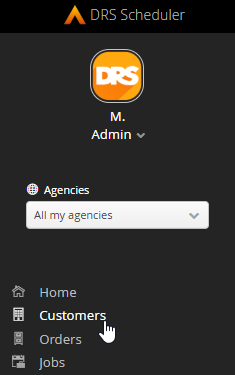
To Access Customers click on Customers from the left navigation menu to be taken to the view

Click on any customer line within the view to be taken to the customer detail panel.
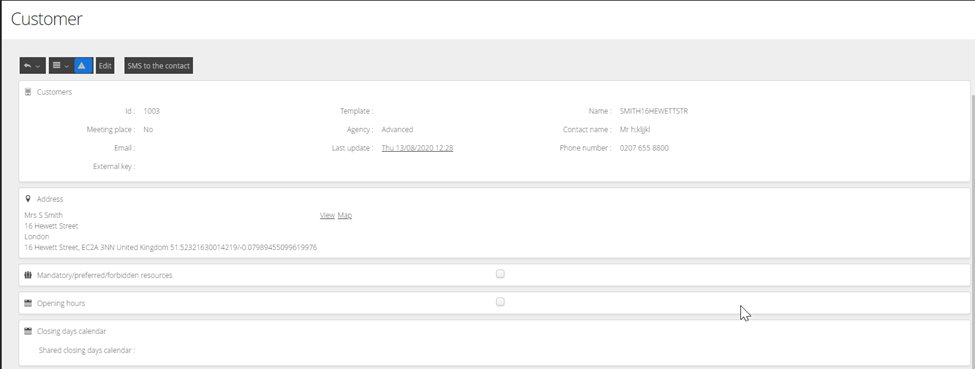
To see associated Orders and Jobs for this customer click on show data in each area.

Creating a Customer
Within the Customer View pane, click the Add button.
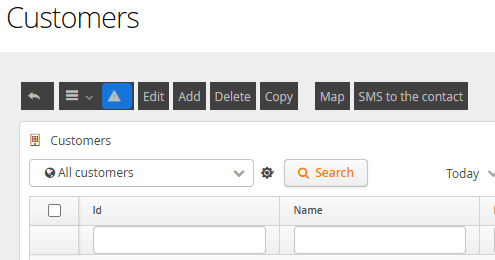
If you have multiple agencies you may get an option to Select agency. This will be the agency of where this customer will reside. Select the relevant agency and click Next

If you have multiple Customer Templates you may get an option to Select template. Select the relevant Template that matches the type of customer you are adding and click Next
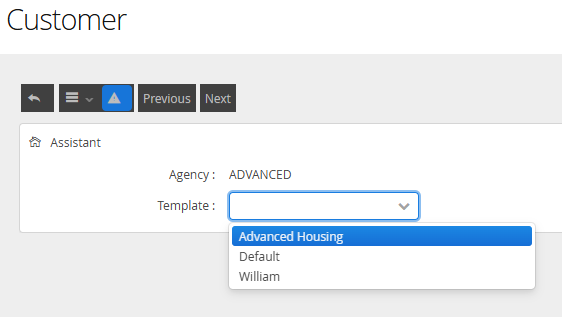
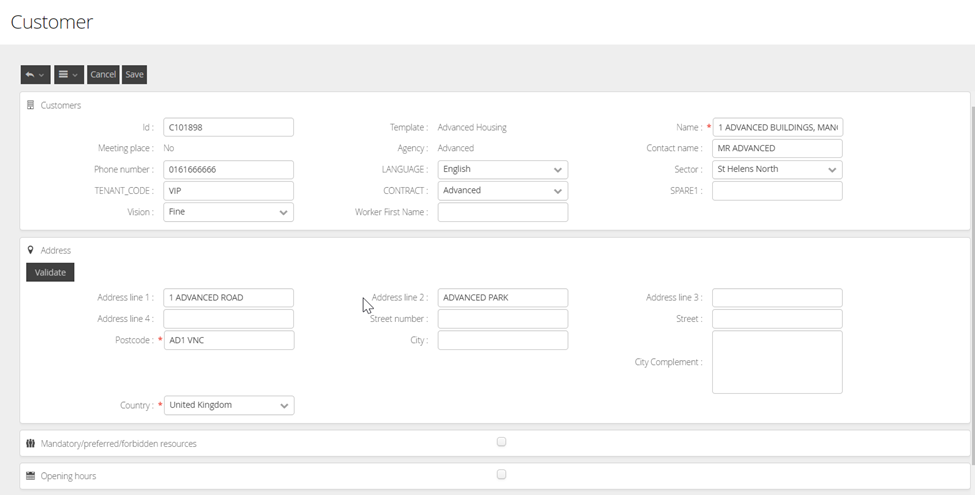
The following fields may be available for you to complete. Fields marked in BOLD are mandatory and will be available on all installations.
Field Name | Description |
ID | This is the unique value used to identify the Customer Object. This is the key matching value used by your Integrating system. Common uses of this value are Property UPRN's, Block ID's and Asset ID's |
Name | The Name value is used by the Users to identify the Location or Asset. |
Postcode | This is the Post Code value for the location. This must be a validatable PostCode, but can be a Part Postcode if required (e.g., EH1, EH1 1A, or, EH1 1AA) |
Address Line 1, 2, 3, 4 | These fields will hold the formattable address details for the asset or location. |
City | This field is the City location for the asset or location. |
Country | This field is the Country for the asset or location. |
Preferred Worker | Preferred Worker is where the customer has a specific worker preference, this isn’t mandatory and obviously will be redundant when applied across trades (a joiner being applied wont work for plumbing jobs for example), adding a preference may give some customer satisfaction that a particular worker will be selected in the scheduling rules. DRS can also identify with configuration whether the preferred worker can be sent on the slot requests. |
Mandatory Worker | Mandatory worker is the customer request for this worker to always be sent as opposed to anybody else, this isn’t ideal where you have multiple skills/trade operatives as it will only look for the one operative in the scheduling rules regardless of skill set so should be used sparingly. |
Forbidden Worker | Forbidden worker will prevent the worker being chosen at all for this particular property in the scheduling rules – NB manual manipulation can prevent this being applied correctly |
Tenant Code | Tenant Codes can be used to identify identifying flags for the Locations. The value in the Tenant Code field is used as part of the Tenant Code Template configuration. This value can also be updated directly though the API by your integrating system. |
Area | Area to which a customer belongs, this could be a borough or a zone that is used outside of sectors and it is configurable to be selected as part of scheduling if required |
Configuring Additional Fields in Customer
Mandatory/preferred/forbidden workers
Selecting the Checkbox will display the configuration pane for Worker configuration.

Selecting any of the ADD buttons will display a Worker Object Selector to add workers.
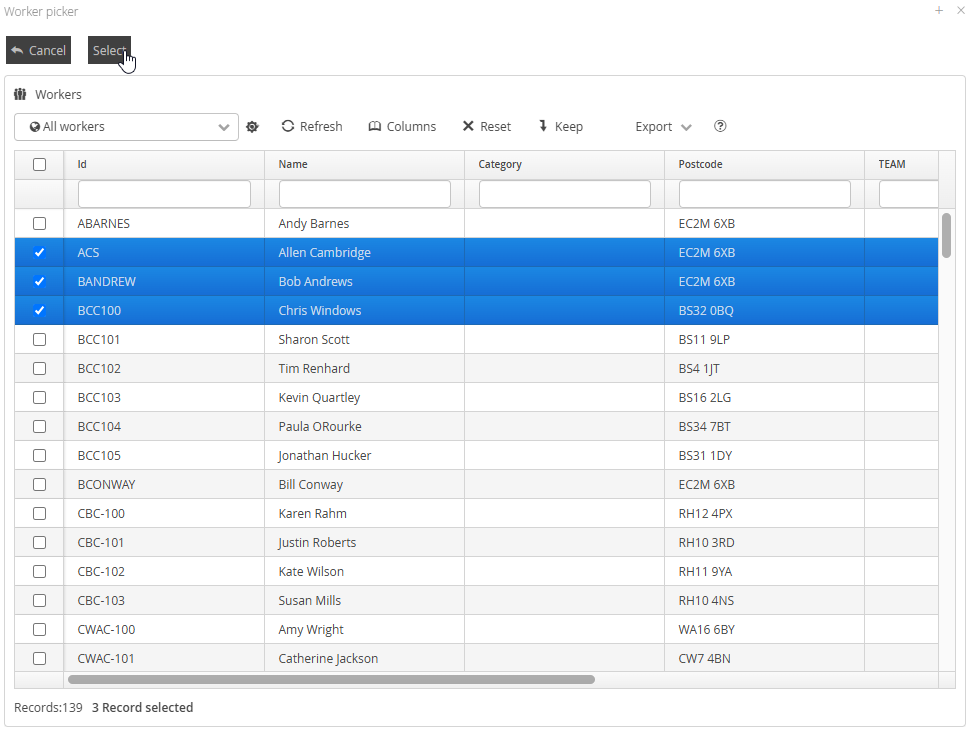
Clicking Select will add these Workers to the Customer

Clicking on the Recycle Bin will remove any configured worker from the Customer.
Opening Hours
Checking the box for Opening Hours will display the configuration pane for Opening Hours.
Opening Hours can be applied to a customers setup to indicate they can only accept jobs or are open to scheduling in work on particular dates and times. If configured, DRS will only offer slots on the dates and times specified.

Edit a customer
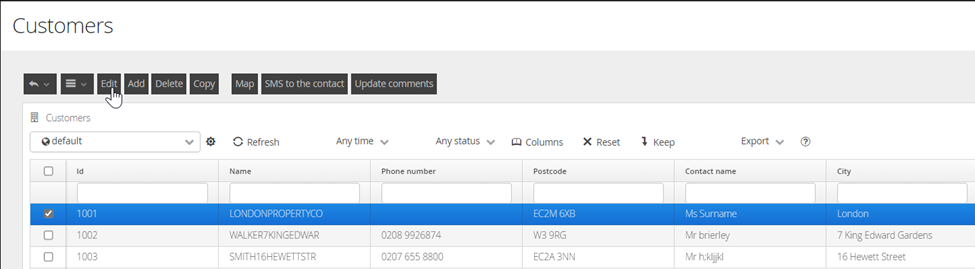
Select a customer by placing a tick in the check box and selecting edit, this will take you back to the customer setup screen for amendments to be applied.
All options to manage customers are performed as creating a new Customer. The only value that cannot be modified is the Customer ID and Customer template.
Delete a Customer
Select a customer by placing a tick in the check box and selecting Delete, this will remove the customer from the system.
Once a record has been deleted, there is no recovery.