Dynamic Resource Scheduler
Whats New!
User Experience Changes
Security and Authentication
Modules and Utilities
Cyclical Scheduling - Configuration Interface
Cyclical Scheduling - Now Bulk Scheduling
Resource Quotas Improvements - Percentages
Architecture and Scheduling
Configuration
User Guides and Help
Get to Know Dynamic Resource Scheduler
How Does Dynamic Resource Scheduling Work
Speaking the Language of Scheduling
Navigating Dynamic Resource Scheduler
How your Data Links Together
Managing your Organisation
Viewing your Data
Your Customer Data
Your Service Orders
Your Jobs
Your Workers and Resources
Manage Your Tasks
Actioning your Jobs and Tasks
Job Templates
Find A Jobs Possible Workers
Locking Your Jobs
Create a Follow On Task
User Queues and Organising Your Tasks
Schedule and Organise
How to Optimise Your Scheduling
How to Schedule Manually
Scheduling Mutliple Jobs at Once
Reassign and Reschedule your Tasks
Managing Your Time and Durations
Managing your Comments and Contacts
Using Bookmarks to Drive Efficiency
Managing Your Job Status
Visualising Your Planning
Workers and Resources
Advanced Data Management
Creating Unavailability in your Workforce
Adding an Unavailability to an Individual Worker
Creating Unavailabilities for Multiple Days or Workers
Maps And Journey
Using Maps to Visualise Your Data
Using Maps With Your Data
Learn about our Closest Function
Your Journeys
Meetings and Non-Productive Planning
Administer Your Scheduler
Managing Your Organisations and Agencies
Managing Your Custom Data
Managing your Contracts
Customising Your Experience
Managing Depots and Starting Locations
Managing Diary Bookmarks
Managing your External Chart Views
KPI Settings
Managing Your Priorities
Learn about Sectors
Managing Your Follow On Templates
Get To Know Your Working Time Calendar
Managing your SOR Templates
Managing your Job Templates
Managing Your Vocabulary
Managing Your Bookmarks
Manage Your Customer Templates
Get to Know Import and Export
Managing Your Tenant Code Rules
Managing your Order Templates
Managing Your Unavailability Reasons
Get To Know Your Working Time Calendars
Managing your Worker Templates
Releases and Readiness
DRS 6, DRS 5.7 and Job Manager
User Guides and Help
Get to Know DRS
Dynamic Scheduling - How does it work
Navigating DRS
Vocabulary and Concepts
Customers
Orders
Jobs
Scheduling Jobs
Job Functions
Workers
Views
Object Inheritance
Agencies
DRS Modules
Scenario Based Planning
Managing your SMS Service
5.7 Documentation
Technical Documentation
Release Notes
DRS 6.1 Release Notes
DRS 6.1.22 - February 20, 2026
DRS 6.1.21 - September 10, 2025
DRS 6.1.20 - April 20th, 2025
DRS 6.1.19 - 11th April, 2025
DRS 6.1.18 - 13 February 2025
DRS 6.1.17 - 20th December 2024
DRS 6.1.16 - November 8th, 2024
DRS 6.1.15 - October 10th, 2024
DRS 6.1.14 - 6th September 2024
DRS 6.1.13 - 9th August 2024
DRS 6.1.12 Release Notes
DRS 6.1.11 Release Notes
DRS 6.1.10 Release Notes
DRS 6.1.9 Release Notes
DRS 6.1.8 Release Notes
DRS 6.1.7 Release Notes
DRS 6.1.6 Release Notes
DRS 6.1.5 Release Notes
DRS 6.1.4 Release Notes
DRS 6.1.3 Release Notes
DRS 6.1.2 Release Notes
DRS 6.1.1 Release Notes
DRS 6.1.0 Release Notes
DRS 6.0 Release Notes
DRS 6.0.0.0 Release Notes
DRS 6.0.0.1 Release Notes
DRS 6.0.0.2 Release Notes
DRS 6.0.0.3 Release Notes
DRS 6.0.0.4 Release Notes
DRS 6.0.0.6 Release Notes
DRS 6.0.1.0 Release Notes
DRS 6.0.1.1 Release Notes
DRS 6.0.1.2 Release Notes
DRS 6.0.1.3 Release Notes
DRS 6.0.1.4 Release Notes
DRS 6.0.1.5 Release Notes
Kirona Housing
Job Manager 9
Job Manager 9.3.0 - October 2024
Job Manager 9.1.0 - December 2022
Job Manager 9.2.0 - November 2023
Release Notes Disclaimer
Administering your Field Service Products
Supported Versions Policies
- All categories
- DRS 6, DRS 5.7 and Job Manager
- Administering your Field Service Products
- Administering DRS
- Configuring your System
- Overview of Scheduled Services
Overview of Scheduled Services
Purpose
This article is here to help you understand the concept of Scheduled Services, how to implement them and the benefits you can achieve.
What are Scheduled Services
Scheduled Services are a powerful and highly configurable aspect of DRS. They allow you to automate tasks, and give you precise control over how these tasks are executed.
A Scheduled Service has 2 components
- The Service Frequency - How often it runs, on which days and between which times
- The Service Task(s) - The jobs that you want DRS to automate, and the sequence in which they are executed
Configuring a Scheduled Service
Each Service Task within a Scheduled Service has 4 key building blocks.
- The Task Type - What the task does, e.g. send a text message
- The Service View - The Jobs, Orders, Customers, or Workers that the service is going to execute the task against. e.g. Jobs that have had a no access today
- The Task Parameters - The settings that will control the what the task does and how it executes, e.g. what wording to use on the text message
- The Business Data - What does the service task update e.g. a flag to confirm the text message has been sent.
Task Types
There are many task types available.
Lock | Locks jobs to their currently assigned worker and/or time. |
Schedule | Auto schedules jobs as a floating, within the their planning windows. |
Suspend | Suspends jobs, i.e. takes planned jobs out of the diary |
Worker Planning fence date | Freezes worker diaries up to relative point in time |
Send text message | Sends fully configurable text messages to customers or workers |
Booking confirmation | Specifically sends confirmation text messages to customers when jobs are initially appointed |
Booking Change confirmation | Specifically sends confirmation text messages to customers when their jobs are rescheduled into a different slot |
Worker on way | A bolt on module that sends customers a link to a webpage where they can track the worker on a map, see their ETA and securely message them. |
Update business data | Sets Job, Order or Customer business data to specific values |
Slot allocation | "Wraps" a slot around planned jobs, so their assignment period cannot move outside of this slot |
Create follow on | Creates follow on jobs |
Create project package follow on | Create project planner follow on packages |
Update worker location | Uses the worker on way module to retrieve accurate worker location information |
Extend periods | Extends planning windows so jobs can be scheduled out of target |
Sequencing Service Tasks
A service can contain one or many tasks, and these tasks can be configured into a specific sequence (aka position ).
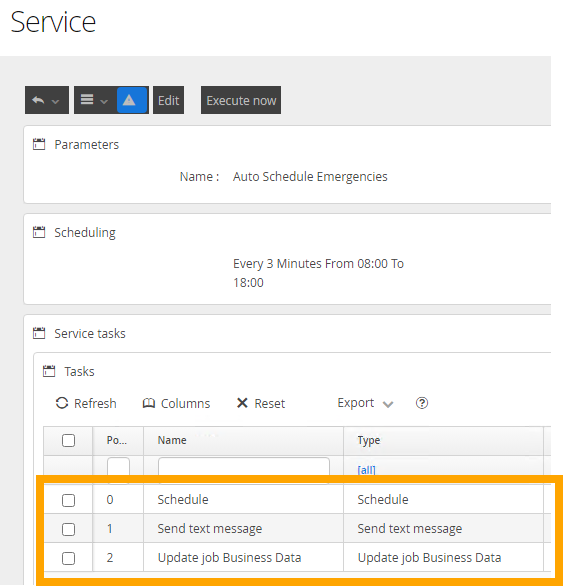
When the service runs it executes the tasks in the configured sequence. This allows to you create complex services that can automate many of your day to day processes.
What Can Your Scheduled Task Look Like
For example, lets assume you have a 2 strike no access policy. If the customer misses their first appointment you make a second appointment. If they miss the second appointment, the order is cancelled.
This process could be automated via a service that performs the following sequence of tasks. Although this example may seem complex, its just lots of simple steps daisy-chained together, and it illustrates how useful and customisable scheduled services are.
- Update job business data - if a job has no follow on child, set its "visit number" business data to 1
- Send text message - if a visit number 1 job is completed with a completion status of "No Access", send a "sorry we missed you" text message to the customer.
- Update job business data - set the "sorry we missed you message sent" business data on the visit number 1 job to Yes.
- Create follow on - if a visit number 1 job is completed with a completion status of "No Access", create a follow on job. Use the Follow on job template to set the follow on job's visit number to 2
- Extend Periods - (optional task) - extend the planning window of the visit number 2 job so it can be scheduled out of target
- Schedule - schedule the visit number 2 job
- Slot allocation - wrap an appointment slot around the visit number 2 job
- Booking Confirmation - send a text message to the customer confirming the visit number 2 appointment slot
- Send a text message - when a visit number 2 job becomes Accepted, send a text message to the customer to confirm that a worker is on their way to the second and final access attempt.
- Update job business data - set the "final visit message sent" business data on the visit number 2 job to Yes.
- Send text message - if a visit number 2 job is completed with a completion status of "No Access", send an "order cancelled" text message to the customer.
- Update job business data - set the "order cancelled message sent" business data on the visit number 2 job to Yes.
Shared views could also be created to track which jobs are at which stage in the above process.
