Contents
Quotas
Purpose
This article is written to help you understand what Quotas are, how they can help you with Scheduling all of your jobs at the first point of contact and how to implement the changes within your system to take advantages of this functionality.
How Do Quotas Work?
Quotas allow limits to be placed on the amount of jobs of each priority that can be scheduled into each worker's diary, therefore reserving capacity for higher priority jobs (i.e. urgent and emergency) and negating the need to manually block out capacity for these jobs via unavailability.
When a job is created, its Parent Order's Priority Code is used to band it as either Standard (low priority), Urgent (medium priority) or Emergency (high priority). This is then used to calculate it's quota usage values, i.e. how much space the task takes up in the diary for the given quota type.
Once a worker's daily quota limit has been reached, no more jobs for that priority band can be booked into the workers diary. Users with the ability to Manually schedule tasks using Force Scheduling can override this limit and schedule tasks outside of the boundaries of the Quotas.
To give an analogy, think of a worker's diary for a given day as a mug of coffee, the jobs are coffee and the quotas are lines on the mug.
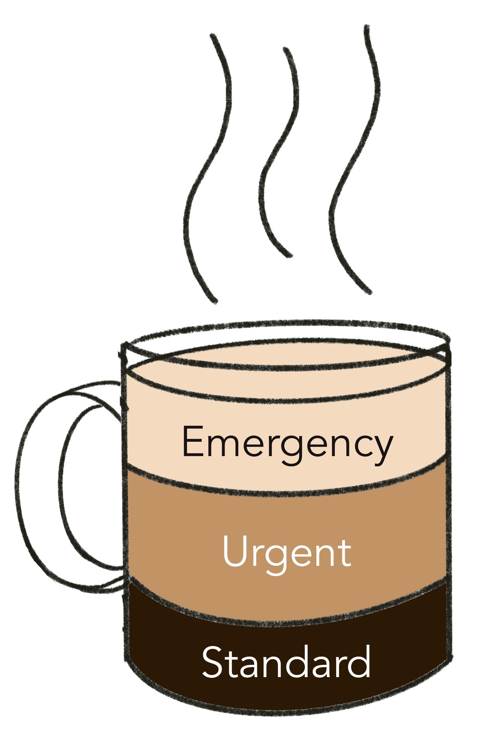
Standard jobs can fill from the bottom of the mug to the bottom line. They can be booked further into the future than Urgent and Emergency jobs, so they normally get into the mug first. Once standard jobs have filled up to their line, no more can be added to the mug. This ensures capacity is reserved for Urgent and Emergency jobs.
Urgent jobs can fill from the bottom of the mug to the middle line, although in reality Standard jobs will have got into the mug first, Urgent jobs normally only get to fill from the bottom line to the middle line. Once Urgent jobs have filled up to the middle line, no more can be added to the mug. This ensures capacity is reserved for Emergency jobs.
Finally Emergency jobs can fill from the bottom of the mug the the top line, although in reality Standard and Urgent jobs will have got into the mug first, so Emergency jobs normally only get to fill from the middle line to the top line. Once Emergencies jobs have filled up to the top line, no more can be added to the mug.
Filling the Mug
Regardless of where the lines are, a mug can only hold so much coffee.
Regardless of how you have configured the quotas, DRS will never allow you to put more jobs and travel time into a diary than can fit (unless jobs are forced).
Now the (slightly) complex bit. Adding Standard jobs to a diary leaves less capacity for Urgent and Emergency jobs. Therefore Standard jobs use up all three quotas (Standard, Urgent and Emergency).
Adding Urgent jobs to a diary leaves less capacity for Emergencies, but if there are no Standard jobs in the diary Urgent jobs can fill from the bottom of the mug to the middle line, therefore urgent jobs only use up Urgent and Emergency quotas.
Emergency jobs only use the Emergency quota. This ensures that if a diary has no jobs, Emergencies can fill from the bottom of the mug up to the top line.
Quotas can also be used to build spare capacity into a diary for other activities, e.g. lunch breaks. Setting the top line below the top of the mug will ensure jobs cannot fill the mug entirely. However, quotas do not take into account travel time, so please refer to the below example for more information on this.
Understanding Quotas
Example
A worker's shift runs from 9am until 5pm (480 minutes).
They travel an average of 50 minutes per day, and take a 30 minute lunch break.
Therefore the maximum time spent on jobs is 400 minutes (480 - 50 - 30).
The worker is normally assigned 100 minutes of Emergency, and 100 minutes of Urgent jobs per day.
Therefore you could set the worker's quota limits as follows.
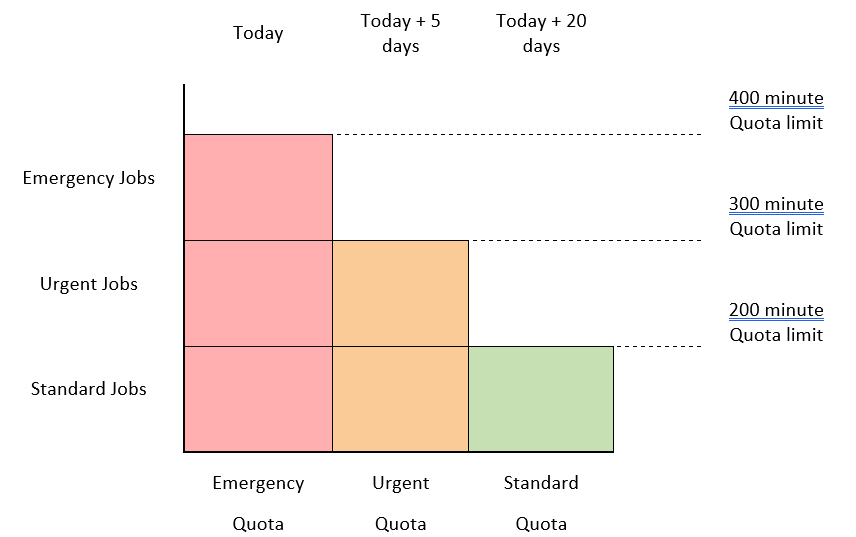
- Emergency (8 hour priority) 400 minutes
- Urgent (5 day priority) 300 minutes
- Standard (20 day priority) 200 minutes
Once 400 minutes of jobs have been assigned to the worker, no more jobs can go into their diary, leaving 80 minutes for travel and lunch break.
Standard jobs will generally go into the diary first, since they have a 15 day head start on Urgents, and a 19 day head start on Emergencies. Standard jobs have all three quotas usage values assigned (standard, urgent and emergency). This is because Standard jobs directly reduce the capacity for Standard, Urgent and Emergency jobs.
Urgent jobs will generally go into the diary next. They have a 4 day head start on Emergencies. Urgent jobs have only the Urgent and Emergency quota usage values assigned. This is because Urgent jobs directly reduce the capacity for Urgent and Emergency jobs. They only indirectly reduce capacity for Standard jobs, e.g. if a diary was empty you could add 300 minutes of Urgent jobs and this would block any Standard jobs from going in, since Standard jobs also take from the Urgent quota. But if the diary already had 200 minutes of Standard jobs, 100 minutes of Urgent jobs could still be added, since Urgent's do not take from the Standard quota.
Finally Emergencies get to go into the diary. Emergencies have only the Emergency quota usage value assigned. This is because Emergency jobs only directly reduce the capacity for Emergency jobs. They indirectly reduce the capacity for Urgent and Standard jobs, e.g. if a diary was empty you could add 400 minutes of Emergency jobs and this would block any Urgent and Standard jobs from going in, since they also take from the Emergency quota. If the diary already had 200 minutes of Standard jobs and 100 minutes of Urgent jobs, 100 minutes of Emergency jobs could be added since Emergencies only take from the Emergency quota.
How are Quotas enabled
A worker’s quotas are activated by associating them with a working hours calendar that has quotas enabled. The quotas can either be defined on the working hours calendar (known as calendar level quotas), or the working hours calendar can derive worker specific quotas from the worker’s attributes (known as worker level quotas).
Calendar level quotas
Calendar level quotas apply to all workers assigned to that working hours calendar. The benefit of this approach is that multiple working hours calendars can be created with different quotas, then assigned to the workers at different times of the year to handle seasonal demand. Then, as that time of year approaches, jobs will be automatically subjected to the different quotas, therefore reducing the need to manually adjust the quotas on an ad-hoc basis throughout the year.
Worker level quotas
Worker level quotas are usually preferable over calendar level quotas since they allow you to set different quotas per worker, which makes it easier to set different quotas depending on trades and sectors. However, any adjustments to handle seasonal demand must be carried out manually, and this may cause jobs to suspend unless they are forced back into the diaries.
Mixing quotas
It is possible to mix the two approaches, i.e. have some workers on calendar level quotas, and others on worker level quotas.
Other Quota Types
Quotas can be weekly minutes instead of daily minutes. However, weekly minutes does not stop the start of each week filling up with the lower priority Jobs, therefore there's a chance that that the capacity for urgent and emergency jobs will be only towards the end of the week.
A quota can also be set on the total number of jobs per day, or per week. But different limits cannot be set for different priorities.
Follow on Jobs
Quotas can be optionally disabled for follow on jobs. Follow-ons are generally standard priority, but the standard quotas are likely to be filled over the next few days, making it harder to fit the follow-ons in. Disabling quotas for follow-ons means their quota usage values are not assigned, so the quotas are ignored and they can potentially be appointed sooner.
Bypassing quotas today
If today's emergency capacity is unlikely to be fully utilised (i.e. there are fewer emergencies than expected) its possible to bypass the quotas on a job by job basis, e.g. let a standard or urgent job use up the capacity reserved for emergencies. To do this you need to make the quota usage values modifiable in the business data. The planner can then edit the urgent or standard job, and remove it's quota usage values.
The method can also be used to schedule all day jobs.
Going live
Several parameters must be set in the database to enable quotas and is recommended it is done with guidance from your DRS consultant. From then on all newly created jobs are assigned quota usage values depending on their parent order's priority.
Initially there are likely to be existing WIP jobs that have no quota usage values assigned. Quotas can be enabled against the workers immediately, and as the jobs with quota usage values phase in, the quota functionality will become more and more effective. However, this is not the recommended approach, since mixing jobs with and without quota usage values in the diaries can cause significant confusion to the planners.
You can assign quota usage values to existing WIP jobs by exporting them, adding in the quota usage values, then doing an incremental import. However, this is likely to cause some suspensions unless some jobs are forced back into the diaries. This is because some jobs may not fit back into their original appointment slots when the quotas and quota usage values are compared during import.
It's much cleaner to identify a future date by which you expect all (or the vast majority of) WIP jobs will have their quota usage values assigned, and assign the quota working hours calendar(s) to the workers starting from this date. E.g. If your longest priority is 20 working days and today is 1st January, we can assume that the maximum target date as of today will be around the end of January. There’s a good chance that most of the jobs that were WIP on 1st January, will be completed by the end of January, and so the working hours calendars should be assigned to the workers from 1st February. During January, new WIP jobs will start getting scheduled into February’s slots. These jobs will have quota usage values assigned, so in theory on 1st February all WIP jobs will have quota usage values assigned.
Configuration
Database pre-requisites
There are several database parameters that must be set before the below configuration steps can be followed.
Object attributes
The quota object attributes should already exist, but if they do not:
Navigate To: Configuration > Business Data > Select Job from the drop-down list
Create the following numeric Job Attributes:
- DURATION_STANDARD
- DURATION_URGENT
- DURATION_EMERGENCY
Navigate To: Configuration > Business Data > Select Worker from the drop-down list
Create the following numeric Worker Attributes:
- MAX_DURATION_STAND
- MAX_DURATION_URGENT
- MAX_DURATION_EMERG
Calendar level quotas
To create calendar level daily quotas.
Navigate To: Working Time > Working Hours Calendars
Add a new calendar. It is advisable to keep to a naming convention e.g. prefix the Id with a Q for quota.

Complete the time table fields as required, then tick the 1st quota box. This will reveal the quota options.

In the below example, the total standard quota usage values (Job attribute DURATION_STANDARD) cannot exceed 200 minutes per day. This is the bottom line in the coffee mug.

Repeat this for the 2nd and 3rd quotas, as required. E.g.
2nd Quota = Total duration of Job Attribute DURATION_URGENT cannot exceed 300 minutes per day. This is the middle line in the coffee mug.
3rd Quota = Total duration of Job Attribute DURATION_EMERGENCY cannot exceed 400 minutes per day. This is the top line in the coffee mug.
Worker level quotas
To create Worker level Daily Quotas.
Navigate To: Working Time > Working Hours Calendars
Add a new calendar. It is advisable to keep to a naming convention e.g. prefix the Id with a Q for quota.

Complete the time table fields as required, then tick the 1st quota box. This will reveal the quota options.

In the below example, the total standard quota usage values (Job attribute DURATION_STANDARD) is derived from the worker attribute MAX_DURATION_STAND. This is the bottom line in the coffee mug.

Repeat this for the 2nd and 3rd quotas, as required. E.g.
2nd Quota = Total duration of job attribute DURATION_URGENT Cannot exceed Worker attribute value MAX_DURATION_URGENT. This is the middle line in the coffee mug.
3rd Quota = Total duration of job attribute DURATION_EMERGENCY Cannot exceed Worker attribute value MAX_DURATION_EMERG. This is the top line in the coffee mug.
Next you must populate the worker attribute values that are being referred to.
Navigate To: Workers > Find and Select the Worker > Edit > See the Workers Region
Populate the Max duration standard (MAX_DURATION_STAND), Max duration urgent (MAX_DURATION_URGENT) and Max duration emergency (MAX_DURATION_EMERG) values as required, then click Save. E.g.
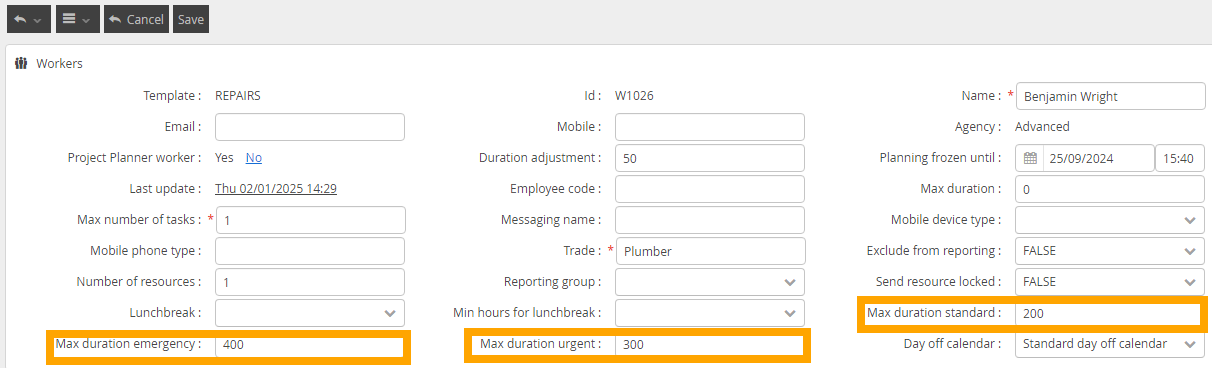
Do this for each worker who is being assigned to a quota working hours calendar.
Assign workers to a quota working hours calendars
For both calendar and worker level quotas, you must assign the worker(s) to a quota calendar.
Navigate To: Workers > Find and Select the Worker > See the Working Hours Calendar section
Add the Quota Calendar.
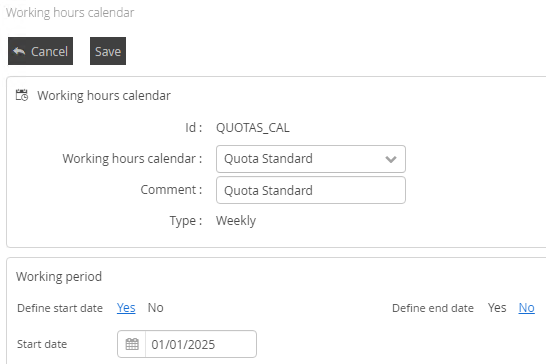
The calendar can have a future start date, see the Implementation section above for an explanation of why you might want to do this.
Checking quotas are working
Once Quota Working Hours Calendars have taken effect, you should start seeing white spaces in the worker’s future diaries.
Right click on any job in the worker's diary that has an assignment start equal to or greater than their quota working hours calendar start date, then go to Scheduling > Quotas. You should see that day's quota usage and remaining capacity.
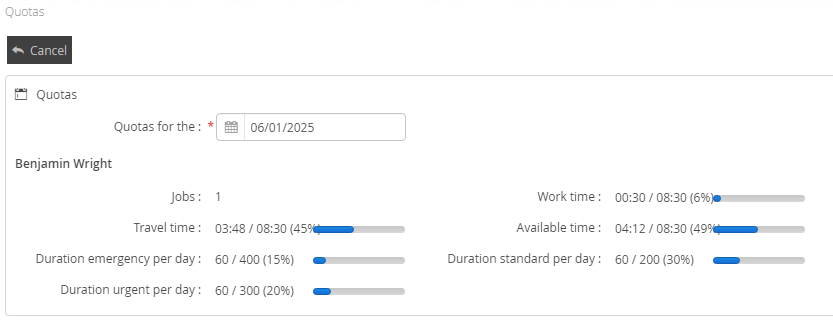
In the above example, a 60 minute standard job has been assigned to the worker.
Because standard jobs use all 3 quotas, the 60 minutes has used:
- 30% of their 200 minute standard quota, leaving 140 minutes (70% capacity)
- 20% of their 300 minute urgent quota, leaving 240 minutes (80% capacity)
- 15% of their 400 minute emergency quota, leaving 340 minutes (85% capacity)
