Contents
User Permissions and Profiles

Purpose
The purpose of this article is to ensure you understand how to effectively manage User profiles, functionality access and screen configuration.
User Profiles
User Profiles control what users can access, see, view and interact with.
Selecting the Profiles option from the User and Profiles menu in the Configuration Zone in DRS will display all current Profiles configured in your system.
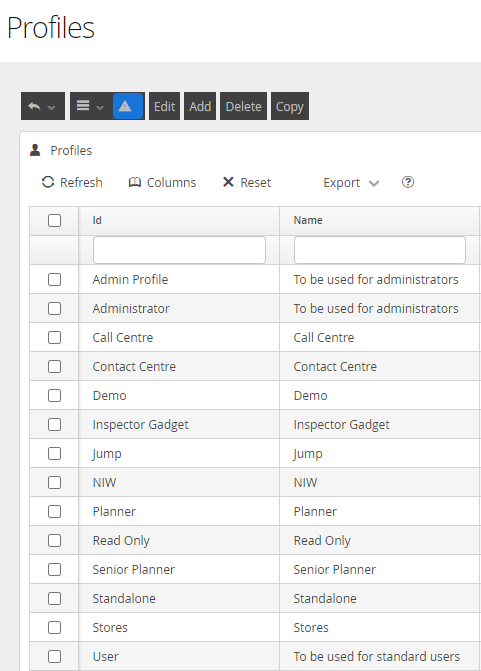
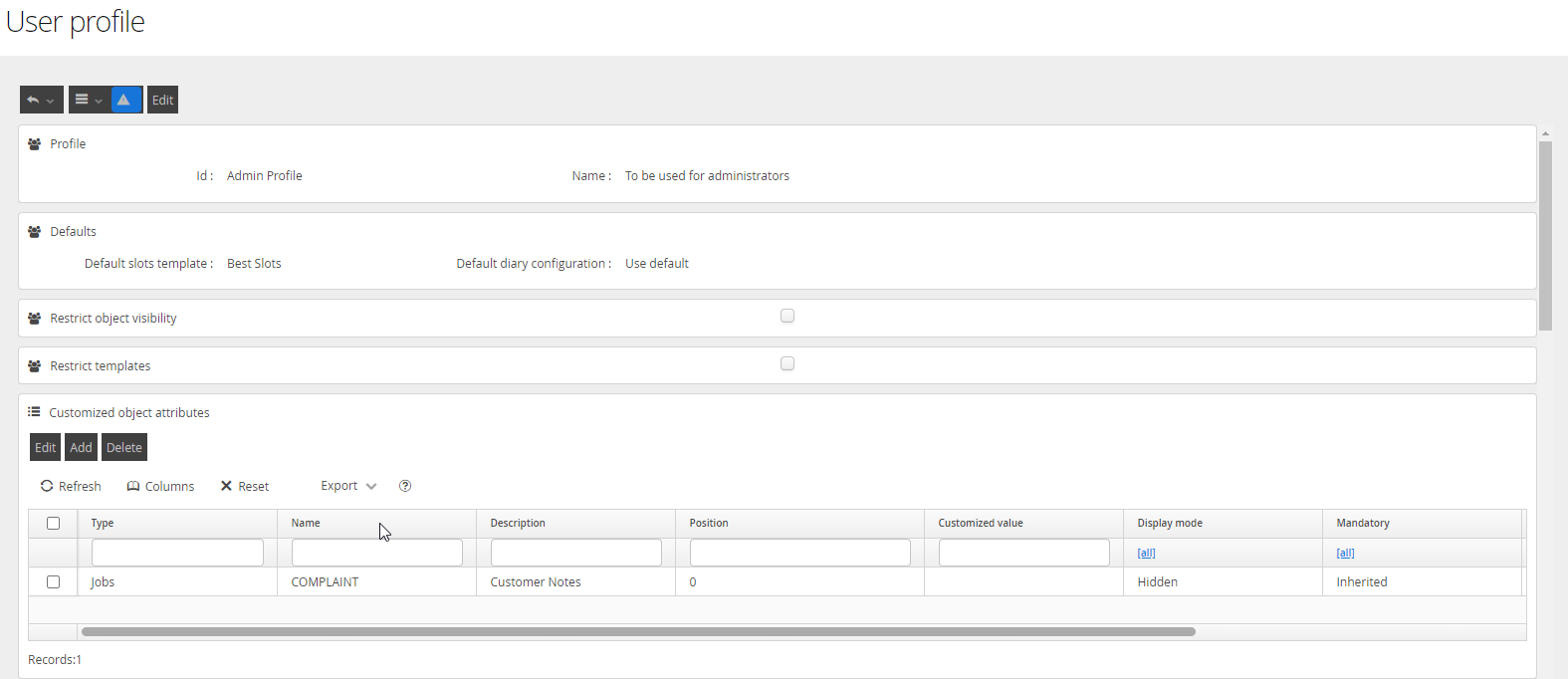
Clicking on any individual profile will allow you to review the permissions set within each profile.

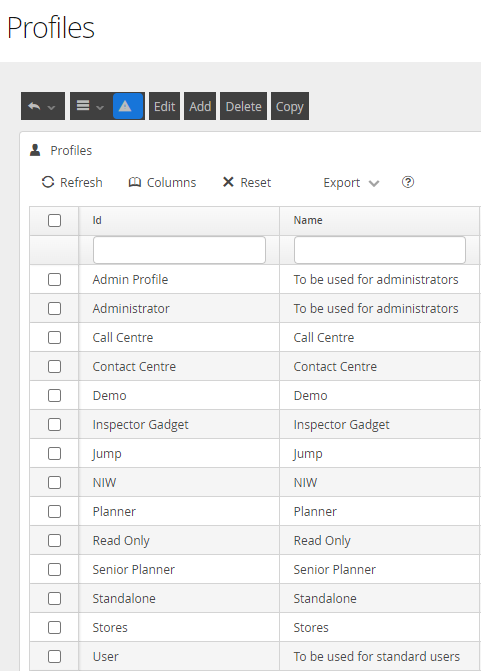
The Add, Edit and Delete buttons function as you expect, allowing you to create a new Profile, Edit or Delete a selected profile. The Copy function allows you to duplicate an existing profile for editing and saving.
Profile Configuration
Configuring a new profile from scratch can be a daunting task as there are a number of options which can be selected. Editing an existing profile can be a lot easier as the hard work is done for you, but the knowledge required is the same.
To Add a new profile, Click the Add button from the button menu. To Edit a profile, click the Edit button from either the Profile List screen (after selecting a profile checkbox), or clicking the Edit button from within the profile details.
The following sections break out each of the options for your review and understanding.
User Restrictions
The first section of the Profile definition allows you to define the profile, and apply a number of optional restrictions and controls to the users you apply this User Profile.
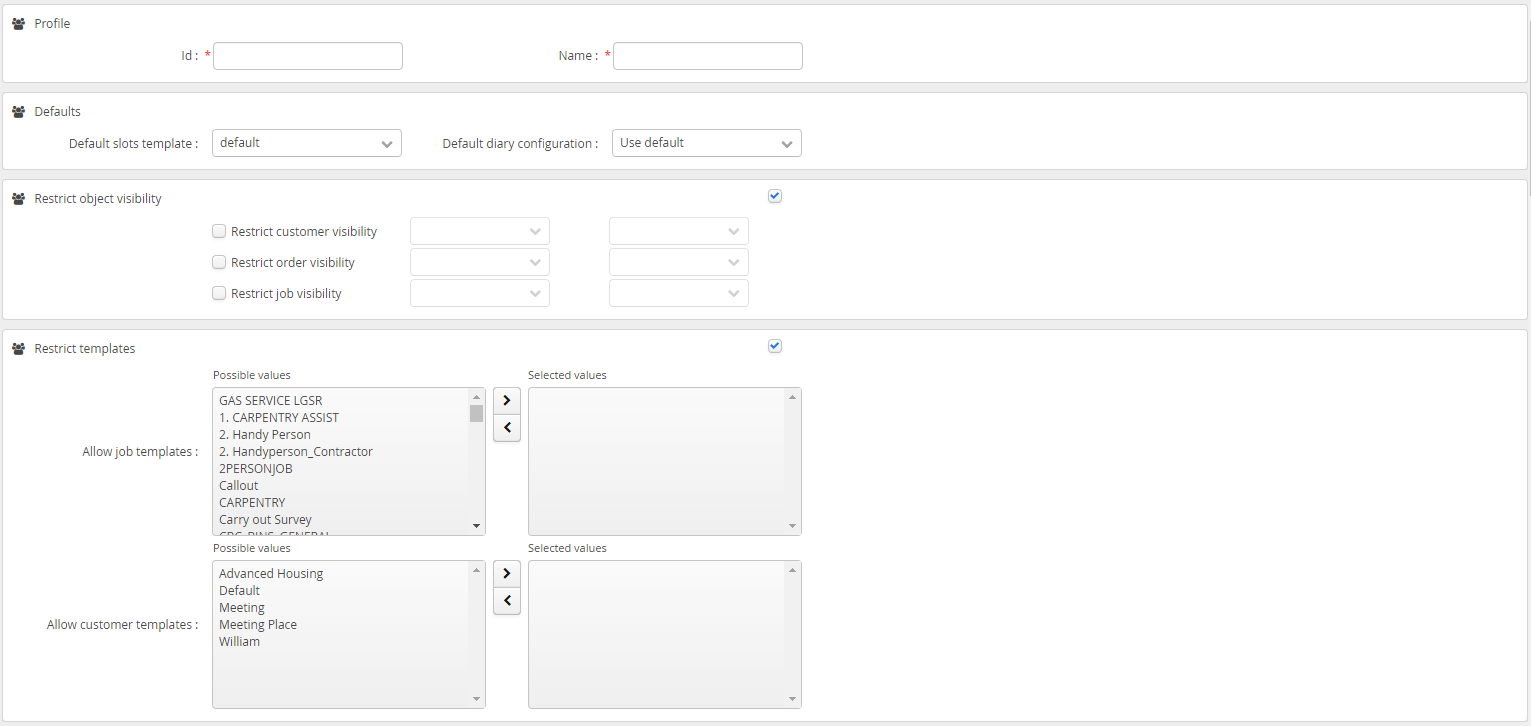
Items in bold are mandatory
Section | Field | Required Detail |
Profile | ID | This will be the ID reference allocated to the Users |
Profile | Name | This will be the Label displayed against the User |
Defaults | Default slots template | Setting a Default Slots Template against the may change the Slots Template offered to the user who is assigned this Profile. Refer to the article on Object Inheritance as to the order in which inheritance is applied |
Defaults | Default diary configuration | Setting a Default Diary Template against the may change the Slots Template offered to the user who is assigned this Profile. Refer to the article on Object Inheritance as to the order in which inheritance is applied |
Restrict Object Visibility | Restrict Customer visibility | This option can be used to restrict which Customer Objects the assigned Users have access to |
Restrict Object Visibility | Restrict Order visibility | This option can be used to restrict which Order Objects the assigned Users have access to |
Restrict Object Visibility | Restrict Job Visibility | This option can be used to restrict which Job Objects the assigned Users have access to |
Restrict templates | Allow Job Templates | This option can limit which Job Templates the assigned users can interact with when using functions such as Change Template and Create Follow On |
Restrict templates | Allow Customer Templates | This option can limit which Customer Template the assigned users can allocate to Customers they are editing or creating |
Planning Fence Date | Absolute | This option can set an absolute planning offset to the assigned users. This will result in the assigned users only having availability to schedule, edit and manage tasks outwith this offset. |
Planning Fence Date | Relative | This option can set a flexible planning offset which is calculated relative to the selected Weekday. This will result in the assigned users only having availability to schedule, edit and manage tasks outwith this offset. |
User Authorisations
The User Authorisations contain functionality based access grants which can be applied to users specifically. They are broken down into categories which largely reference the activity the user will be attempting when the access grant is reviewed. In all cases, hovering over the noted permission will display a tool tip to provide more explanation as to what the permission will do. Below is some additional information to help you understand the impact of your choices.
Archiving
Archiving is the function DRS uses to keep the scheduling kernel in tip top shape. The ability to edit, view and manipulate objects which have been archived, (typically objects which have either exceeded their target date by 14 days, or exceeded their planned schedule date by 7 days), is controlled by these permissions.

Permission | Description |
Delete assigned archived objects | This permission will allow users to delete Objects (Jobs) which have been previously scheduled to resources and are now in the archive |
Delete unassigned archived objects | This permission will allow users to delete Objects (Jobs) which are at a status of New or Suspended and are now in the archive |
Modify all archived objects | This permission will allow users to modify any object currently in the archive. This permission is required if users need the ability to reschedule or create Follow On's for Objects (Jobs) within the archive. |
View archived objects | This permission is required if users need to be able to view, but not edit, Objects which are currently in the archive. |
Customer
The Customer Authorisation section determines if users can see, interact, modify and/or delete Customer objects within the system. A user with access to the Order and Job section but no access to the Customer section will not be able to interrogate the Customer object for additional detail about the location.

Permission | Description |
Create customers | This permission is required for Users to create customers. This permissions is also required by the Webservice if you would like to dynamically create customers on the OrderCreate requests |
Customer unavailabilities modification | This permission is required if Users need the ability to add unavailability calendars to the Customer object. |
Delete customers | This permission is required if Users need the ability to Delete customer objects |
Modify customers | This permission is required if Users need the ability to change, update or modify customer objects. This permission is also required by the Webservice if you would like to dynamically update customers on the OrderCreate requests |
Show customers | This permission controls the visibility of the Customer menu item in the main left hand bar |
Diary
The Diary Authorisation section determines what actions users can perform on the Diary view itself. Notably within this section, is the ability to allow the 'Drag and Drop' function.

Permission | Description |
Drag and drop | This permissions controls the users ability to use the Drag and Drop function on scheduled jobs within the diary |
Modify shared diary bookmarks | This permission controls the ability to manage shared bookmarks from within the Configuration zone in DRS |
Show diaries | This permission controls the the display of the Diary option on the Left hand menu and also controls the use of the Diary button from within the Jobs and Workers screen |
Global Features
The Global Features section determines what parts of the system a user can interact with where these items are typically accessible in multiple parts of the application. Notably within this section is the ability to allow access to the Administration zone of DRS.

Permission | Description |
AddObjectTypeinGrid | This permission controls the ability for users to add Columns and Objects to the grid views |
Administration | This permission controls the visibility of the Administration menu option in the Left hand menu |
Advanced Filter (user views) | This permission controls the visibility of the Advanced Filter option in the Views configuration |
Analytics | This permission is part of enabling the overnight Analytics scrape function |
Batch export | This permission controls the ability for users to export full Object exports from the Import/Export menu |
Batch import | This permission controls the ability for users to use the Incrememntal Import function within the Import/Export menu |
Complete batch restoration | This permission controls the ability for users to use the Complete Restoration function in the Import section. This function completely removes selected objects before importing the new dataset. This is a signficant function and can cause major disruption. Apply with caution. |
Create, edit and delete own views | This permission controls the ability for users to configure personal views from within the various grids within DRS |
Customize planning fence date | This permission controls the ability for users to set a planning fence date on the resources. The Planning Fence will prevent all new scheduling as well as changes created by the Dynamic Scheduling service in this window. |
Show all agencies | This permission controls the ability to select different agencies, (if multiple agencies are configured), from the main Left hand menu |
Show Project Planner | This permission will control the visibility of the Project Planner menu on the Left hand menu. This permission will only be active if Project Planner is licenced for use. |
Job
The Job section determines the users ability to perform tasks related to Job objects. Notably in this section is a permission 'Remove Jobs From Group', which is a specific function deployed for very high volume customers to ensure scheduling optimisation continue at performant speeds.

Permission | Description |
Allow follow on jobs | This permission will allow Users to use the Create Follow On function within the Jobs menu |
Allow inherited opening hours overriding | This permission allows Users to override any opening hours calendars on the Job object which have been applied from either the Customer or Order object. |
Create jobs | This permission enables the visibility of the Add button on the Jobs menu |
Delete jobs | This permission enables the visibility of the Delete button on the Jobs menu |
Modify jobs | This permission enables the visibility of the Edit button on the Jobs menu |
Remove jobs from group | This is a specific permission used when 'Volume Job Grouping' is active within the system |
See the workers selector on jobs lists | This permission controls the visibility of the Assigned Worker section within the Jobs menu |
Show jobs | This permission controls the visibility of the Jobs menu item on the Left hand menu |
Meeting
The Meeting section controls the users ability to interact with the Meeting menu, if enabled, visible in the Left hand menu.

Permission | Description |
Create meetings | This permission controls the ability for users to create new meetings |
Delete meetings | This permission controls the ability for users to delete meetings |
Modify meetings | This permission controls the ability for users to modify existing meetings |
Order
The Order section controls the ability for users to interact with the Orders menu item on the Left hand menu.

Permission | Description |
Create orders | This permission controls the visibility of the Add button on the Orders screen |
Delete orders | This permission controls the visibility of the Delete button on the Orders screen |
Modify orders | This permission controls the visibility of the Edit button on the Orders screen |
Show orders | This permission controls the visibility of the Orders option on the Left hand menu and other parts of the system, including sub lists. |
Project Planner
The Project Planner section controls the ability (if enabled) for users to interact with the Project Planner menu item on the Left hand menu.
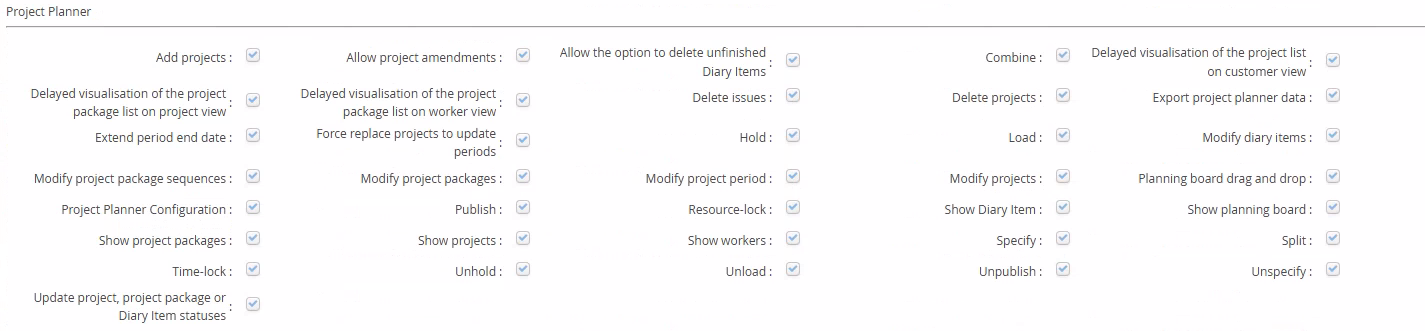
Permission | Description |
Add Projects | This permission controls the visibility of the Add button on the Projects screen |
Allow Project Amendments | This permission controls the ability for users to process Project Amendments |
Allow the option to delete unfinished Diary Items | This permission controls the ability to delete unfinished Diary Items on completing the Project |
Combine | This permission controls the ability to Combine Projects or Project Packages |
Delayed Visualisation of the project list on customer view | This permission will set the Project List sub view on the Customer to collapsed when the Customer details object is first loaded |
Delayed Visualisation of the project package list on customer view | This permission will set the Project Package List sub view on the Customer to collapsed when the Customer details object is first loaded |
Delayed Visualisation of the project package list on worker view | This permission will set the Project Package List sub view on the Worker to collapsed when the Worker details object is first loaded |
Delete Issues | This permission controls the ability to Delete Issues against a Project or Project Package |
Delete Projects | This permission controls the ability to Delete Projects |
Export Project Planner Data | This permission controls the ability to Export data from the Project Planner screens |
Extend period end date | This permission controls the ability to extend the period end date on the Project |
Hold | This permission controls the ability to Hold a Project or Project Package |
Load | This permission controls the ability to Load a Project or Project Package |
Modify diary items | This permission controls the ability to Modify Diary Items |
Modify project package sequences | This permission controls the ability to Modify project package sequences |
Modify project packages | This permission controls the ability to Modify project packages |
Modify project period | This permission controls the ability to Modify the project period dates |
Modify projects | This permission controls the ability to Modify a project |
Planning board drag and drop | This permission controls the ability to drag and drop diary items within the planning board |
Project Planner Configuration | This permission controls the ability to access the Project Planner Configuration menu |
Publish | This permission controls the ability to Publish Project Packages |
Resource-lock | This permission controls the ability to set a required worker against a Project Package |
Show Diary Item | This permission controls the ability to see the Diary Items |
Show planning board | This permission controls the ability to see the planning board for a project, project package or diary item |
Unhold | This permission controls the ability to Unhold a Project or Project Package |
Unload | This permission controls the ability to Unload a Project or Project Package |
Unpublish | This permission controls the ability to Unpublish a Project or Project Package |
Unspecify | This permission controls the ability to Unspecify a Project or Project Package |
Update project, project package or Diary Items statuses | This permission controls the ability to update the status of a Project, Project Package or Diary Item |
Scheduling
The Scheduling section controls the functionality available to the user when attempting to Schedule a Job, or, modify an existing scheduled Job.

Permission | Description |
Change job status to accepted | This permission will allow users to use the Update Status command and set the Job Status to 'accepted' |
Change job status to acknowledged | This permission controls the ability for users to use the Status Update option to set the appointment to 'acknowledged' |
Change job status to arrived | This permission controls the ability for users to use the Status Update option to set the appointment to 'arrived' |
Change job status to completed | This permission controls the ability for users to use the Status Update option to set the appointment to 'completed' |
Change job status to dispatched | This permission controls the ability for users to use the Status Update option to set the appointment to 'dispatched' |
Change job status to planned | This permission controls the ability for users to use the Status Update option to set the appointment to 'planned' |
Change job status to started | This permission controls the ability for users to use the Status Update option to set the appointment to 'started' |
Change job status to in progress | This permission controls the ability for users to use the Status Update option to set the appointment to 'in progress', if configured active |
Force Scheduling | This permission enables users to apply scheduling solutions manually to appointments where those manual solutions fall outside the configuration or parameters that are set in your scheduling configuration, (e.g. Job Templates, Slots, Time windows etc) |
Immediately force when manual assignment fails | This permission allows users to check a box on the Manual Scheduling screen to bypass warnings and confirmation boxes when force assignment scheduling is to be used. |
Lock/unlock jobs | This permission allows users to Lock or Unlock jobs. Locking jobs has the ability to limit the changes, either for time, or resource. |
Modify time window end | This permission allows users to change the time window end for the Job Object which can effect the Planning Window in the scheduling solution |
Modify time window start | This permission allows users to change the time window start for the Job Object which can effect the Planning Window in the scheduling solution |
no planning preservation | This permissions determines whether users will be offered the option to ignore all current scheduling solution when re-planning Job objects using the Change Assignment option. |
Preserve planning | This permission determines whether the user will be offered the option to attempt to preserve the current scheduling solution when re-planning Job objects using the Change Assignment button |
Reschedule Jobs already in progress | This permission allocates the ability to attempt to reschedule Job objects when they are at a status which is not Planned, New or Suspended |
Scheduling failure diagnostic | This permission defines the visibility of the Diagnostic option on the Job List and Job Detail view screens |
Scheduling out of the time window | This permission determines whether a user is allowed to set schedules for Job objects outside of the set Time Window |
Suspend job | This permission determines whether a user can use the Suspend Job feature to remove a Job from it's current scheduling solution. |
View status field in manual assignment screen | This Permission determines whether a user will the the current Status of a job on the Manual Assignment screen |
SOR
The SOR section controls the users ability to add, delete or modify SOR's assigned to Jobs and Orders. This functionality should be used with caution as it can cause issues with feedback into integrating systems.

Permission | Description |
Add SORs | This permission allows users to add additional SOR's to Orders and Jobs |
Delete SORs | This permission allows users to remove SOR's from Orders and Jobs |
Modify SORs | This permission allows users to Update or Change values associated with SOR's assigned to Jobs and Orders |
Timeslots
The Timeslots section controls the ability for users to engage with some of the configurable functionality within the Show Scheduler screen.

Permission | Description |
Show all slots | This permission will allow the user to select from all available slot configurations from the Show Scheduler screen |
Show configurations on slot | This permission will show the user the configured options on the slot selected |
Show detail panels on load | This permission will show the user the Contact and Order details on the Show Scheduler screen |
Show possible worker on slot | This permission will allow the user to select specific workers to review their availability on the Show Scheduler screen. |
User Interface
The User Interface section controls access and visibility to functionality and menu items that are available throughout the DRS solution

Permission | Description |
Allow Extend Periods Service | This permission allows users to access and configure the Extend Periods Service from the Services menu |
Delayed visualisation of the job list on worker view | This permission will set the Job List sub view on the Worker to collapsed when the Worker details object is first loaded |
History | This permission controls the visibility of the History menu item in the Left hand menu |
Maps | This permission controls the visibility of the Map menu item in the Left hand menu |
Text Messaging | This permission controls the visibility of the Text Messaging configuration menu within the Configuration zone in the left hand menu |
Bookmarks | This permission controls the visibility of the Bookmarks option |
Delayed visualisation of the Order list on Customer view | This permission will set the Order List sub view on the Customer to collapsed when the Customer details screen is first loaded |
Import/Export | This permission controls the visibility of the Import/Export menu option in the Left hand menu |
Navigation history | This permission controls the visibility of the Navigation history within the Navigation bar |
Can force phone number | This permission controls the ability to force the Phone Number to be required at the point of schedule |
Delayed visualisation of the recurrent job list on order view | This permission will set the recurrent Job List sub view to collapsed when the Order details screen is first loaded |
Manual Assignment - Default 'Set Job slot manually' tab | This permission will set the initial scheduling option on Manual Assignment to be set to 'Set Job Slot Manually' by default |
Operative On Way | This permission allows the user to access and configure the Operative On Way service within the Services menu item |
delayed visualisation of the job list on customer view | This permission will set the Job List sub view to collapsed when the Customer details screen is first loaded |
Detach | This permission will enable the Detach functionality |
Services | This permission controls the visibility of the Services menu option in the Left hand menu |
Delay visualisation of the job list on order view | This permission will set the Job List sub view to collapsed when the Order details screen is first loaded |
Export worker filter past calendar | This permission allows users to filter using past dates when attempting to export Worker details |
Manual Assignment - Display 'Update current time window' tab | This permission will set the initial scheduling option on Manual Assignment to be set to 'Update current time window' tab |
Show Meetings | This permission controls the visibility of the Meetings option in the Left hand menu |
Worker
The Worker section controls the functionality available to the users when creating, managing and deleting Worker resource objects within the DRS system.

Permission | Description |
Calendar and timetable management | This permission allows the users to manage the Working Hours Calendars the Timetables for the Worker object |
Create workers | This permission controls the visibility of the Add button on the Worker list screen |
Delete workers | This permission controls the visibility of the Delete button on the Worker list screen |
Modify workers | This permission controls the visibility of the Modify button on the Worker list screen |
Show Sectors on worker List | This permission controls the visibility of the Sectors list on the Worker list screen |
Show workers | This permission controls the visibility of the Workers object on the Left hand list and Job Details object |
User Interface Configuration
At the bottom of the User profile screen, you can customise your users experience by setting Fields to Read-Only, Mandatory, Hidden or Editable.

Buttons can be Hidden, Highlighted, placed within a sub menu or left as configured by default.

By modifying these settings, the users screen can be improved for their specific use case. It can be used to improve your users ability to navigate the system, prevent changes from specific users, or generally design the solution to best support your business.
