Dynamic Resource Scheduler
Whats New!
User Experience Changes
Security and Authentication
Modules and Utilities
Cyclical Scheduling - Configuration Interface
Cyclical Scheduling - Now Bulk Scheduling
Resource Quotas Improvements - Percentages
Architecture and Scheduling
Configuration
User Guides and Help
Get to Know Dynamic Resource Scheduler
How Does Dynamic Resource Scheduling Work
Speaking the Language of Scheduling
Navigating Dynamic Resource Scheduler
How your Data Links Together
Managing your Organisation
Viewing your Data
Your Customer Data
Your Service Orders
Your Jobs
Your Workers and Resources
Manage Your Tasks
Actioning your Jobs and Tasks
Job Templates
Find A Jobs Possible Workers
Locking Your Jobs
Create a Follow On Task
User Queues and Organising Your Tasks
Schedule and Organise
How to Optimise Your Scheduling
How to Schedule Manually
Scheduling Mutliple Jobs at Once
Reassign and Reschedule your Tasks
Managing Your Time and Durations
Managing your Comments and Contacts
Using Bookmarks to Drive Efficiency
Managing Your Job Status
Visualising Your Planning
Workers and Resources
Advanced Data Management
Creating Unavailability in your Workforce
Adding an Unavailability to an Individual Worker
Creating Unavailabilities for Multiple Days or Workers
Maps And Journey
Using Maps to Visualise Your Data
Using Maps With Your Data
Learn about our Closest Function
Your Journeys
Meetings and Non-Productive Planning
Administer Your Scheduler
Managing Your Organisations and Agencies
Managing Your Custom Data
Managing your Contracts
Customising Your Experience
Managing Depots and Starting Locations
Managing Diary Bookmarks
Managing your External Chart Views
KPI Settings
Managing Your Priorities
Learn about Sectors
Managing Your Follow On Templates
Get To Know Your Working Time Calendar
Managing your SOR Templates
Managing your Job Templates
Managing Your Vocabulary
Managing Your Bookmarks
Manage Your Customer Templates
Get to Know Import and Export
Managing Your Tenant Code Rules
Managing your Order Templates
Managing Your Unavailability Reasons
Get To Know Your Working Time Calendars
Managing your Worker Templates
Releases and Readiness
DRS 6, DRS 5.7 and Job Manager
User Guides and Help
Get to Know DRS
Dynamic Scheduling - How does it work
Navigating DRS
Vocabulary and Concepts
Customers
Orders
Jobs
Scheduling Jobs
Job Functions
Workers
Views
Object Inheritance
Agencies
DRS Modules
Scenario Based Planning
Managing your SMS Service
5.7 Documentation
Technical Documentation
Release Notes
DRS 6.1 Release Notes
DRS 6.1.22 - February 20, 2026
DRS 6.1.21 - September 10, 2025
DRS 6.1.20 - April 20th, 2025
DRS 6.1.19 - 11th April, 2025
DRS 6.1.18 - 13 February 2025
DRS 6.1.17 - 20th December 2024
DRS 6.1.16 - November 8th, 2024
DRS 6.1.15 - October 10th, 2024
DRS 6.1.14 - 6th September 2024
DRS 6.1.13 - 9th August 2024
DRS 6.1.12 Release Notes
DRS 6.1.11 Release Notes
DRS 6.1.10 Release Notes
DRS 6.1.9 Release Notes
DRS 6.1.8 Release Notes
DRS 6.1.7 Release Notes
DRS 6.1.6 Release Notes
DRS 6.1.5 Release Notes
DRS 6.1.4 Release Notes
DRS 6.1.3 Release Notes
DRS 6.1.2 Release Notes
DRS 6.1.1 Release Notes
DRS 6.1.0 Release Notes
DRS 6.0 Release Notes
DRS 6.0.0.0 Release Notes
DRS 6.0.0.1 Release Notes
DRS 6.0.0.2 Release Notes
DRS 6.0.0.3 Release Notes
DRS 6.0.0.4 Release Notes
DRS 6.0.0.6 Release Notes
DRS 6.0.1.0 Release Notes
DRS 6.0.1.1 Release Notes
DRS 6.0.1.2 Release Notes
DRS 6.0.1.3 Release Notes
DRS 6.0.1.4 Release Notes
DRS 6.0.1.5 Release Notes
Kirona Housing
Job Manager 9
Job Manager 9.3.0 - October 2024
Job Manager 9.1.0 - December 2022
Job Manager 9.2.0 - November 2023
Release Notes Disclaimer
Administering your Field Service Products
Supported Versions Policies
Contents
Slot Templates
Purpose
This article will help you understand how to best configure the Slot Templates within DRS.
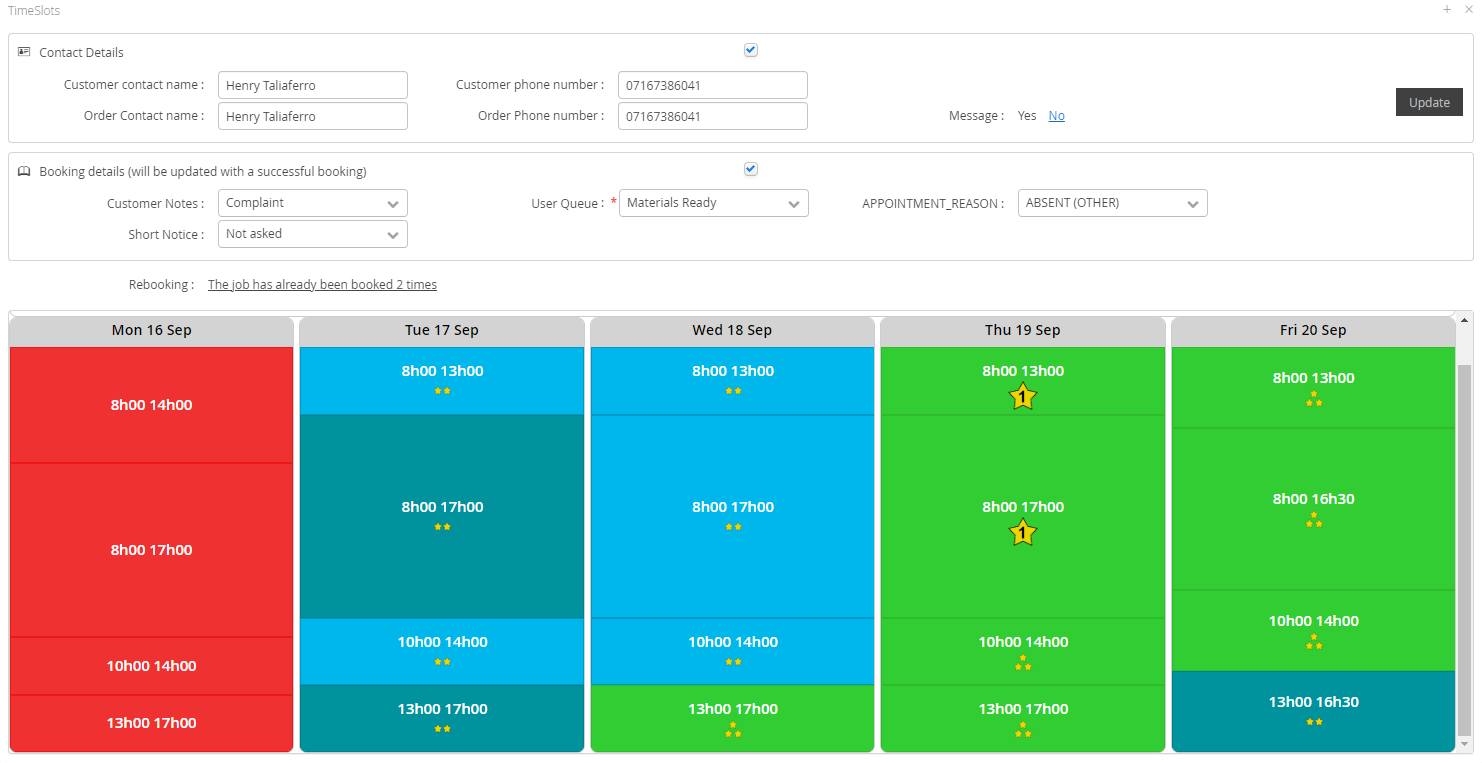
Slots are configured to define thresholds, colours and available appointment windows. This configuration will determine how the booking pads are displayed either through Show scheduler in DRS or via the Booking Hub.
How does it work?
When users select the SHOW SCHEDULER option within a Job, or access the BookingHub from an external source, this configuration will determine how the appointment slots are presented, as well as some of the options they will have available.
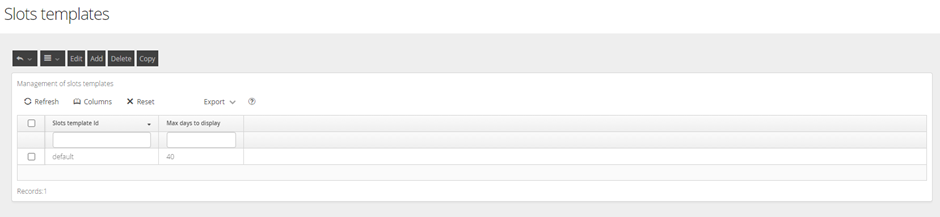
This function is accessed by navigating to the following menu: DRS > Configuration > Templates > Slots
DRS comes with a single ‘default’ slot configuration. Using the Add and Edit buttons, you can create your own Slot Templates, as well as update existing templates.
The Delete button will remove the selected Slot Template.
How is it configured?
There are five configuration panes within the Slot Configuration area. Each area defines parts of the Booking Slot solution your users will be presented with.
Slots Template Setting
This area contains the rules and system constraints that will define how the slots are used

- ID – This is a mandatory field and cannot be left blank and it requires a unique Name.
- Description – This is the description of the template used to add context to the Name.
- Days to Display - The number of days that can be displayed on the scheduler/booking pads. The max is 7
- Slot sorting – How you would like to render the slots when you pull up the scheduler. The options here determine how they are ordered and the size of them.
- Start Day – Define how many days after the job has been raised to display booking slots. 0=same day. By utilising this in conjunction with SOR Priority templates or Profile restrictions, this could help stop less urgent work being scheduled in for the same day that it has been raised to allow space in the diaries for emergency work or restricting certain profiles from booking in same day jobs.
- Room Booking Lock – Enabled only if DRS is used as a room booking system (not generally used for repairs as will lock all jobs into the diaries)
- First Slot on Monday – When set to Yes, the first slot displayed in the grid will be the Monday of the week defined by configurables 'Forward to First Free Slot' and 'Start Day'. If set to False, the first slot shown will be the slot defined by these two parameters.
- Fully Realised in the Slot – The job must be attended and completed within the appointment slot. The SMV and attendance can all be done in the slot
- Display day with no Slot – This will display each day of the week even if there are no slots configured for it. Eg. Saturday and Sunday if no weekend slots are defined.
- Primary Sector Match Icon – A feature to show an icon on the slots indicating that the available worker is assigned to the sector as a secondary, rather than primary sector.
- Optional Properties Match Icon – If using Optional Abilities. Ability to display an icon on the slots if the worker that is available does not match the optional abilities
- Preferred Workers Match Icon – Ability to display an icon on the slots if the worker that is available is not a preferred worker against the customer address
- Same Customer Icon – Ability to display an icon on the slots if the customer already has an appointment in that slot
- Forward to the First Free Slot – Ability for the scheduling pads to jump straight to the days with the first available slot
- Submit Linked Jobs – This should not be enabled on a repairs system.
- Orange is New Route Started Too – If ticked, when there is a new route, the slot will display orange
- Red Instead of Orange – Linked to thresholds (below) if a slot is orange make it red so it cannot be booked
Slot Colour Settings
These slot colour settings cannot be changed. However, it is a visual representation of how the slots will look based on certain settings.

- Slots out of asked window (Grey) - These are slots showing outside of the Time Window of the job and therefore not possible to be scheduled into
- Successful Scheduling (Green) - This is the slot with the least amount of travel time and sits underneath Threshold 1
- Failed Scheduling (Red) - These are slots within the Time Window of the job however there is no capacity within the diaries to plan them in and therefore not possible to be scheduled into.
Slot Threshold Settings
This section defines the colours of the Booking Slots and where they will change colour based on the increase of travel per day.
Travel Thresholds are configured in minutes and are the calculated travel time between jobs.

Thresholds can be toggled on or off. If they are on, then they require the thresholds to be set for each day. These are minute values and can be different on each day. As the Thresholds are designed to be a visual indicator, each subsequent threshold should be greater than the last.
Slot Hours Settings
Slots Hours Setting determine which slots or time periods will be offered for the job booking and will be used to determine efficiency and best fit.
When editing or creating a new slot configuration, you can use the + button to add new slots, the arrow button to drag and reorder the slots or drag and drop them into the delete section to delete.

A day with no slots configured will not display any slots unless the preference 'Display Day with No Slot' is set to Yes.
Best Slot Settings
Best Slot Settings allows you to dictate how DRS will determine which calculated slot will be the best slot.

Using ‘Best slot computation by multi-criteria’ enables you to select multiple criteria from the list to be more specific.
The number of best slots can display can be set to an amount which is preferred.
Having ‘only the best slot is displayed’ option as Yes will ensure that only the slots that meet the best slot criteria will be available for selection via the booking pads.
Within this area, mutliple options can be configured to determine the best slot. DRS will use a weighted average to determine the best outcome, using the order of the Selected Values to determine your priority importance when defining what will be displayed as the best slot.
How does this look?
All of this configuration will determine the Show Scheduler screen displayed to your users.