Dynamic Resource Scheduler
Whats New!
User Experience Changes
Security and Authentication
Modules and Utilities
Cyclical Scheduling - Configuration Interface
Cyclical Scheduling - Now Bulk Scheduling
Resource Quotas Improvements - Percentages
Architecture and Scheduling
Configuration
User Guides and Help
Get to Know Dynamic Resource Scheduler
How Does Dynamic Resource Scheduling Work
Speaking the Language of Scheduling
Navigating Dynamic Resource Scheduler
How your Data Links Together
Managing your Organisation
Viewing your Data
Your Customer Data
Your Service Orders
Your Jobs
Your Workers and Resources
Manage Your Tasks
Actioning your Jobs and Tasks
Job Templates
Find A Jobs Possible Workers
Locking Your Jobs
Create a Follow On Task
User Queues and Organising Your Tasks
Schedule and Organise
How to Optimise Your Scheduling
How to Schedule Manually
Scheduling Mutliple Jobs at Once
Reassign and Reschedule your Tasks
Managing Your Time and Durations
Managing your Comments and Contacts
Using Bookmarks to Drive Efficiency
Managing Your Job Status
Visualising Your Planning
Workers and Resources
Advanced Data Management
Creating Unavailability in your Workforce
Adding an Unavailability to an Individual Worker
Creating Unavailabilities for Multiple Days or Workers
Maps And Journey
Using Maps to Visualise Your Data
Using Maps With Your Data
Learn about our Closest Function
Your Journeys
Meetings and Non-Productive Planning
Administer Your Scheduler
Managing Your Organisations and Agencies
Managing Your Custom Data
Managing your Contracts
Customising Your Experience
Managing Depots and Starting Locations
Managing Diary Bookmarks
Managing your External Chart Views
KPI Settings
Managing Your Priorities
Learn about Sectors
Managing Your Follow On Templates
Get To Know Your Working Time Calendar
Managing your SOR Templates
Managing your Job Templates
Managing Your Vocabulary
Managing Your Bookmarks
Manage Your Customer Templates
Get to Know Import and Export
Managing Your Tenant Code Rules
Managing your Order Templates
Managing Your Unavailability Reasons
Get To Know Your Working Time Calendars
Managing your Worker Templates
Releases and Readiness
DRS 6, DRS 5.7 and Job Manager
User Guides and Help
Get to Know DRS
Dynamic Scheduling - How does it work
Navigating DRS
Vocabulary and Concepts
Customers
Orders
Jobs
Scheduling Jobs
Job Functions
Workers
Views
Object Inheritance
Agencies
DRS Modules
Scenario Based Planning
Managing your SMS Service
5.7 Documentation
Technical Documentation
Release Notes
DRS 6.1 Release Notes
DRS 6.1.22 - February 20, 2026
DRS 6.1.21 - September 10, 2025
DRS 6.1.20 - April 20th, 2025
DRS 6.1.19 - 11th April, 2025
DRS 6.1.18 - 13 February 2025
DRS 6.1.17 - 20th December 2024
DRS 6.1.16 - November 8th, 2024
DRS 6.1.15 - October 10th, 2024
DRS 6.1.14 - 6th September 2024
DRS 6.1.13 - 9th August 2024
DRS 6.1.12 Release Notes
DRS 6.1.11 Release Notes
DRS 6.1.10 Release Notes
DRS 6.1.9 Release Notes
DRS 6.1.8 Release Notes
DRS 6.1.7 Release Notes
DRS 6.1.6 Release Notes
DRS 6.1.5 Release Notes
DRS 6.1.4 Release Notes
DRS 6.1.3 Release Notes
DRS 6.1.2 Release Notes
DRS 6.1.1 Release Notes
DRS 6.1.0 Release Notes
DRS 6.0 Release Notes
DRS 6.0.0.0 Release Notes
DRS 6.0.0.1 Release Notes
DRS 6.0.0.2 Release Notes
DRS 6.0.0.3 Release Notes
DRS 6.0.0.4 Release Notes
DRS 6.0.0.6 Release Notes
DRS 6.0.1.0 Release Notes
DRS 6.0.1.1 Release Notes
DRS 6.0.1.2 Release Notes
DRS 6.0.1.3 Release Notes
DRS 6.0.1.4 Release Notes
DRS 6.0.1.5 Release Notes
Kirona Housing
Job Manager 9
Job Manager 9.3.0 - October 2024
Job Manager 9.1.0 - December 2022
Job Manager 9.2.0 - November 2023
Release Notes Disclaimer
Administering your Field Service Products
Supported Versions Policies
Contents
SOR Priority
Purpose
This article will help you understand how to use the SOR Priority Template functionality.
What is the SOR Priority Templates?
This allows you to change the Job Template based on the priority of the Order.
For instance, If you had an emergency plumbing job, you could use SOR Priority Templates to allow DRS to consider a larger pool of workers, than for a routine plumbing job in order to make the property safe, and then arrange for further works to be carried out at a later date.
This is also often used to link Order Priorities to Slots Templates. For Example, if you wanted to ensure non-Emergency Jobs are scheduled no earlier than the day after tomorrow, you could use SOR Priority Templates to link the Emergency Orders to a set of Emergency Job Templates, then set these Job Template’s default Slots Template to an Emergency Slots Template with a Slot’s Start Date of 0. Then you could change the Default Slots Template’s Slots Start Date parameter to 2 (0 is today, 1 is tomorrow, 2 the day after).
You can access SOR Priority Templates here:

Configuration > Templates > SOR Priority
How to configure SOR Priority Templates
Add and Copy will allow you to create a new SOR Priority Template, Edit will allow you to modify an existing template configuration. In all cases, the following screen will be displayed.
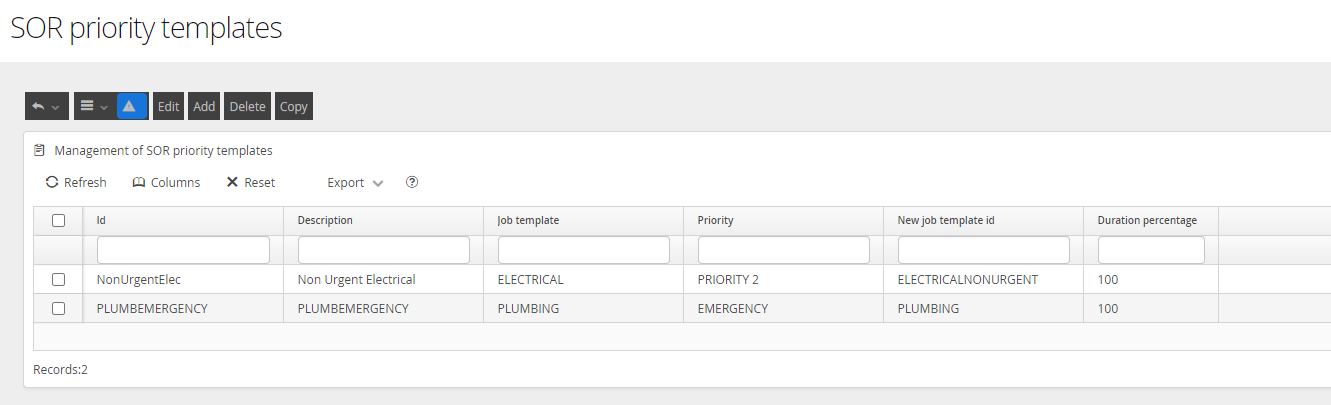
Adding or Editing a SOR Template
To add a new entry, click on the Add button from the menu. To Edit an existing template, first select a configured Template and click Edit.

In both cases, the following screen will be displayed. Fill in or edit the details as required as per below

Field Name | Description |
ID | This should be unique and must contain no spaces. |
Description | This should be a description of the Priority Template in what it is used for. |
Job Template | Select the Job Template that the SOR is linked to originally (e.g., Joinery) |
Priority | The Order Priority that will cause the new Job Template to be used instead of the original. |
New Job Template ID | Select the new Job Template that the Job will change to based on the Priority (e.g., Joinery Emergency) |
Duration Percentage | A duration modifier for the Job. E.g., if you set this to 50% it would give the Worker half of the amount of time defined in the SMV, to do the work. If you set it to 200% it would give the worker twice as much time. |
Click Save.
In this example, any Job which is created within DRS with an SOR associated with the JOINERY Job Template and Priority of EMERGENCY, will have a Job Created using the JOINERY_EMERGENCY Job Template.

