Dynamic Resource Scheduler
Whats New!
User Experience Changes
Security and Authentication
Modules and Utilities
Cyclical Scheduling - Configuration Interface
Cyclical Scheduling - Now Bulk Scheduling
Resource Quotas Improvements - Percentages
Architecture and Scheduling
Configuration
User Guides and Help
Get to Know Dynamic Resource Scheduler
How Does Dynamic Resource Scheduling Work
Speaking the Language of Scheduling
Navigating Dynamic Resource Scheduler
How your Data Links Together
Managing your Organisation
Viewing your Data
Your Customer Data
Your Service Orders
Your Jobs
Your Workers and Resources
Manage Your Tasks
Actioning your Jobs and Tasks
Job Templates
Find A Jobs Possible Workers
Locking Your Jobs
Create a Follow On Task
User Queues and Organising Your Tasks
Schedule and Organise
How to Optimise Your Scheduling
How to Schedule Manually
Scheduling Mutliple Jobs at Once
Reassign and Reschedule your Tasks
Managing Your Time and Durations
Managing your Comments and Contacts
Using Bookmarks to Drive Efficiency
Managing Your Job Status
Visualising Your Planning
Workers and Resources
Advanced Data Management
Creating Unavailability in your Workforce
Adding an Unavailability to an Individual Worker
Creating Unavailabilities for Multiple Days or Workers
Maps And Journey
Using Maps to Visualise Your Data
Using Maps With Your Data
Learn about our Closest Function
Your Journeys
Meetings and Non-Productive Planning
Administer Your Scheduler
Managing Your Organisations and Agencies
Managing Your Custom Data
Managing your Contracts
Customising Your Experience
Managing Depots and Starting Locations
Managing Diary Bookmarks
Managing your External Chart Views
KPI Settings
Managing Your Priorities
Learn about Sectors
Managing Your Follow On Templates
Get To Know Your Working Time Calendar
Managing your SOR Templates
Managing your Job Templates
Managing Your Vocabulary
Managing Your Bookmarks
Manage Your Customer Templates
Get to Know Import and Export
Managing Your Tenant Code Rules
Managing your Order Templates
Managing Your Unavailability Reasons
Get To Know Your Working Time Calendars
Managing your Worker Templates
Releases and Readiness
DRS 6, DRS 5.7 and Job Manager
User Guides and Help
Get to Know DRS
Dynamic Scheduling - How does it work
Navigating DRS
Vocabulary and Concepts
Customers
Orders
Jobs
Scheduling Jobs
Job Functions
Workers
Views
Object Inheritance
Agencies
DRS Modules
Scenario Based Planning
Managing your SMS Service
5.7 Documentation
Technical Documentation
Release Notes
DRS 6.1 Release Notes
DRS 6.1.22 - February 20, 2026
DRS 6.1.21 - September 10, 2025
DRS 6.1.20 - April 20th, 2025
DRS 6.1.19 - 11th April, 2025
DRS 6.1.18 - 13 February 2025
DRS 6.1.17 - 20th December 2024
DRS 6.1.16 - November 8th, 2024
DRS 6.1.15 - October 10th, 2024
DRS 6.1.14 - 6th September 2024
DRS 6.1.13 - 9th August 2024
DRS 6.1.12 Release Notes
DRS 6.1.11 Release Notes
DRS 6.1.10 Release Notes
DRS 6.1.9 Release Notes
DRS 6.1.8 Release Notes
DRS 6.1.7 Release Notes
DRS 6.1.6 Release Notes
DRS 6.1.5 Release Notes
DRS 6.1.4 Release Notes
DRS 6.1.3 Release Notes
DRS 6.1.2 Release Notes
DRS 6.1.1 Release Notes
DRS 6.1.0 Release Notes
DRS 6.0 Release Notes
DRS 6.0.0.0 Release Notes
DRS 6.0.0.1 Release Notes
DRS 6.0.0.2 Release Notes
DRS 6.0.0.3 Release Notes
DRS 6.0.0.4 Release Notes
DRS 6.0.0.6 Release Notes
DRS 6.0.1.0 Release Notes
DRS 6.0.1.1 Release Notes
DRS 6.0.1.2 Release Notes
DRS 6.0.1.3 Release Notes
DRS 6.0.1.4 Release Notes
DRS 6.0.1.5 Release Notes
Kirona Housing
Job Manager 9
Job Manager 9.3.0 - October 2024
Job Manager 9.1.0 - December 2022
Job Manager 9.2.0 - November 2023
Release Notes Disclaimer
Administering your Field Service Products
Supported Versions Policies
Contents
- All categories
- DRS 6, DRS 5.7 and Job Manager
- User Guides and Help
- Scenario Based Planning
- Jobs take longer than expected
Jobs take longer than expected

Purpose
This article is here to provide you with some actions you can take if your Workers have Jobs which take longer than the initial plan has allowed.
Scenario
The Worker calls to explain that more time is required to complete the Job, or you notice that a Job is overrunning.
How do we deal with this?
Option One - Remain on site
Allow the worker to stay on site and extend the job. This may cause Jobs to Suspend, in which case Jobs will need rescheduling.
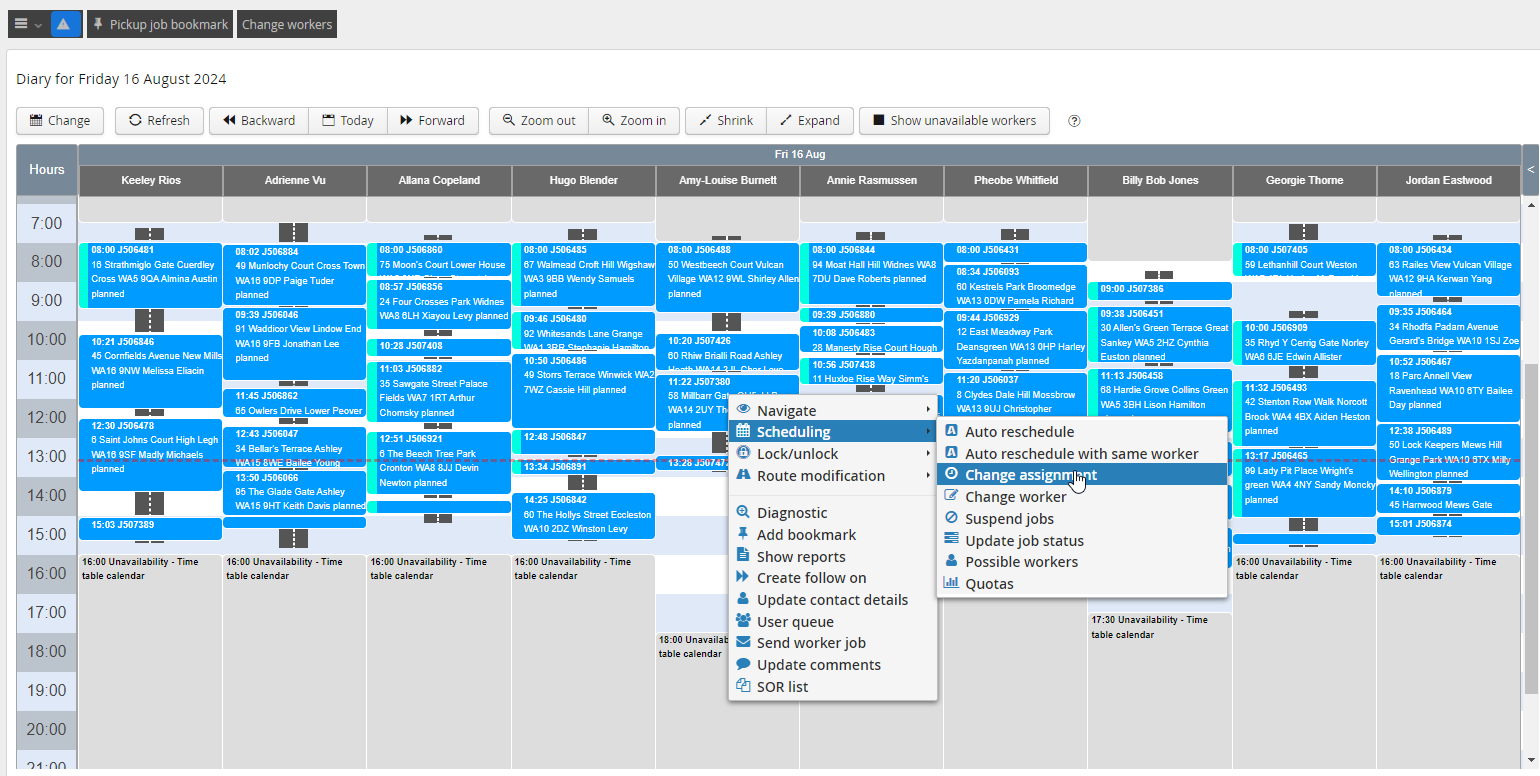
In the diary, right click on the Job you wish to extend, then select Scheduling > Change Assignment
Set the estimated time for completion
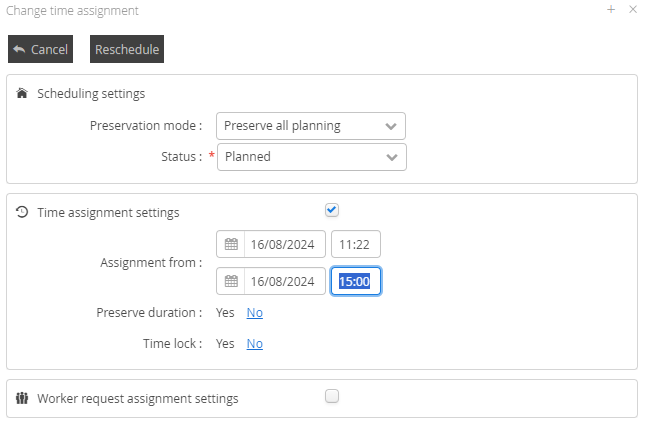
and if required the Planning preservation mode. Note, your profile permissions will determine what options you have available here
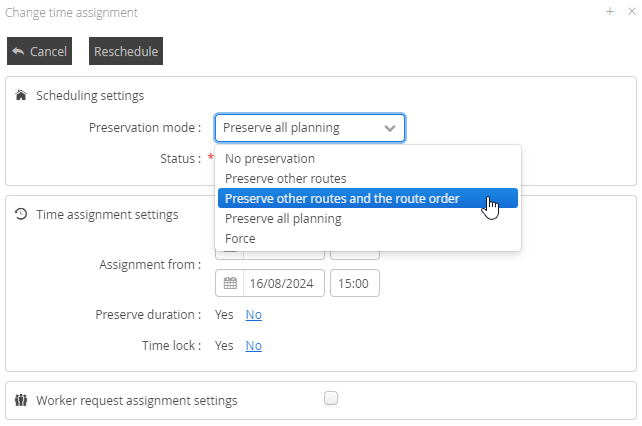
Once set, click the Reschedule button.
If you receive this message, your proposed planning change requires you to force the appointment into the diary as it is not supported by the scheduling logic.
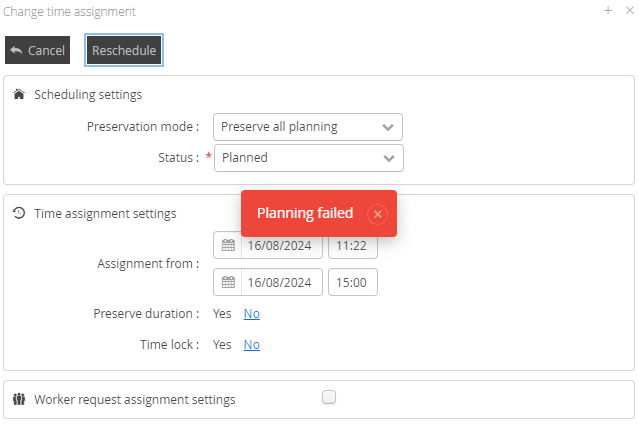
Set the preservation mode to Force and click the Reschedule button again.
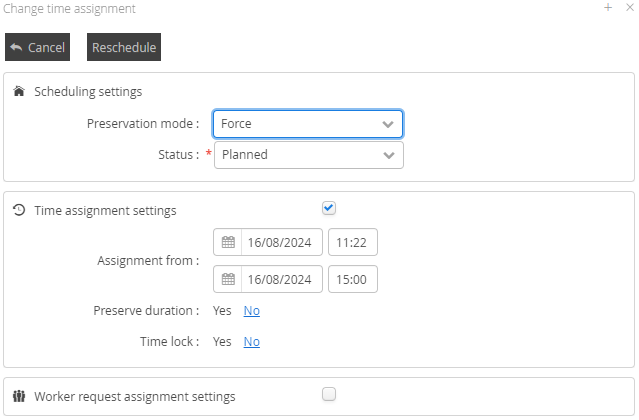
Your planning change will now reflect the estimated time to complete.
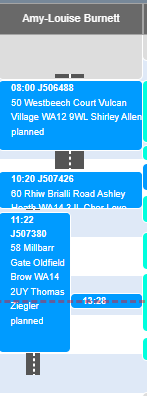
An alternative method of extending a started job is to use the Update Job Status functionality.
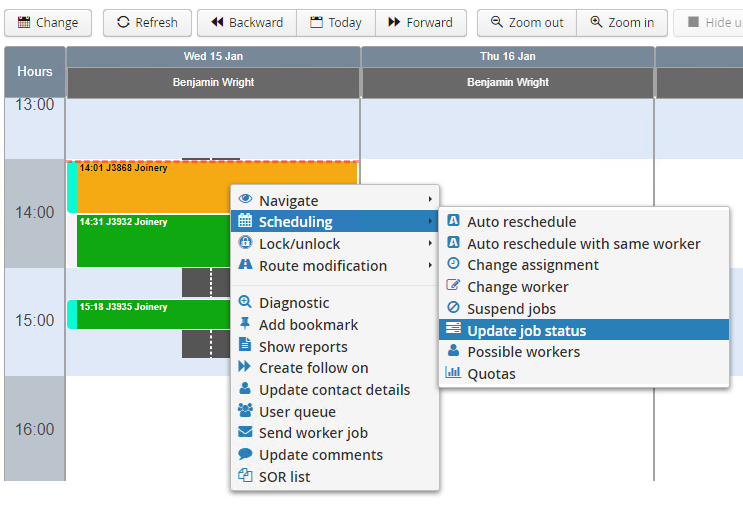
Right click on the job in the diary then select Scheduling > Update Job Status
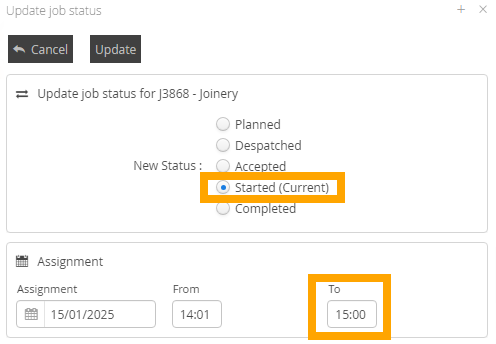
By the default, the next status in the job life cycle (i.e. Completed) will be selected. Set this back to Started and enter the expected completion time beneath, then click Update.
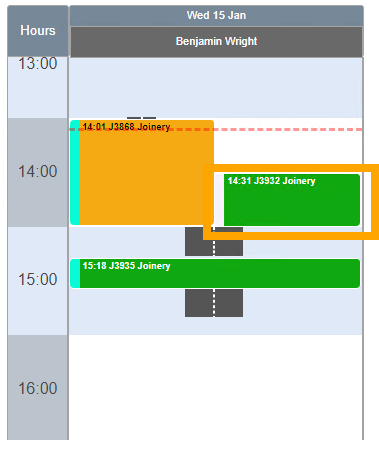
Initially the extended job will overlap any subsequent Jobs.
If DRS is able to reschedule the affected job(s) to a different time or different worker, whilst honouring its current constraints (e.g. time slot), this will happen automatically within a minute or so.
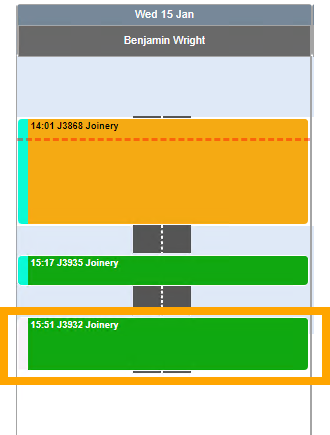
Alternatively you can prompt DRS to attempt a reschedule by right clicking on each affected job and selecting Scheduling > Auto Reschedule.
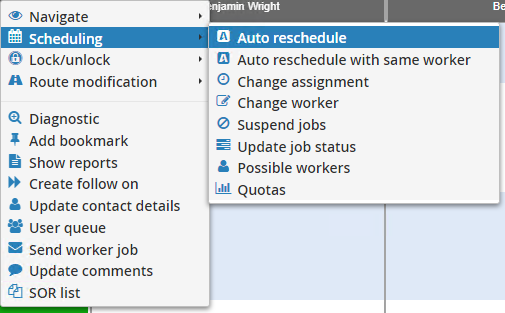
Option Two - Schedule Another Visit
If allowing the Worker to remain on site will have too much of an impact on the rest of the workers day, then scheduling another visit would be the best way to ensure the task is completed at an agreed time at a later date.
Follow Ons in DRS can be used to create additional appointments linked to the original task. This can be performed from the Diary or the Job List screen. To create a follow on from the Diary, right click on the job in question in the diary and select Create follow on (alternatively you can search for the job and open it and click the create follow on button at the top of the screen).
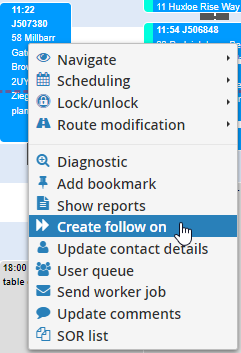
You will then be presented with the Create follow on window. Your view may differ from the below, as the options you will see for creating your follow on can be managed to suit your business needs within the Follow On Template configuration.
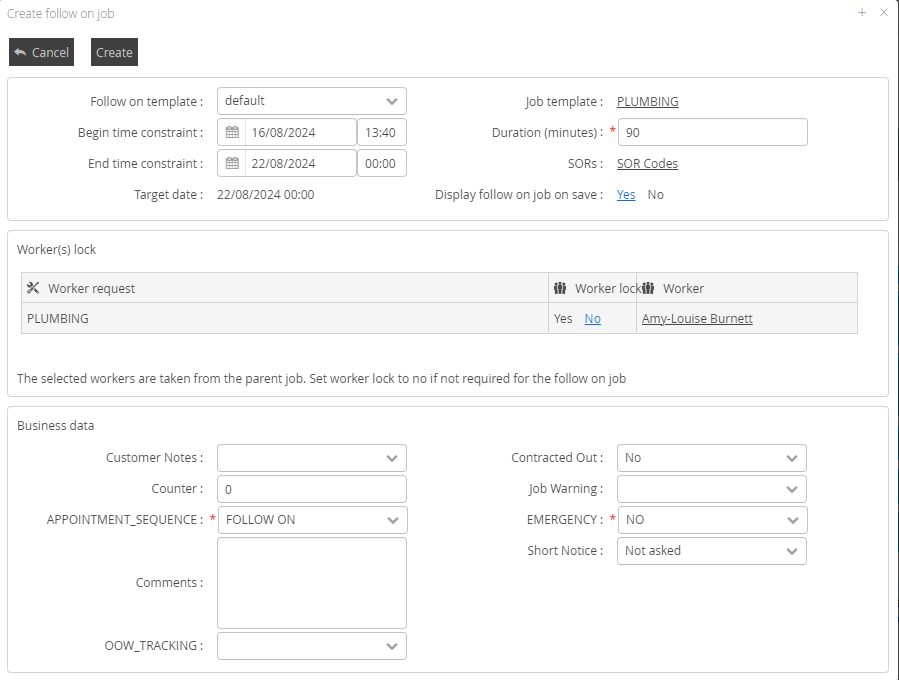
There are some common fields which you will always have the ability to complete, and others which will be dictated by your configuration.
Field | Requirement |
Job Template | This can be changed if a new skillset is required for the follow on appointment. For example the completion status of the previous job could have been ASSISTANCE REQUIRED therefore a Paired Template would be required for the follow on Job. Changing this will change the resource request section |
Duration (minutes) | The operative who originally marked the appointment as a follow on may have an idea of how much time is required on the next appointment. For example it could have been completed with a completion status of MORE TIME REQUIRED and the amount of time recorded in operative comments on the completed job. This can be changed accordingly here. Note: this is a mandatory field |
Begin Time Constraint | This automatically sets itself to the day after the completion date of the original job. This can be amended (however it should not exceed the End Time Constraint) |
End Time Constraint | This is set to the target date of the original Job. This can be amended |
Resources Lock | Can be used to lock the worker to the appointment if the same worker is required to return to the next appointment. (Recommend using this sparingly as this can affect the ability to schedule/optimise) |
Resources | Can assign a specific worker to the follow on (linked to above) this will only display a list a workers who have the skill required for the follow on. |
Business Data Section | This is a section specific to the configuration of your DRS environment. |
Once happy with the configuration of the Follow-on job click the create button and this will create a job with a status of New.
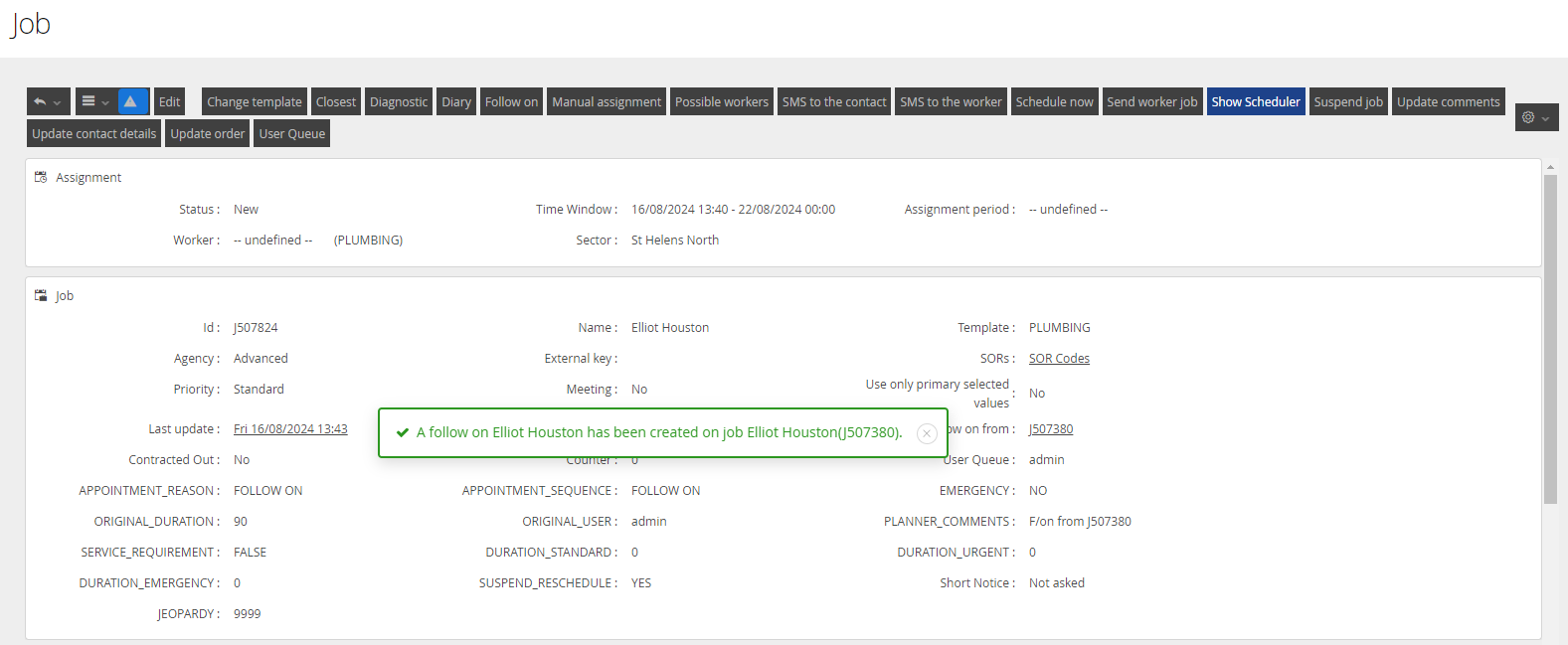
You will now need to schedule this into a Diary using your normal scheduling processes.
Ways we can help
There are a few different ways DRS can be setup to ensure that your scheduling reflects the required amount of delivery time at the point the appointment is agreed with your customer. Regular review of these settings can help
Check your SMV's
Maintaining the SMV's in your system to reflect the actual time needed to deliver tasks is important. Regular review of the SMV's associated to your SOR's will ensure that the quality of your schedule and the number appointments available to your customers at first point of contact remain at a premium.
Individually checking tasks that you believe may be effected can also give you an opportunity to catch issues before the schedule is set in motion for the day. By reviewing the diary itself, this can help highlight potential scheduling conflicts.
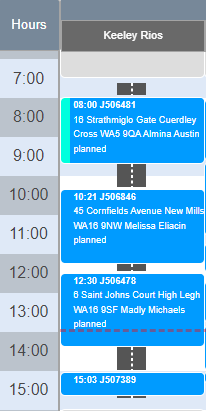
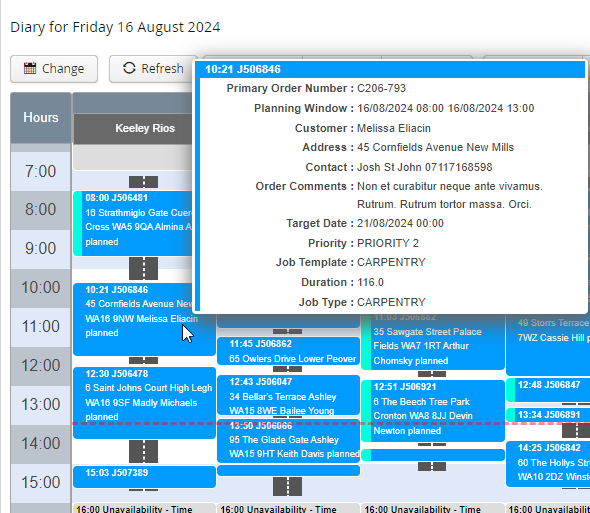
Using the Hover Over information panel on the diary will help you see more detail about the scheduled task too.
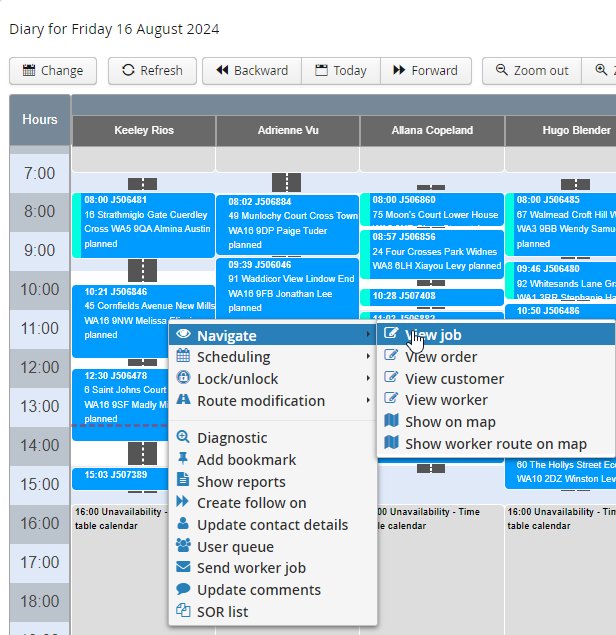
Even more information on each job can be accessed by going to the Job Details screen from the various places around the solution. From the diary, right click on the Job and select Navigate> View Job
Worker Duration Adjustment
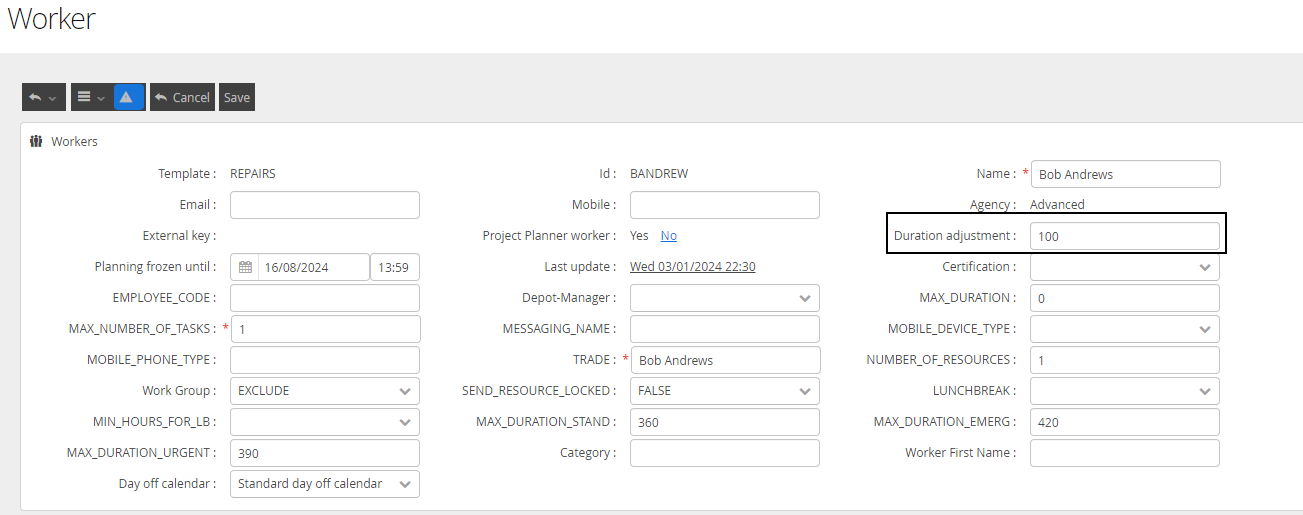
There are reasons why your SMV's will be right, but sometimes, not right for everyone. If an individual Worker needs more or less time on average to complete their work, then using the Duration Adjustment value on their profile can automatically add more, or less time, to their scheduled work.
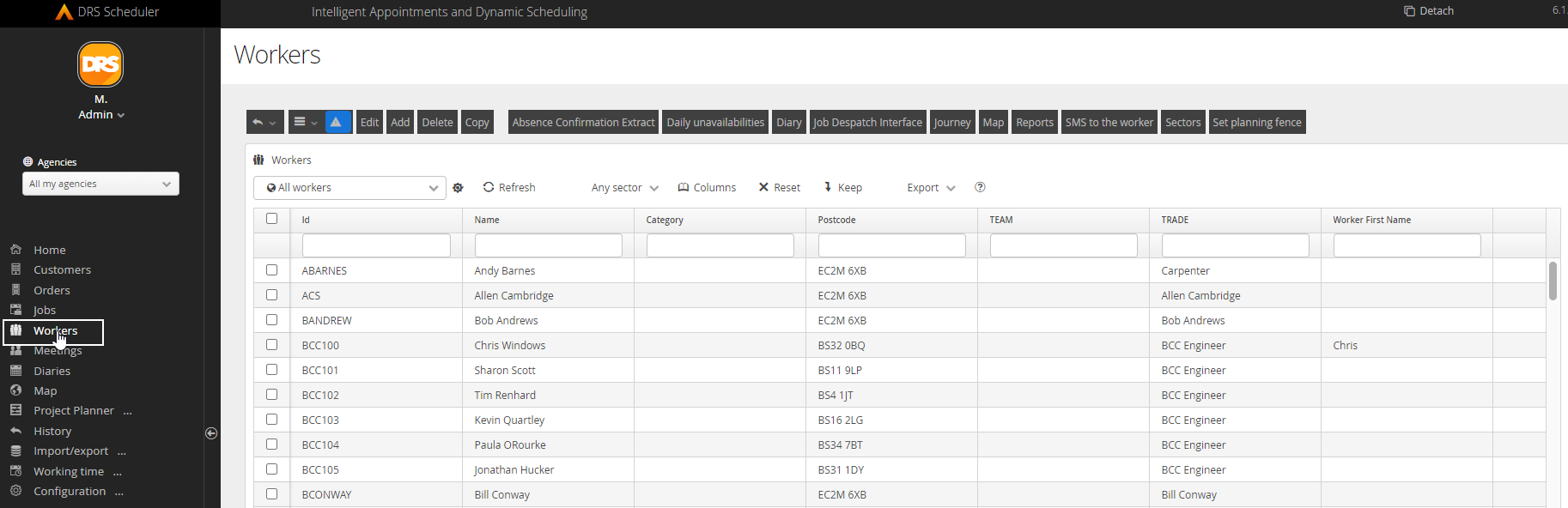
The Duration Adjustment field can be accessed by Editing the Worker object from the Worker List view. The value is a percentage. A larger value will increase appointment times by that percentage, a smaller value will decrease appointment times by that percentage.
NOTE: This change is a live adjustment. When made, all scheduled tasks will be modified to allow for the adjustment. If you are making tasks longer, your schedule will be effected and you will be offered options on how you wish to deal with the changes.