Dynamic Resource Scheduler
Whats New!
User Experience Changes
Security and Authentication
Modules and Utilities
Cyclical Scheduling - Configuration Interface
Cyclical Scheduling - Now Bulk Scheduling
Resource Quotas Improvements - Percentages
Architecture and Scheduling
Configuration
User Guides and Help
Get to Know Dynamic Resource Scheduler
How Does Dynamic Resource Scheduling Work
Speaking the Language of Scheduling
Navigating Dynamic Resource Scheduler
How your Data Links Together
Managing your Organisation
Viewing your Data
Your Customer Data
Your Service Orders
Your Jobs
Your Workers and Resources
Manage Your Tasks
Actioning your Jobs and Tasks
Job Templates
Find A Jobs Possible Workers
Locking Your Jobs
Create a Follow On Task
User Queues and Organising Your Tasks
Schedule and Organise
How to Optimise Your Scheduling
How to Schedule Manually
Scheduling Mutliple Jobs at Once
Reassign and Reschedule your Tasks
Managing Your Time and Durations
Managing your Comments and Contacts
Using Bookmarks to Drive Efficiency
Managing Your Job Status
Visualising Your Planning
Workers and Resources
Advanced Data Management
Creating Unavailability in your Workforce
Adding an Unavailability to an Individual Worker
Creating Unavailabilities for Multiple Days or Workers
Maps And Journey
Using Maps to Visualise Your Data
Using Maps With Your Data
Learn about our Closest Function
Your Journeys
Meetings and Non-Productive Planning
Administer Your Scheduler
Managing Your Organisations and Agencies
Managing Your Custom Data
Managing your Contracts
Customising Your Experience
Managing Depots and Starting Locations
Managing Diary Bookmarks
Managing your External Chart Views
KPI Settings
Managing Your Priorities
Learn about Sectors
Managing Your Follow On Templates
Get To Know Your Working Time Calendar
Managing your SOR Templates
Managing your Job Templates
Managing Your Vocabulary
Managing Your Bookmarks
Manage Your Customer Templates
Get to Know Import and Export
Managing Your Tenant Code Rules
Managing your Order Templates
Managing Your Unavailability Reasons
Get To Know Your Working Time Calendars
Managing your Worker Templates
Releases and Readiness
DRS 6, DRS 5.7 and Job Manager
User Guides and Help
Get to Know DRS
Dynamic Scheduling - How does it work
Navigating DRS
Vocabulary and Concepts
Customers
Orders
Jobs
Scheduling Jobs
Job Functions
Workers
Views
Object Inheritance
Agencies
DRS Modules
Scenario Based Planning
Managing your SMS Service
5.7 Documentation
Technical Documentation
Release Notes
DRS 6.1 Release Notes
DRS 6.1.22 - February 20, 2026
DRS 6.1.21 - September 10, 2025
DRS 6.1.20 - April 20th, 2025
DRS 6.1.19 - 11th April, 2025
DRS 6.1.18 - 13 February 2025
DRS 6.1.17 - 20th December 2024
DRS 6.1.16 - November 8th, 2024
DRS 6.1.15 - October 10th, 2024
DRS 6.1.14 - 6th September 2024
DRS 6.1.13 - 9th August 2024
DRS 6.1.12 Release Notes
DRS 6.1.11 Release Notes
DRS 6.1.10 Release Notes
DRS 6.1.9 Release Notes
DRS 6.1.8 Release Notes
DRS 6.1.7 Release Notes
DRS 6.1.6 Release Notes
DRS 6.1.5 Release Notes
DRS 6.1.4 Release Notes
DRS 6.1.3 Release Notes
DRS 6.1.2 Release Notes
DRS 6.1.1 Release Notes
DRS 6.1.0 Release Notes
DRS 6.0 Release Notes
DRS 6.0.0.0 Release Notes
DRS 6.0.0.1 Release Notes
DRS 6.0.0.2 Release Notes
DRS 6.0.0.3 Release Notes
DRS 6.0.0.4 Release Notes
DRS 6.0.0.6 Release Notes
DRS 6.0.1.0 Release Notes
DRS 6.0.1.1 Release Notes
DRS 6.0.1.2 Release Notes
DRS 6.0.1.3 Release Notes
DRS 6.0.1.4 Release Notes
DRS 6.0.1.5 Release Notes
Kirona Housing
Job Manager 9
Job Manager 9.3.0 - October 2024
Job Manager 9.1.0 - December 2022
Job Manager 9.2.0 - November 2023
Release Notes Disclaimer
Administering your Field Service Products
Supported Versions Policies
Contents
- All categories
- Dynamic Resource Scheduler
- User Guides and Help
- Administer Your Scheduler
- Managing your SOR Templates
Managing your SOR Templates

SOR codes are received from the back-office system and are used by DRS to determine the type of work being raised, the job duration, and the Job Template that should be applied. Each SOR includes a unique ID, description, mapped Job Template, duration in minutes, and other configuration options that allow you to control and manage your key scheduling decisions.
Managing your SOR Templates
The SOR management screen allows users to search, view, add, edit, copy, or delete SOR records. When creating or editing an SOR, the key setup is the link between the SOR code and the correct Job Template, as this controls which workers are eligible to receive the job and how the work is scheduled.
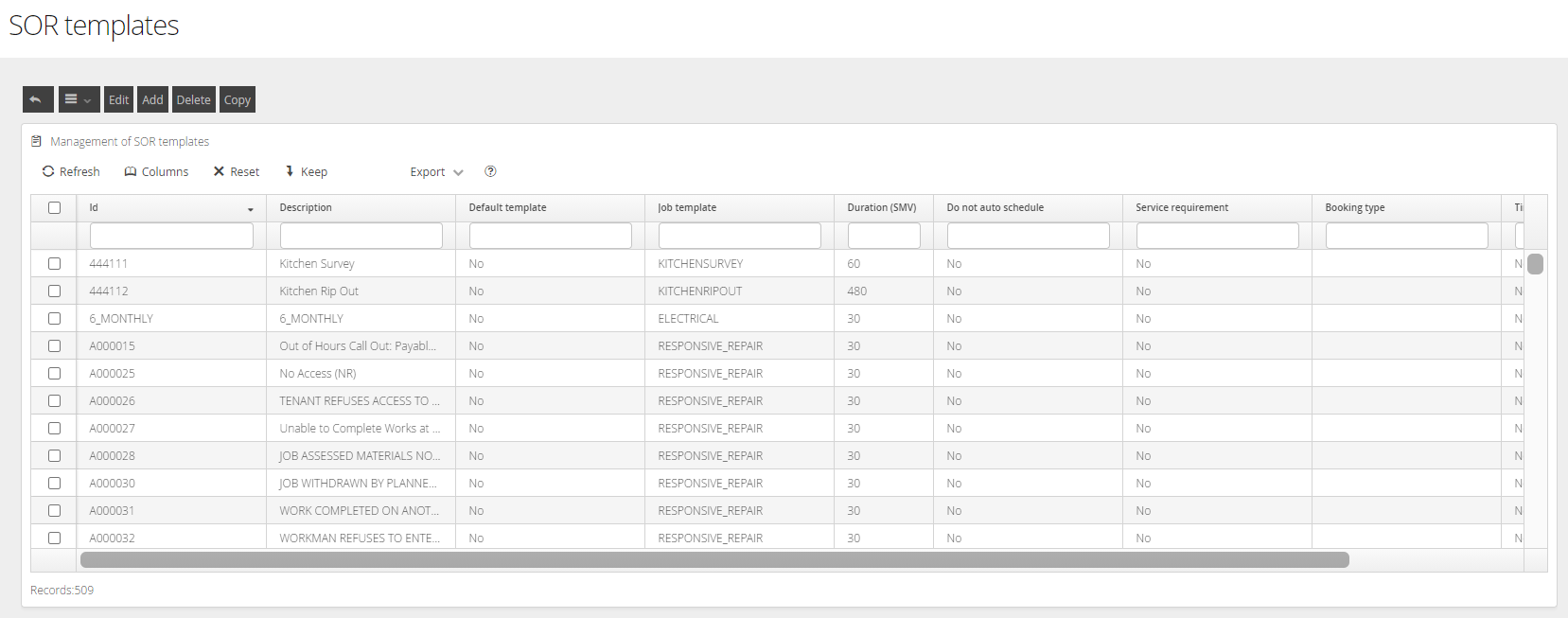
To create a New SOR, select the Add button. To edit an SOR click on the checkbox to the left of the SOR and then select the Edit button. In both cases, you will be presented with the following screen:

Field Name | Description |
ID | This is a mandatory field and cannot be left blank and it requires a unique Name. |
Description | This is the description of the template used to add context to the Name. |
Job Template | This is the Job Template you wish the SOR to map to (this must be created in the Job Template Section first) |
Duration (SMV) | The Standard Minute Value of the job. The duration in minutes it will take to complete the job. |
Booking Type | This value default should be 'Housing Repair'. In some cases, OneAdvanced support may advise you to configure an alternative value |
Default Template | Keep set to No unless instructed by your Advanced Consultant |
Do Not Autoschedule | Keep set to No unless instructed by your Advanced Consultant |
Service Requirement | This is only set to Yes if required to be scheduled automatically by the Cyclical Servicing Module. |
Time Only | Keep set to No unless instructed by your Advanced Consultant |
SOR Multi Templates
SOR Multi Templates are used when an order contains multiple SORs that would normally map to two or more different Job Templates. Without a Multi Template, DRS may not know which Job Template to apply, as each individual SOR is usually associated with a single template. This can result in the job being created against an INVALID template, meaning it cannot be scheduled until it has been manually corrected.
Multi Template mapping allows you to define specific combinations of SORs and instruct DRS which Job Template should be applied when that combination is received. This ensures the work is allocated to the correct type of worker and can be scheduled without manual intervention.
This is particularly useful for multi-skilled operatives. For example, if a job includes both a minor carpentry task and a plumbing task, a Multi Template can allow the work to be assigned to one suitably skilled operative rather than creating separate appointments or requiring manual reassignment.
Configuring Multi Templates
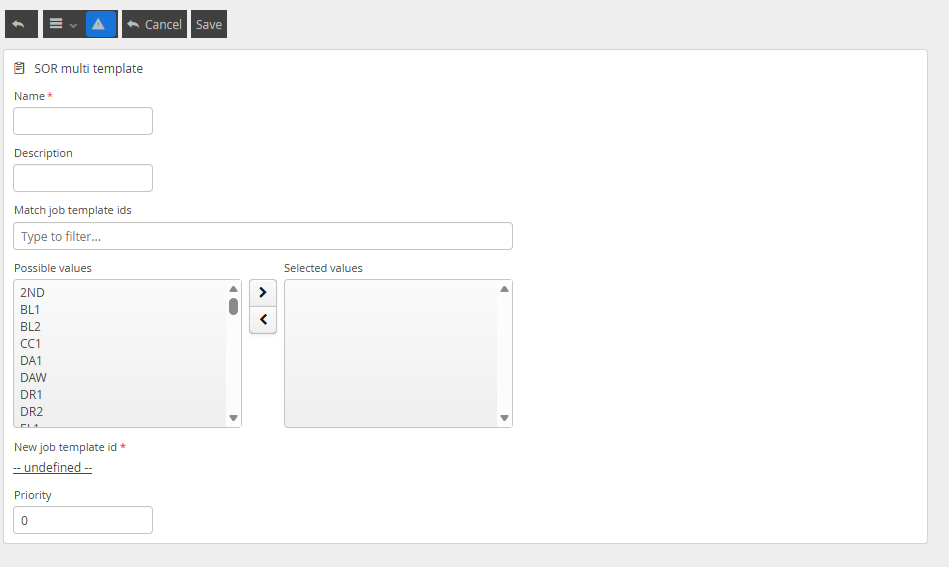
By clicking Add or Edit, you will be able to manage the configuration of your Multi Template Mapping.
Field Name | Description |
Name | This field is mandatory and needs to be unique. The system will use this field to identify the mapping in it's algorithm |
Description | This field will be shown to the user on Job Templates, the Booking Hub, Diaries and other interactive locations |
Match Job Template IDS | This is a filter area to allow you to filter the table below |
Possible Values/Selected Values | Moving templates into the right hand field is how you identify the possible Job Template matches |
New Job Template ID | When matching job templates are found, this field identifies the Job Template which will be assigned to the task. |
Priority | The priority controls the order in which DRS assesses matching Multi Templates. DRS checks possible combinations from top to bottom, so a Multi Template with a priority of 1 will be assessed before a template with a priority of 3. For example, a Joinery + Electrician + Plumber Multi Template with priority 1 would be assessed before a Joinery + Electrician Multi Template with priority 3. This means that a job containing Joinery and Electrician work may be matched against the more complex template first if it appears higher in the priority order. Because of this, care should be taken when planning Multi Template priorities. More specific or complex combinations should be ordered deliberately to avoid jobs being matched to an unintended template. |
SOR Priority
SOR Priority Templates allow DRS to map work to different Job Templates based on the priority of the job. This is useful where the type of work remains the same, but the scheduling rules, response times, or worker requirements need to change because of the priority.
For example, a standard joinery repair may normally map to a basic Joinery Job Template. However, if the same type of work is raised as an emergency, the priority code can be used to switch the job to an Emergency Joinery Job Template instead.
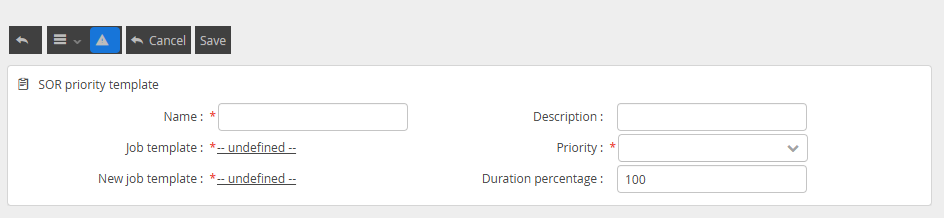
SOR Priority Templates work in a similar way to SOR Multi Templates, but the mapping is driven by the job priority rather than by a combination of multiple SORs. This helps ensure higher-priority work is routed to the correct template and scheduled using the appropriate rules.
Field Name | Description |
Name | This field is mandatory and must be unique. |
Description | This is the user friendly name that will be displayed to the user |
Job Template | This is the Original Job Template that is mapped to the task |
New Job Template | This is the Job Template that you would like the job to be mapped to. |
Priority | This is the field, that when combined with the assigned Job Template, will map to the New Job Template value |
Duration Percentage | This will increase (greater than 100) or decrease (less than 100) the planned duration of the task, based on the original value |
SOR Mapping Combinations
DRS can use a range of mapping options to determine which Job Template should be applied when work is received from the back-office system. These mapping options allow more complex scheduling scenarios to be handled automatically, reducing the need for manual intervention and helping ensure work is routed to the most appropriate workers.
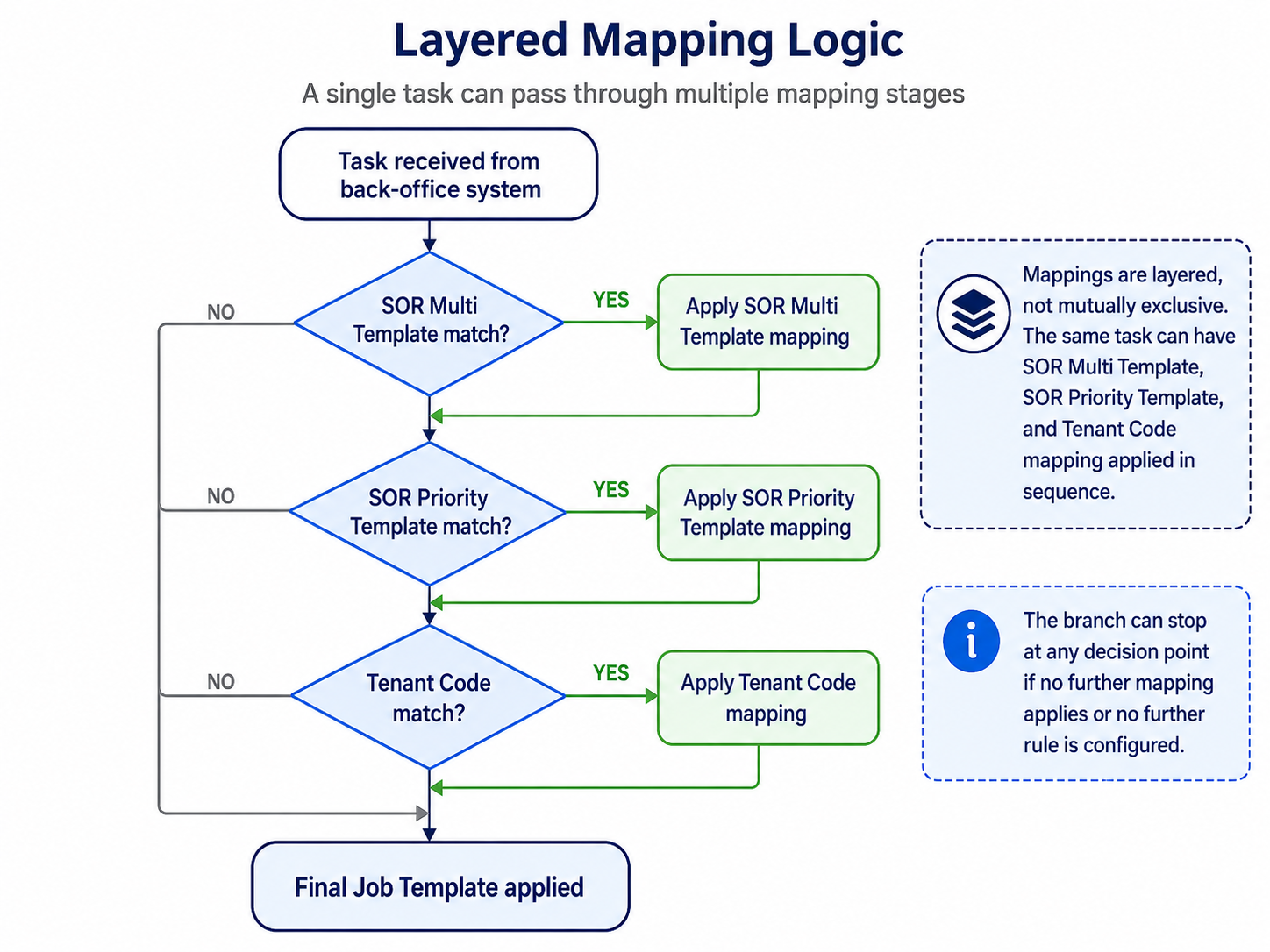
When more than one mapping option could apply, DRS follows a defined order of assessment. The decision flow is:
SOR Multi Template → SOR Priority Template → Tenant Codes
This means DRS will first check whether the combination of SORs on the job matches a configured SOR Multi Template. If no suitable Multi Template is found, DRS will then check whether the job priority should drive the selection of a different SOR Priority Template. If neither of these mappings applies, DRS can then consider Tenant Code mapping as part of the template selection process.
This hierarchy is important because it controls how DRS resolves potentially overlapping configuration. For example, if a job contains multiple SORs and also has an emergency priority, the Multi Template mapping will be assessed before the Priority Template mapping. This ensures that the structure and combination of the work is considered first, before priority-based rules are applied.
When planning your configuration, it is important to consider how these mapping options interact. More specific or complex mapping rules should be configured carefully, as they may take precedence over simpler mappings further down the decision flow. A well-planned mapping structure helps ensure jobs are created against the correct template, can be scheduled automatically, and are distributed to workers with the right skills, availability, and scheduling rules.