The Diary provides a clear view of scheduled work, worker availability and unavailability across a selected day, week or month. It allows users to review where jobs have been allocated, understand worker movements, identify gaps or conflicts in the schedule, and access key job or resource information from a single planning view.
Accessing the Diary
Accessing the diary to view jobs assigned to operatives for the day/week/month can be done in the same way as other DRS releases. The diary can be accessed from the left menu under Diaries. They can also be accessed via the job screen, the worker screen or from shortcuts created within the system.
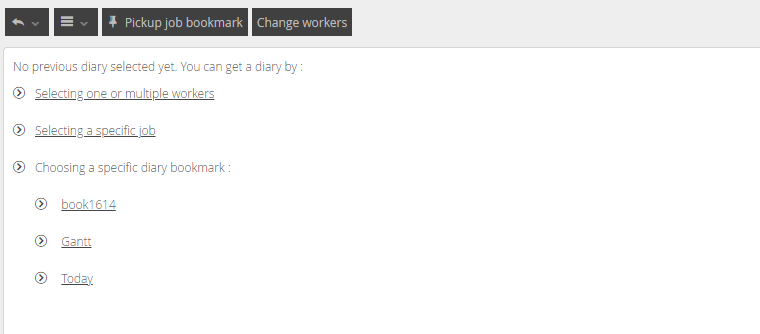
With no previous diary selected, you will be presented with this screen.
Following the links will take you to the Workers or Job Screen, or one of your pre-selected bookmarks.
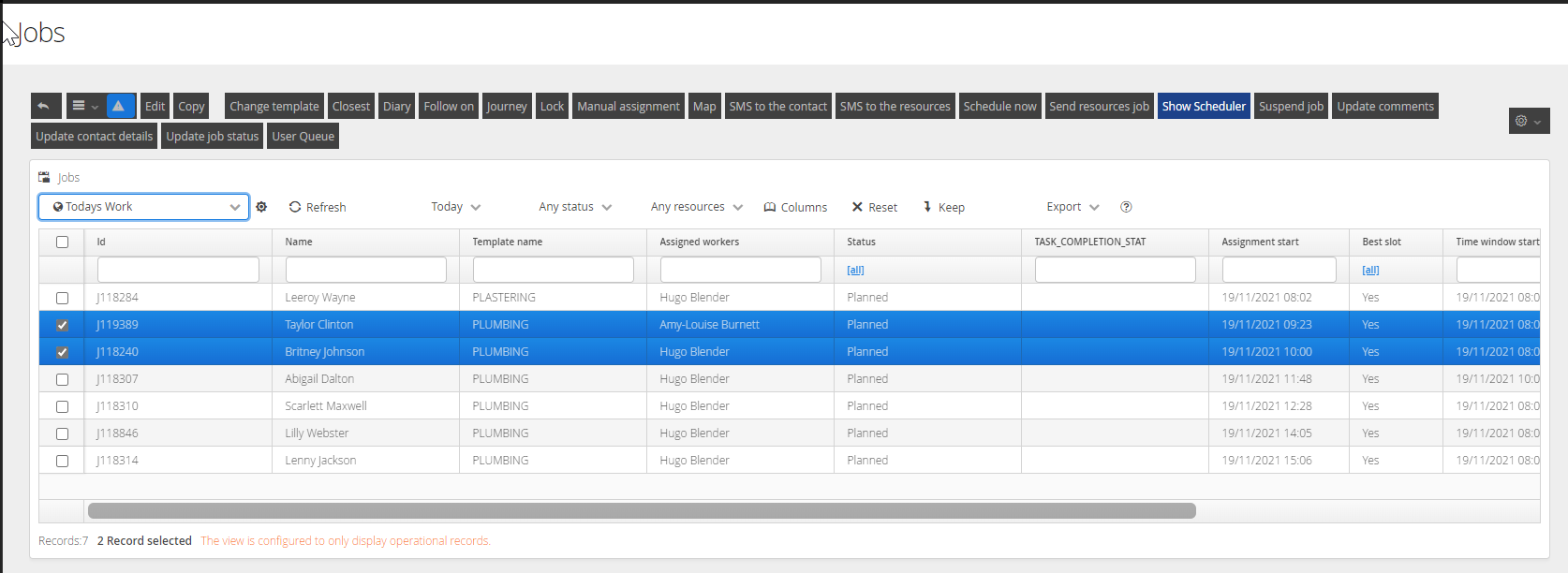
To Access from the Jobs screen>highlight Jobs> click on the Diary Button
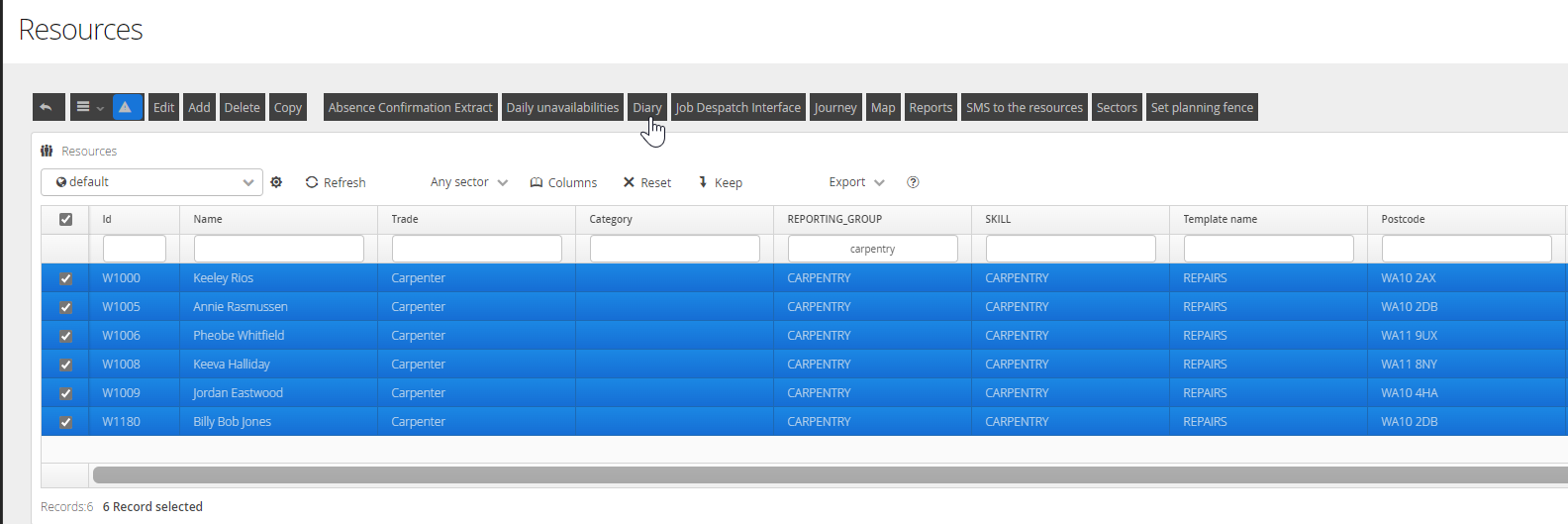
To Access from the Resources Screen>highlight resources>click on the Diary Button
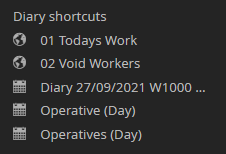
To Access via Shortcuts, Click on any Diary Shortcuts on the left>click on the relevant shortcut
All the above options will launch the Diary based on the selection specified
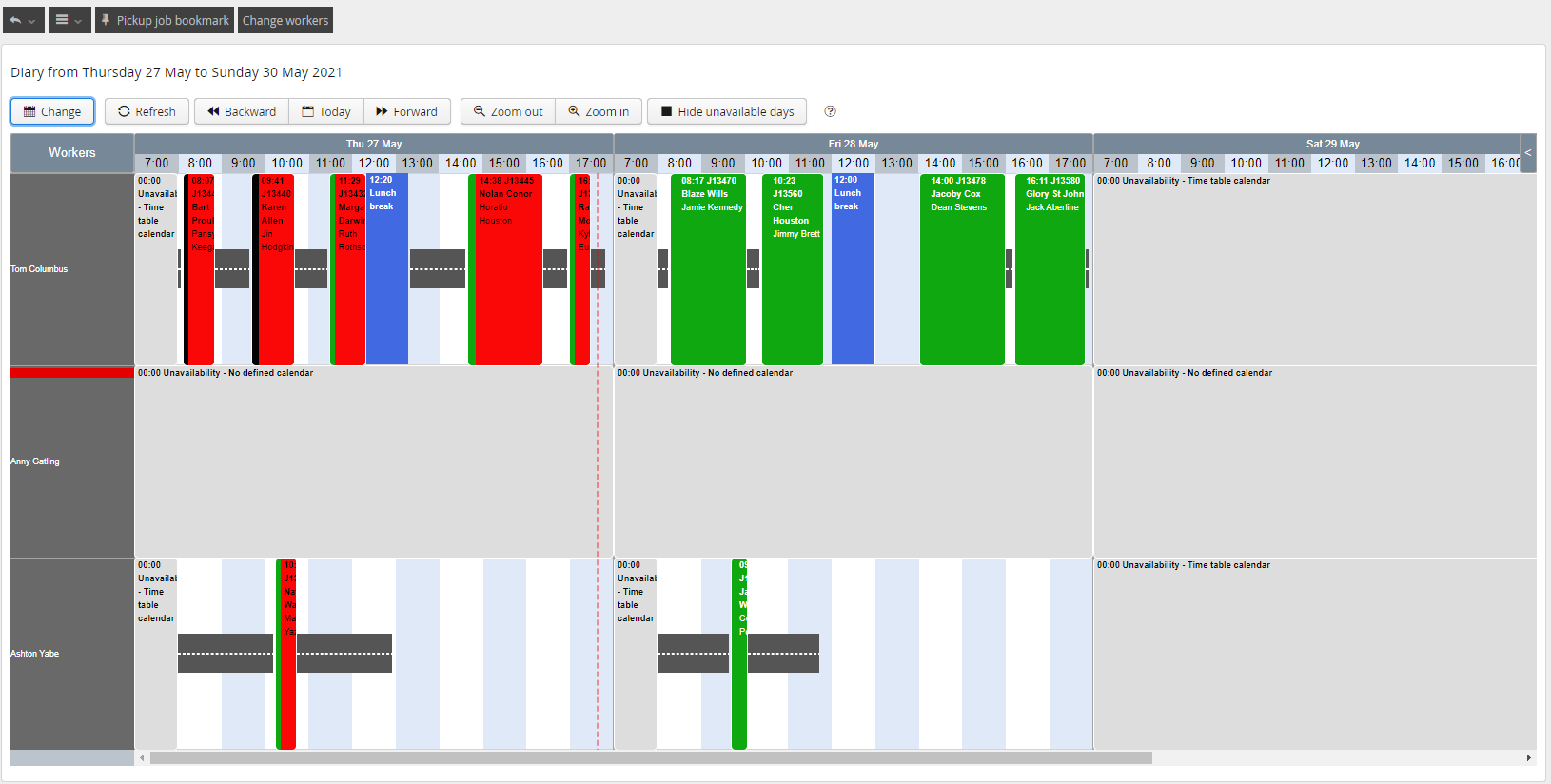
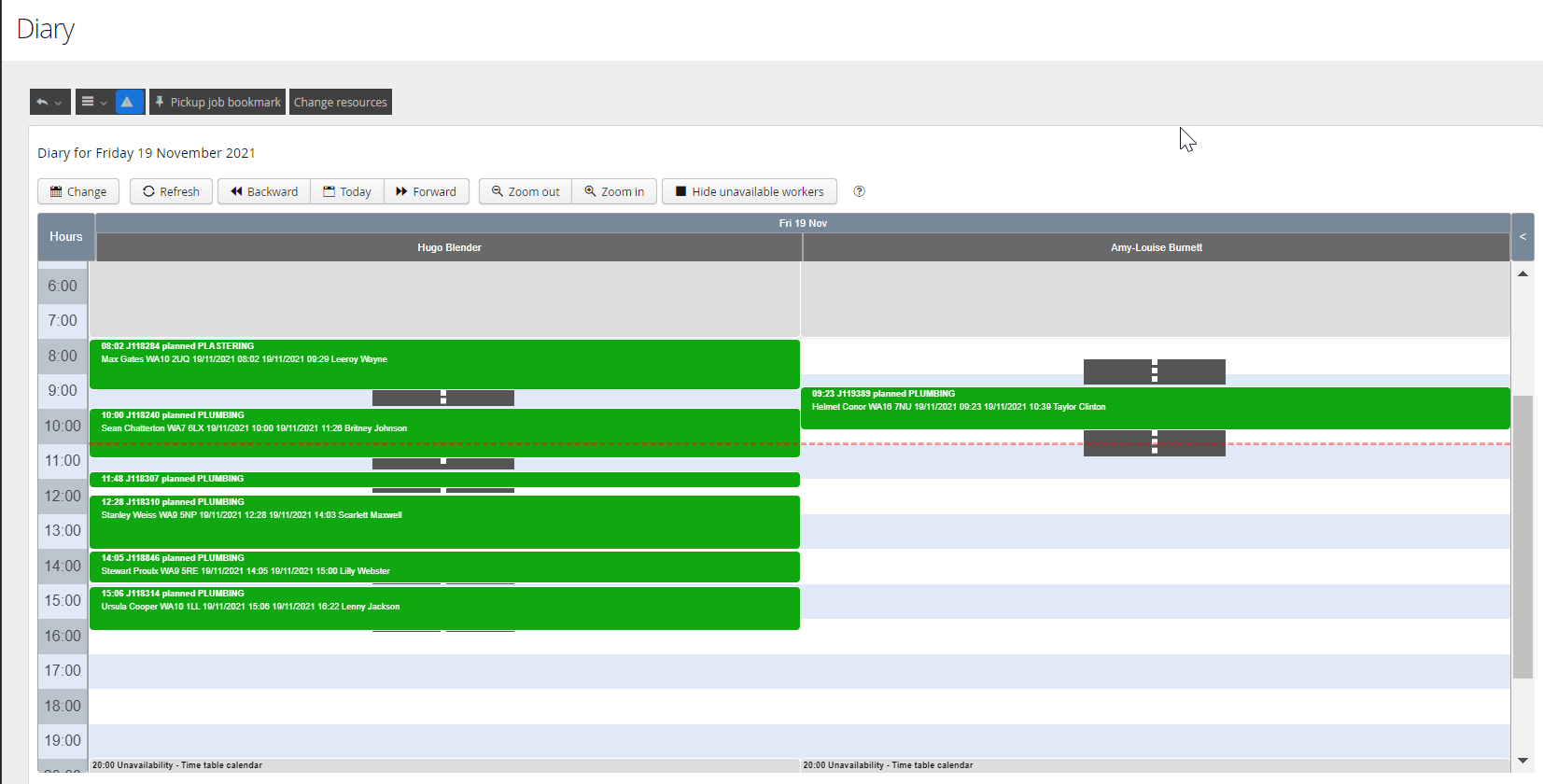
The Diaries will contain Jobs, which will be coloured based on the Status of the Job and Unavailability Blocks, which by default, will be grey. Hovering over any item within the Diary will display a block of information relevant to the item Hovered over.
Travel time is depicted by a dark black line between tasks.
At the top of the Diary pane are the control mechanisms for the viewed diaries. You can move forward and back from the selected date, hide unavailable days, create a shortcut and organise the order of the columns.
Diary Controls
Above the Diaries are the Diary Controls.
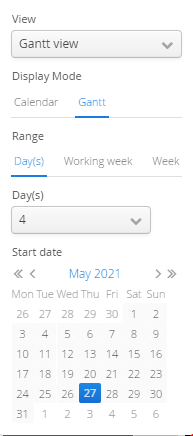
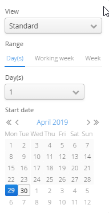
Selecting the CHANGE button will allow you to change your Planning configuration, set your Time Windows or choose several days to view and set your dates accordingly.
Refreshing will update your selection as required.
The Shortcut button will allow you to save your current diary state to access quickly next time. This is discussed in greater detail below.
The Help icon can provide some useful assistance around Drag and Drop, Unavailability’s and Job Detail.
Change Workers
The Change Workers button will allow you to add, remove or change the workers that are currently displayed on the diary. You can also use this button to amend the column order on display.
Pickup Job Bookmark
The Pickup Job Bookmark button will allow you to schedule tasks from within your bookmark list.
Gantt
Diaries are now available to view in Gantt view. Special Gantt Diary Configurations can be configured in your Diary Templates.






 button will allow you to add, remove or change the workers that are currently displayed on the diary. You can also use this button to amend the column order on display.
 button will allow you to schedule tasks from within your bookmark list.