Dynamic Resource Scheduler
Whats New!
User Experience Changes
Security and Authentication
Modules and Utilities
Cyclical Scheduling - Configuration Interface
Cyclical Scheduling - Now Bulk Scheduling
Resource Quotas Improvements - Percentages
Architecture and Scheduling
Configuration
User Guides and Help
Get to Know Dynamic Resource Scheduler
How Does Dynamic Resource Scheduling Work
Speaking the Language of Scheduling
Navigating Dynamic Resource Scheduler
How your Data Links Together
Managing your Organisation
Viewing your Data
Your Customer Data
Your Service Orders
Your Jobs
Your Workers and Resources
Manage Your Tasks
Actioning your Jobs and Tasks
Job Templates
Find A Jobs Possible Workers
Locking Your Jobs
Create a Follow On Task
User Queues and Organising Your Tasks
Schedule and Organise
How to Optimise Your Scheduling
How to Schedule Manually
Scheduling Mutliple Jobs at Once
Reassign and Reschedule your Tasks
Managing Your Time and Durations
Managing your Comments and Contacts
Using Bookmarks to Drive Efficiency
Managing Your Job Status
Visualising Your Planning
Workers and Resources
Advanced Data Management
Creating Unavailability in your Workforce
Adding an Unavailability to an Individual Worker
Creating Unavailabilities for Multiple Days or Workers
Maps And Journey
Using Maps to Visualise Your Data
Using Maps With Your Data
Learn about our Closest Function
Your Journeys
Meetings and Non-Productive Planning
Administer Your Scheduler
Managing Your Organisations and Agencies
Managing Your Custom Data
Managing your Contracts
Customising Your Experience
Managing Depots and Starting Locations
Managing Diary Bookmarks
Managing your External Chart Views
KPI Settings
Managing Your Priorities
Learn about Sectors
Managing Your Follow On Templates
Get To Know Your Working Time Calendar
Managing your SOR Templates
Managing your Job Templates
Managing Your Vocabulary
Managing Your Bookmarks
Manage Your Customer Templates
Get to Know Import and Export
Managing Your Tenant Code Rules
Managing your Order Templates
Managing Your Unavailability Reasons
Get To Know Your Working Time Calendars
Managing your Worker Templates
Releases and Readiness
DRS 6, DRS 5.7 and Job Manager
User Guides and Help
Get to Know DRS
Dynamic Scheduling - How does it work
Navigating DRS
Vocabulary and Concepts
Customers
Orders
Jobs
Scheduling Jobs
Job Functions
Workers
Views
Object Inheritance
Agencies
DRS Modules
Scenario Based Planning
Managing your SMS Service
5.7 Documentation
Technical Documentation
Release Notes
DRS 6.1 Release Notes
DRS 6.1.22 - February 20, 2026
DRS 6.1.21 - September 10, 2025
DRS 6.1.20 - April 20th, 2025
DRS 6.1.19 - 11th April, 2025
DRS 6.1.18 - 13 February 2025
DRS 6.1.17 - 20th December 2024
DRS 6.1.16 - November 8th, 2024
DRS 6.1.15 - October 10th, 2024
DRS 6.1.14 - 6th September 2024
DRS 6.1.13 - 9th August 2024
DRS 6.1.12 Release Notes
DRS 6.1.11 Release Notes
DRS 6.1.10 Release Notes
DRS 6.1.9 Release Notes
DRS 6.1.8 Release Notes
DRS 6.1.7 Release Notes
DRS 6.1.6 Release Notes
DRS 6.1.5 Release Notes
DRS 6.1.4 Release Notes
DRS 6.1.3 Release Notes
DRS 6.1.2 Release Notes
DRS 6.1.1 Release Notes
DRS 6.1.0 Release Notes
DRS 6.0 Release Notes
DRS 6.0.0.0 Release Notes
DRS 6.0.0.1 Release Notes
DRS 6.0.0.2 Release Notes
DRS 6.0.0.3 Release Notes
DRS 6.0.0.4 Release Notes
DRS 6.0.0.6 Release Notes
DRS 6.0.1.0 Release Notes
DRS 6.0.1.1 Release Notes
DRS 6.0.1.2 Release Notes
DRS 6.0.1.3 Release Notes
DRS 6.0.1.4 Release Notes
DRS 6.0.1.5 Release Notes
Kirona Housing
Job Manager 9
Job Manager 9.3.0 - October 2024
Job Manager 9.1.0 - December 2022
Job Manager 9.2.0 - November 2023
Release Notes Disclaimer
Administering your Field Service Products
Supported Versions Policies
Contents
- All categories
- Dynamic Resource Scheduler
- User Guides and Help
- Workers and Resources
- Define your Workers Scheduling Criteria
Define your Workers Scheduling Criteria

When creating a worker in DRS, key attributes such as skills, sectors and starting location determine what work they can carry out, where they can operate and how effectively they can be scheduled. Defining these correctly ensures the scheduling engine can match the worker to suitable jobs and optimise their workload.
Configuring the Workers Address
Setting an accurate address for the worker defines the start and end point (if configured) for the workers scheduling day. The address you set does not have to be their home address, but should be a sensible location in proximity to their actual start location, an office or depot they will visit, or an outer edge of a Sector that they work within.

Selecting Edit will display a pop-up window for you to complete.
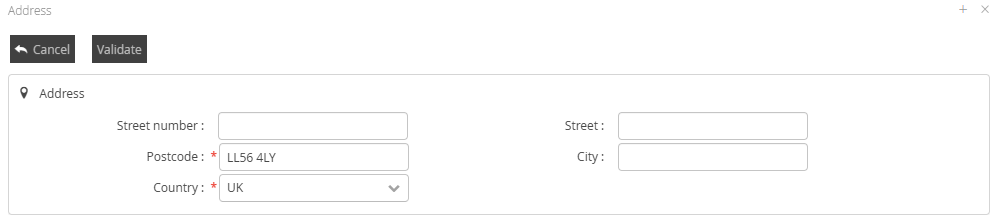
The minimum required data is the Postcode and Country. Once completed, click on the Validate button. This will check DRS's internal mapping engine to confirm a valid postcode and location. If valid, it will return you to the Worker Edit screen.
Adding Sectors To Your Workers
Sectors define where your Operatives will work. Sectors can be defined as Primary and Secondary.
Primary Sectors will always be used when attempting to schedule Jobs which are assigned to Job Templates that are set for Geo-Localised Scheduling.

Secondary Sectors will be used as an option, if they are enabled on the Job Template. Secondary Templates will be used if there is either no availability within Primary Sectors, or where using someone with a Secondary Sector configured produces a more efficient scheduling result.
Sectors are added by clicking on the Pencil icon, to the right of the Sector area you have selected.
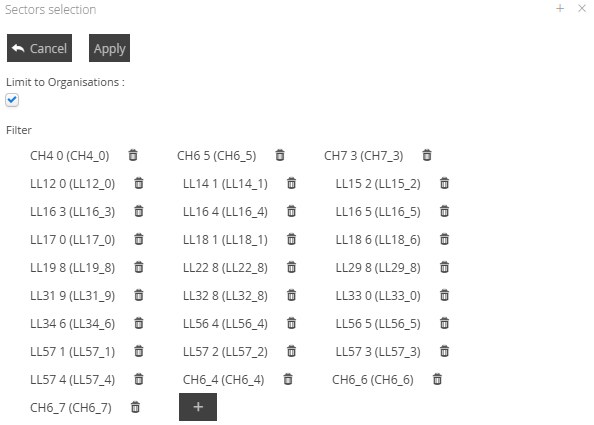
Sectors can be removed by clicking on the Trashcan, or, added by clicking on the + button.
Adding Abilities To Your Workers
The Abilities defined on your Workers define which work they will be allocated by the Scheduling solution. The options each worker will have to configure will be defined by the Worker Template the worker was created with.

Clicking on the Plus button will display a pop-up window to select your values.
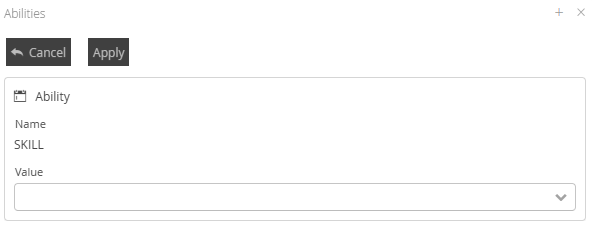
Your experience may change here, depending on the configuration of your Scheduling Solution.
Clicking the - icon, will allow you to remove the chosen ability.

Variabilities
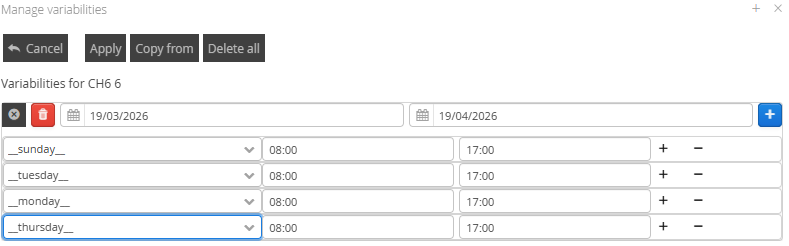
Variability configuration allows you to set time bound scheduling rules on the various Scheduling parameters you have set. By clicking on the Calendar icon on either the Abilities or Sectors, will display the Variability configuration window.
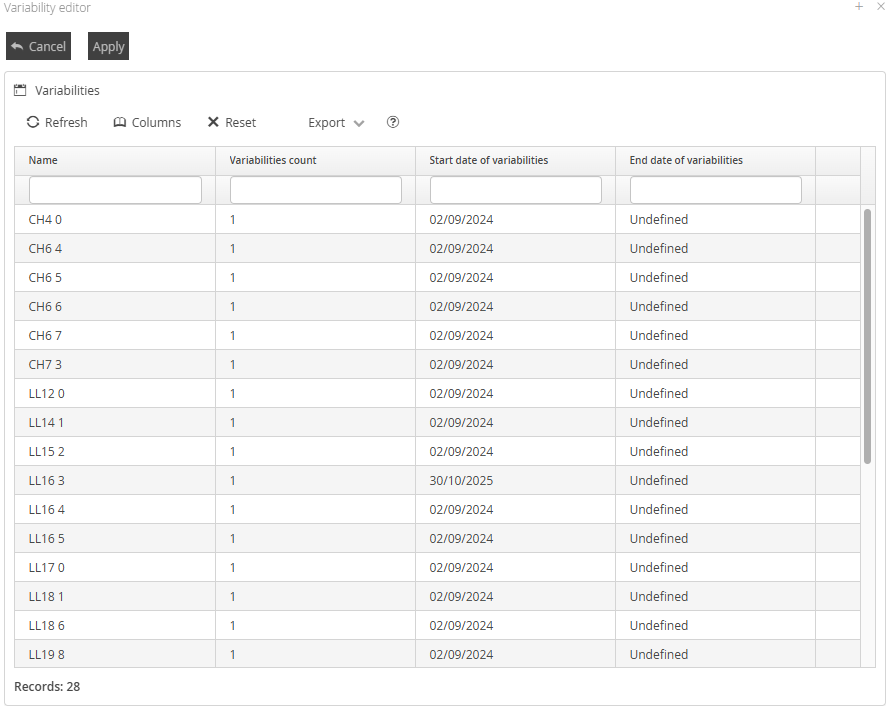
Within this window, you can add, update and remove variabilities. By clicking on any of the available options, you will be presented with a secondary window.

Validity Periods can be added individually, or copied from already configured variabilities.
When clicking Add Validity Period, you will be presented with a window to set the period the variability needs to apply between.
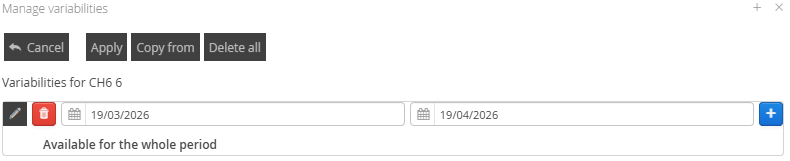
Setting the Start Date period to undefined, or in the past, will automatically impact your current scheduling configuration for all impacted scheduled Jobs. Setting the start period in the future will impact any jobs scheduled after the start period. A window will be displayed warning the user of the impact, giving them an opportunity to manage the scheduling change.
Setting the End Date to undefined will have this variability impact the scheduling rules from the start of the variability until it completes.
Variability Granularity
Variability can also be set to work on specific days/times within the period, rather than impacting the entire period. Clicking the Pencil icon to the left of the period allows the user to set one, or multiple days and or time periods for even finer control of the workers availability.